2 to 5 Circles You Can Drag, Resize, and Recolor
This tool builds a Venn diagram you actually control, not a fixed template. Choose between two and five circles, drag each one wherever you want it, resize it by pulling its handle, and pick its color. Add items as small draggable tags and place them inside whichever circle, or overlap, they belong to, the same way you would sort ideas on a whiteboard.
Setting Up Your Diagram
Start by choosing how many circles you need using the Circles control at the top of the tool: two for a straightforward comparison, three for the classic overlapping-sets diagram, or up to five when you are mapping out more categories at once. Changing the count rebuilds the layout automatically, keeping each circle's label and color but giving every circle a fresh, evenly spaced position so nothing ends up crammed into a corner.
From there, everything is adjustable by hand. Click and drag a circle's body to move it, or drag the small purple handle on its edge to make it bigger or smaller, useful when one set genuinely has more members than the others and you want the diagram to reflect that. Click a circle's label to rename it, and click the color dot in its corner to give it a different fill.
Placing and Editing Items
Press "+ Add item" to drop a new tag onto the diagram, then drag it into the right circle or overlap area. Click directly on an item's text to rename it, and press Enter or click elsewhere to save the change. Each item has a small × for removing it once you are done, so revising a diagram does not mean starting over.
Because items are placed by dragging rather than assigned from a fixed list, the tool does not calculate which region an item officially belongs to. You decide that by where you drop it, which matches how most Venn diagram activities actually work in a classroom: the visual placement is the point, not a formal set-membership rule.
Four and Five Circles
With two or three circles, every overlap region is distinct and clearly readable, which is the layout most people picture when they think of a Venn diagram. Four and five circles cannot show every possible overlap combination without becoming unreadable, a limit of circle-based diagrams generally, not something specific to this tool. What you get instead is a clear visual comparison of several sets at once, arranged so neighboring circles overlap meaningfully, which is what most four- or five-way classroom comparisons actually need.
Saving and Downloading Your Work
Your diagram saves automatically to your browser as you work, so refreshing the page or coming back later will not lose your layout, colors, or items. Use Undo and Redo, or Ctrl+Z and Ctrl+Shift+Z, to step back through recent changes, and Reset if you want to start over completely; it asks for confirmation first, since it clears everything. When you are ready to use the diagram outside the browser, Download as Image saves it as a JPG you can drop into a slideshow, a worksheet, or a printed handout.
For Teachers
Build a comparison on the projector while the class watches, or hand the link to students and have each group fill in their own version. It works well for comparing two characters, historical figures, or scientific processes side by side (two circles), for the classic overlapping-traits exercise like comparing three habitats or three government systems (three circles), or for sorting a longer list of items into several overlapping categories at once, such as grouping vocabulary words by which grammar rules apply to each (four or five circles). Because the diagram saves itself as you go, you can build a partially finished example, leave it, and pick it back up in the next class without losing anything.
A few things it does not do: it will not generate the content of the comparison for you. You still decide what the sets are and what belongs in each one; the tool only handles the drawing, labeling, and layout. It also does not save or sync your diagram anywhere except the browser you built it in, so if you want the same diagram available on the classroom computer and your laptop, download it as an image and share that file, rather than expecting it to follow you between devices.
For Students
Use it for a study guide comparing two topics before a test, for brainstorming where ideas from different sources overlap before writing an essay, or for a group project where each person is responsible for one circle and you build the diagram together on one screen. Because there is no account and nothing to install, it works the same way whether you are on a school computer, a personal laptop, or a tablet, and your work is still there if you close the tab and come back later on the same device and browser.
What it will not do is check your answers or tell you whether something belongs in the overlap or not; that judgment is the actual assignment, and the tool just gives you a clean way to show it. It also will not remember your diagram if you clear your browser data, switch to a different browser, or open the page in a private/incognito window, so download an image copy of anything you need to keep past that session.
Related use cases
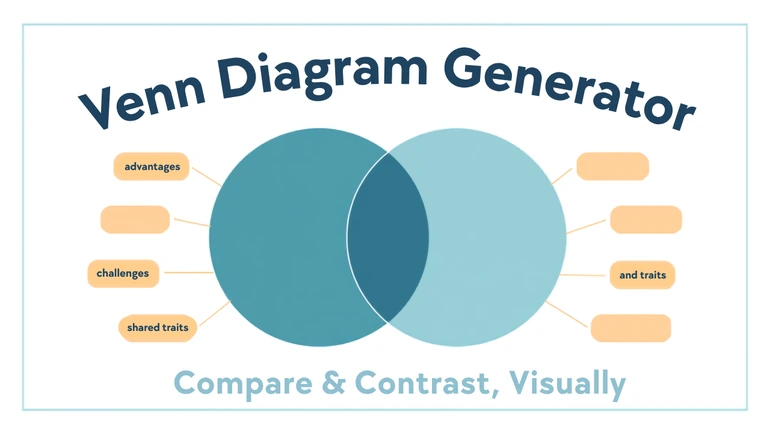
Venn Diagram Generator for Compare-and-Contrast Assignments
A classroom use case for using a Venn diagram to prewrite compare-and-contrast essays, teach science classification, run live class brainstorms, and review related concepts before a test.
Read use case