Turn any text or document into quick summaries, study notes, bullet points, flashcards, or a mind map outline
AI Summarizer For Students: Turn Long Text Into Study-Ready Notes
The Student AI Summarizer turns a long reading — a textbook chapter, an article, lecture notes, a multi-page handout — into a shorter version shaped for how you actually plan to use it: a quick overview, structured study notes, bullet points, flashcards, or a mind map. Paste text or upload a document, choose a format, length, and student level, and the tool generates a summary in seconds instead of the minutes or hours it takes to read and condense the material yourself.
The summary is generated by a small AI model that runs on our own server, not a third-party AI service — nothing you paste or upload leaves ClassTools24's infrastructure to reach an outside AI provider.
How It Works
Paste text directly, or upload a TXT, DOCX, DOC, RTF, ODT, or PDF file up to 15MB. The tool reads the text — extracting it from the document first if you uploaded one — then generates a summary shaped by three settings: the output format, the summary length, and the student level. Input is limited to about 8,000 characters (roughly 1,500–2,000 words) after extraction; a longer document is rejected with a message asking you to shorten it or paste just the section you need, rather than being silently cut off partway through.
The model is instructed to work only from what you provide — not to introduce outside facts or opinions — and to treat your text purely as material to summarize, even if it happens to contain something that reads like an instruction. That keeps the summary grounded in your actual source text rather than the model's general knowledge, which is what a study summary needs to be useful.
Choosing A Format, Length, And Level
- Quick Summary — a short paragraph covering the main idea, useful before class or when you just need the gist fast.
- Study Notes — a structured breakdown: a short summary, key concepts, important terms, and sample exam questions, closer to the notes a student would write by hand.
- Bullet Points — a scannable list for a quick review pass.
- Flashcards — question-and-answer pairs pulled from the text, ready for active recall practice.
- Mind Map — a nested outline of one main topic with branches and sub-points, for anyone who thinks better in connections than in flat prose.
Length runs from short (the essentials only) to detailed (each point explained), which also changes how much the tool generates — a short summary is not just a trimmed detailed one, it is generated at that scope from the start. Student level — School, College, or Professional — changes the language and how much subject-specific vocabulary is kept, not which facts are included.
What To Check Before You Rely On A Summary
This tool asks the model to follow a specific structure for each format and to stick strictly to what your text says — but nothing after the model generates its response checks that it actually did either of those things. There is no fact-check against your source text and no verification that every section a format promises is present. In practice, that means two things worth knowing before you use the output for anything graded:
- A detail can be dropped or stated imprecisely. Especially in longer or denser source text, the summary can miss a nuance, compress two related points into one in a way that loses a distinction that mattered, or state something slightly differently from how your source text said it. This is more likely the further the source text is from a straightforward, single-topic passage.
- A requested section can come out short or missing. Study Notes asks for a summary, key concepts, terms, benefits, challenges, and exam questions every time, but the model can occasionally skip or thin out one of those sections, particularly on very short or unusual source text.
Treat every summary as a strong first draft, not a finished study resource: read it against the original before using it to prepare for an exam, cite it in an assignment, or hand it to students as a study aid. This matters more here than it would for a straightforward file conversion, because what's being generated is new text, not a reformatted copy of what you gave it.
Two other real limits: a scanned or photographed PDF with no actual text layer will not produce a summary — the tool needs selectable text to read, so run it through Image To Text first and paste the result in. And this tool processes one document or one pasted passage per request; for several separate readings, run each one through individually.
When This Is The Right Tool
Both students and teachers get real use out of this, in different ways. A student the night before an exam can paste a dense chapter, choose Study Notes at College level, and get key concepts, terms, and practice questions to review instead of re-reading the whole thing from scratch — then check that against the original before trusting it for exam prep. A teacher assigning a long article can generate a Quick Summary to judge whether it fits the available lesson time, or produce Bullet Points to hand out as a revision aid alongside the source text, reviewing the output the same way before it reaches students.
It also pairs naturally with other tools on this site: run the same text through Vocabulary Extractor to pull out the specific terms the passage depends on, or check Reading Time Calculator first to decide whether reading the full passage or starting from the summary makes more sense given the time available.
How To Use The Tool
- Paste your text, or upload a TXT, DOCX, DOC, RTF, ODT, or PDF file (up to 15MB).
- Choose an output format: Quick Summary, Study Notes, Bullet Points, Flashcards, or Mind Map.
- Set the summary length and choose a student level.
- Click Generate Summary.
- Read the result against your source text before using it, then copy it into your notes or assignment.
Privacy
Pasted text and uploaded files are processed only to generate the summary you requested and are not used to train any model. Uploaded files are automatically deleted within 2 hours of creation, in line with this site's file-retention policy. Generation itself runs on a model hosted on our own server, so nothing you submit is sent to a third-party AI service. As with any tool that handles student material, avoid pasting information that identifies a specific student, such as a full name alongside grades or health details.
FAQs
Is the AI-generated summary always accurate?
Not guaranteed to be. It's generated by an AI model working only from the text you provide, but nothing checks the output against your source afterward, so a detail can occasionally be dropped, compressed in a way that loses meaning, or stated slightly differently than the original. Always read the summary against the source text before using it for an exam, an assignment, or anything that will be graded.
How long can the text I paste or upload be?
About 8,000 characters after extraction, roughly 1,500–2,000 words. Longer text is rejected with a message asking you to shorten it rather than being cut off silently — split a long chapter into sections and summarize each one if you hit the limit.
Why didn't my PDF produce a summary?
The most common cause is a scanned or photographed PDF with no selectable text layer — the tool needs real text to read, not an image of text. Run it through Image To Text first, then paste the extracted text here.
Is my text or file stored anywhere?
No. Text and files are used only to generate the summary; uploaded files are deleted within 2 hours, and pasted text and the generated summary itself are not saved.
Does this tool have a lower daily limit than other tools on the site?
Yes. Because each summary is a real AI generation rather than a quick file conversion, this tool and the other AI-generated tools on ClassTools24 have a lower daily usage allowance than the document-conversion tools, with a higher allowance for signed-in accounts than for guests.
Can I use this for a whole book or a long report?
Not in one pass — the input limit is about 8,000 characters. Summarize it section by section instead, which also tends to produce a more focused, accurate result than trying to compress a very long, multi-topic document in one request.
Related use cases
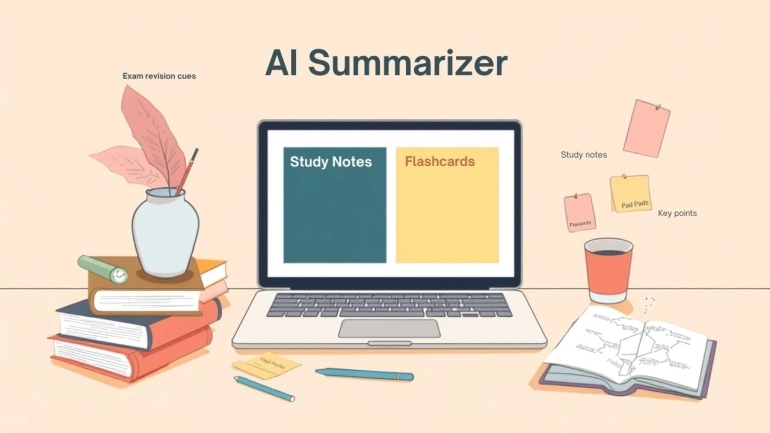
Student AI Summarizer for Study Notes and Revision
Use Student AI Summarizer to turn long articles, chapters, handouts, and documents into study notes, flashcards, bullet points, and mind maps.
Read use case


