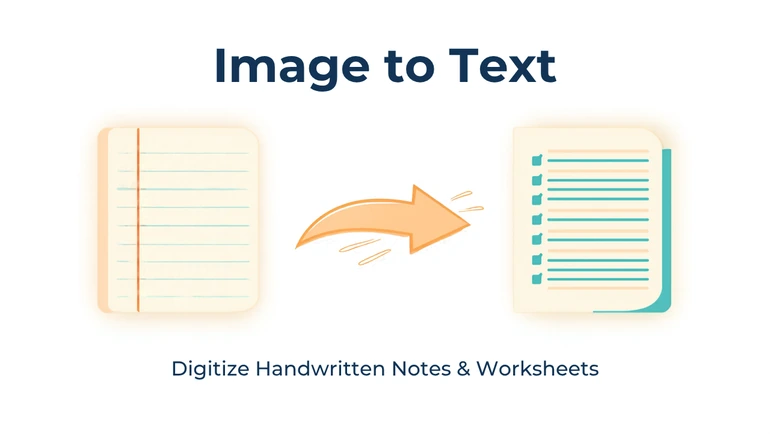
For classroom material that only exists on paper or a whiteboard — a realistic look at what a text extractor can turn into usable digital text, and what it can't.
Material That Never Existed As A File
Some classroom material was never digital to begin with. A worksheet that's been photocopied and reused for years, with no original document anywhere. A diagram or set of steps written on a whiteboard, gone the moment it's erased. A handout from a previous teacher, inherited as a stack of paper. In every case, the only way to get that content into a form that can be edited, searched, or read by something other than a human eye is to start from a photo of it.
An Image to Text Converter reads a photo or scan and returns whatever text it can recognize, as plain, editable text. That's genuinely useful for paper-only material — but only if expectations about what it can reliably read are accurate, especially where handwriting is involved.
What This Tool Can Actually Read
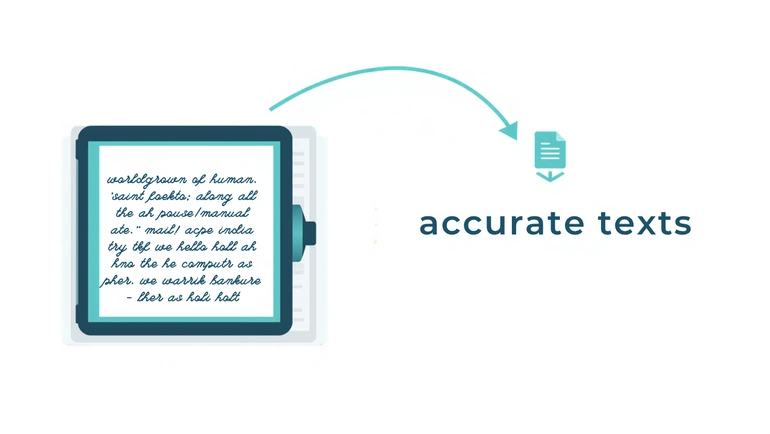
This is a text-recognition engine built for printed and typed characters, not a handwriting specialist, and it currently reads English only — text in another language, or a page mixing languages, won't come out reliably even if the recognition looks superficially plausible. It also doesn't straighten, brighten, or clean up an image before reading it. A photo taken at an angle, in dim light, or with a shadow across part of the page goes into recognition exactly as captured, with no correction pass first — so a less-than-ideal photo of already-difficult material compounds two problems at once rather than one.
For printed or typed text — a photocopied worksheet, a textbook page, a whiteboard written in clear block letters with a marker — that's rarely an issue as long as the photo itself is decent. For genuine handwriting, results are inconsistent: large, separated block printing has a real chance of coming through mostly correct, while joined cursive, fast note-taking, or a personal shorthand-heavy hand often doesn't extract cleanly at all. The honest way to use this on handwritten material is as a rough first pass to correct against the original, not as a transcription to trust on its own — for a short handwritten note, typing it out by hand may end up faster than fixing what comes back.
Why Digitizing Paper-Only Material Is Worth Doing
Once printed or typed content is converted into plain text, it can do things a photo of the same page never can. It can be read aloud by screen-reading or text-to-speech software, which has no way to interpret an image. It can be resized, restyled, or set in a higher-contrast or more legible font for a student who needs that, where a photo is stuck at whatever size and clarity it was captured at. It can be run through a translation tool directly, and it can be searched — a single keyword search across a term's worth of digitized handouts is something a folder of photos simply can't offer.
That's the real case for digitizing an old paper worksheet or a whiteboard photo beyond just "having a backup": it turns something only usable by looking at it into something usable by a wider range of tools and a wider range of students.
A Workflow For Paper-Only Material
- Photograph one page at a time. The tool processes a single image per upload, so a multi-page worksheet needs a separate photo — and separate extraction — for each page.
- Flatten the page and shoot it straight-on, in good light. Since nothing corrects the image afterward, getting this right before uploading matters more here than it would with a tool that does its own cleanup.
- Extract and read the result against the original, line by line if the material is handwritten, more quickly if it's clearly printed or typed.
- Decide what's actually worth keeping digitized. A worksheet reused every year is worth the correction time; a one-off note usually isn't.
- Store the corrected text, not just the photo, once it's been checked — that's the version that's actually searchable, editable, and usable by assistive tools going forward.
The difference in practice: a clearly printed worksheet line reading "Circle the noun in each sentence" extracts as exactly that, word for word. The same instruction handwritten in cursive might come back as something like "Circle the noan in each sentnce" — close enough to recognize what it was meant to say, wrong enough that it shouldn't be pasted into a digital worksheet without checking it against the original first.
Privacy When Digitizing Older Material
Paper worksheets that have been in circulation for a while sometimes carry more than the printed content — a previous student's name filled into an example blank, a handwritten comment in the margin, a grade someone jotted down. Check a photo for anything like that before uploading it, the same way you would for any other file-upload tool. Uploaded images are processed only to extract text and are automatically deleted on the schedule described in the site's Privacy Policy — see the Privacy page for current details.
FAQ
Does this work in languages other than English?
No. Text recognition currently runs in English only, so a worksheet or note written in another language, or one that mixes languages, won't extract reliably even if some of it appears to come through.
Can it reliably read cursive handwriting?
Not reliably, no. Large, clearly separated block printing has a reasonable chance of extracting mostly correctly; joined cursive, rushed handwriting, or an unusual personal style frequently doesn't. Treat any handwritten result as a draft to check against the original, not a finished transcription.
What about a worksheet with multiple pages, or printed on both sides?
Each page needs its own photo and its own extraction — the tool reads one image per upload, so a two-page or double-sided worksheet means two separate uploads.
Will boxes, blanks, or diagrams on the worksheet come through in the output?
No — the result is plain text only. Layout elements like answer boxes, underlines, or diagrams aren't preserved and would need to be rebuilt separately if the digitized version needs to look like a usable worksheet again rather than just readable text.
Does the extracted text get read aloud automatically?
No. The tool produces plain text; turning that into speech is done with whatever screen reader or text-to-speech tool the student already uses; the benefit here is simply that plain text is something those tools can work with, where an image isn't.
Final Thought
A worksheet or a whiteboard photo with no digital original isn't lost information, but it is locked in a format most tools can't do anything with. Getting the printed or typed parts of it into plain text — honestly, with handwriting treated as a draft rather than a guarantee — is what makes that material searchable, editable, and usable by the students and tools that need actual text rather than a picture of it.
 This article is about
Image to Text Converter
Open the tool