Create a printable answer sheet for 1 to 200 questions in A-D, A-E, or True/False format, with circular-bubble or square-box marking, an optional Student ID grid, and a matching teacher answer key.
Answer Sheet Generator: A Printable Bubble Sheet Maker for Teachers
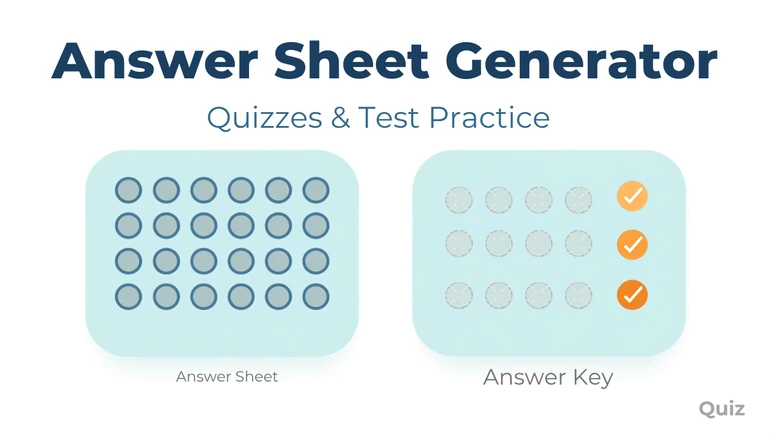
The Answer Sheet Generator builds a printable answer sheet for any quiz, test, or exam — from 1 up to 200 questions, in A–D, A–E, or True/False format. Choose circular bubbles or square boxes for marking, add an optional Student ID grid and a short custom instruction line, and download a print-ready PDF in seconds. A teacher-fillable answer key is generated alongside it, and nothing is ever guessed on your behalf: if you don't supply an answer for a question, that question prints blank on the key rather than showing a made-up answer.
Why A Dedicated Answer Sheet Tool
A separate answer sheet speeds up marking and lets the same test booklet be reused across classes or years, but building one by hand in a word processor means manually aligning bubbles, keeping spacing consistent across dozens of rows, and redoing the layout every time the question count or format changes. This tool generates the whole grid instantly from just a question count and a format, so the common case — say, 25 questions in A–D format — takes seconds from setup to download.
What You Can Configure
The tool opens on a working sheet rather than an empty form: 25 questions, A–D format, circular bubbles, a total score line, A4 portrait, standard spacing. Everything below is a change to that starting point, so a straightforward class quiz often needs nothing changed but the question count before it is ready to download.
- Question count and format — 1 to 200 questions, in A–D, A–E, or True/False.
- Marking style — circular bubbles or square boxes, applied consistently across every answer choice and the Student ID grid.
- Header — Name, Class/Section, and Date are always included, with an optional total score line.
- Student ID grid — an optional digit-bubbling grid with a configurable ID length (5, 6, 8, or 10 digits), off by default.
- Custom instructions — a short note (up to 50 characters), such as "Use a No. 2 pencil only," printed just below the header.
- Multiple versions — optionally generate Version B and/or Version C alongside Version A. The printed grid is identical on every version, because an answer sheet carries no question content of its own to reorder. What differs is the key: on B and C the answers are permuted, so the same bubble row belongs to a different question than it does on A. The matching reordering has to happen in the question booklet you hand out.
- Layout — A4 or Letter paper, portrait or landscape orientation, standard or compact spacing, and an optional 2-sheets-per-page layout with a cutting guide for shorter answer sheets.
The Answer Key
You can optionally tap in the correct answer for any question directly in the builder. The downloaded PDF then includes a matching teacher answer key as its final page(s), showing only the answers you actually supplied. If a question is left blank, its key entry prints blank too — the tool never fabricates a correct answer. When multiple versions are generated, each version's key correctly reflects that version's own answer mapping, so the printed sheet and its key always match.
The key is something you fill in, not something the tool works out, since it lays out the sheet and has no knowledge of what the questions ask. If the quiz itself is still being written, the Question Generator can draft the questions from a passage or topic, and whatever answers you settle on there are what you would enter here.
Built For Real Classroom Printing
Large question counts automatically flow across multiple pages rather than overlapping or getting cut off, and the layout is high-contrast black-and-white with no decorative backgrounds, keeping printing cheap for a full class set. Bubble and box sizing stays consistent and print-safe across every question and the Student ID grid, in both spacing modes.
Page breaks are decided before the sheet is drawn rather than left to the printer to sort out, so a long grid divides at a clean row boundary instead of stranding the tail of one column on the following page. A 200-question sheet runs across as many pages as it needs, and every page keeps the same bubble sizing, column widths and margins as the first one.
Paper size and orientation do not behave the same way, which is worth knowing if you proof on one setting and print on another. Moving between A4 and Letter does not reflow anything, because both are laid out to the same conservative capacity, so the rows fall in the same places on either size. Orientation genuinely changes the shape of the sheet: landscape widens the working area and fits more answer columns side by side, while portrait runs the grid further down the page. Compact spacing tightens the rows to get more questions onto each sheet, and standard spacing leaves more room for a blunt pencil and for students who mark heavily.
The two-sheets-per-page option prints the same sheet twice on one page with a cutting guide between the copies, which halves the paper for a short quiz. It applies only when the questions genuinely fit within half a page; when they don't, the tool prints one sheet per page instead and says so, naming the spacing as the reason. That message is the useful part: switching from standard to compact spacing is often enough to bring a borderline sheet back inside the limit.
How To Use The Tool
- Enter the number of questions and choose an answer format.
- Optionally turn on the Student ID grid, add a short instruction line, and choose a marking style.
- Optionally enable extra versions, and set your paper size, orientation, spacing, and 2-per-page preference.
- Optionally fill in an answer key for any questions you want marked in the downloaded key.
- Click Download PDF.
Limitations To Keep In Mind
This tool generates the answer sheet layout only — it does not write questions, grade submissions, or manage student accounts, and there is no online submission mode. Multiple versions change the answer key mapping shown on each sheet, not the printed bubble grid itself, since an answer sheet has no question content of its own to reorder; the corresponding test booklet is what would need to present questions in a matching order per version. If you're building a full question paper with mixed question types rather than a standalone answer sheet, the Assessment Worksheet Generator may be a better fit.
Privacy
The details you enter are used only to generate the PDF you request. Generated PDF files are automatically deleted within 2 hours of creation, so download your file promptly after generating it.
Final Thought
An answer sheet is a small, repetitive thing to lay out by hand, and it's easy to lose consistency across question counts, formats, and print settings when doing it manually. The Answer Sheet Generator handles the grid, the Student ID bubbling, and the matching answer key automatically, so the only decision left is how many questions you need.
Related use cases
Answer Sheet Generator for Quizzes and Test Practice
A classroom use case for building bubble-sheet test practice, scrambled-version exams to prevent copying, reusable weekly quiz sheets, and substitute-ready quizzes with a matching answer key...
Read use case