Create QR codes for classroom links, study resources, projects, events, and printed materials
A teacher prints a worksheet containing a long web address, but several students type it incorrectly. One leaves out a hyphen, another confuses a lowercase letter with a number, and a third reaches an unrelated page after missing part of the address. By the time everyone opens the correct resource, several minutes of the lesson have disappeared.
A QR code can remove that typing problem. Instead of copying a complicated address character by character, students scan a square code with a phone or tablet and open the linked resource. The same approach can connect a printed poster to a video, a library display to a book list, a science station to instructions, or a student portfolio to an online project.
The QR Code Generator is useful when information must move from paper or a classroom display to a digital device. It does not improve the destination itself, so the teacher or student must still check that the link is correct, suitable, accessible, and safe to share.
This guide explains how to create and test QR codes, where they are genuinely helpful, which mistakes cause scanning problems, and how students and teachers can use them responsibly.
What a QR Code Does
A QR code stores information in a pattern that a compatible camera or scanning application can read. Most classroom QR codes contain a web address, but a code can also contain plain text or another supported type of information.
When the code contains a website address, scanning it normally displays or opens that address. The QR code is therefore a shortcut to the destination. It does not copy the website, protect the page, verify its accuracy, or guarantee that the page will remain available.
This distinction matters in school projects. If a student creates a QR code for a presentation stored in a restricted account, other people may scan the code successfully but still see an access-denied message. The code worked; the sharing permission did not.
How to Create a QR Code
- Prepare the destination. Open the page, document, form, video, or resource that people should reach.
- Copy the exact address. Copy it from the browser rather than typing it again. An extra space or missing character can create the wrong destination.
- Check sharing permissions. If the link points to a cloud document, confirm whether the intended audience can view it without requesting access.
- Paste the address into the QR Code Generator. Review the complete address before generating the code.
- Create the QR code. Allow the tool to build the scannable image from the supplied information.
- Download the image. Save it with a descriptive filename, such as
science-water-cycle-video-qr.png. - Scan the downloaded version. Do not rely only on the preview shown inside the tool.
- Test the destination. Confirm that it opens the intended resource and that no login or permission problem blocks the audience.
- Place it in the final design. Add the code to the worksheet, poster, slide, card, newsletter, or display.
- Test the final printed or displayed version. Size, contrast, glare, and image quality can change after the code is inserted into another document.
How This Fits Into a Real Workflow
A reliable QR-code workflow begins before the code is generated. First, finish the resource or destination page. Opening a half-completed document to create its code can lead to confusion when the file is later moved, renamed, deleted, or restricted.
Second, decide who will scan the code. A classroom of signed-in students may be able to open a school document that parents or visitors cannot access. Test with an account similar to the intended user rather than only with the resource owner's account.
Third, generate the code and save an original copy. If the downloaded image is unnecessarily large for a worksheet, use the Image Resizer to prepare a suitable copy. Avoid making it extremely small, because reducing dimensions too far can damage scan reliability.
Fourth, insert the code into the final material. Keep enough blank space around it and place it on a simple background. After exporting a worksheet or poster, open the final file and scan the code from that version.
Finally, provide a written alternative. A short, readable web address or clear resource title helps students who cannot scan the code. It also tells users where the code is expected to lead.
Real Classroom Use Cases
1. Linking Worksheets to Explanations
A mathematics teacher prepares a worksheet on solving equations. Some students may need to see one worked example again while completing independent practice.
The teacher records or selects a short explanation, checks that it matches the classroom method, and creates a QR code for the resource. The code is placed beside the relevant section rather than at the top of an unrelated page.
Students who need support can scan the code without interrupting the rest of the class. The teacher still reviews student work because watching an explanation does not prove that the learner can solve the problem independently.
2. Creating Learning Stations
A science teacher sets up stations about forces. One station includes an experiment, another contains a diagram, and a third uses a short digital simulation.
Each station card contains one tested QR code and a written instruction. Students scan the code, complete a defined task, and record evidence on a response sheet.
This arrangement keeps the digital resource connected to a physical activity. It also prevents students from searching through the learning platform for the correct page at every station.
3. Sharing Student Portfolios
A student creates a digital portfolio containing artwork, writing samples, photographs, or beginner coding projects. During a school exhibition, visitors need an easy way to view the collection.
The student creates a QR code for the published portfolio and adds it to a display card. Before printing, the student checks the portfolio for full names, contact details, private feedback, school records, and images of people who have not agreed to publication.
Visitors can move from the physical display to the digital work, while the student practices presentation, file organization, and responsible publishing.
4. Providing Library Recommendations
A school librarian creates a display about historical fiction. The available physical space is too small for detailed reviews, reading lists, and related resources.
A QR code beside the display connects readers to a carefully prepared book list. A short label states what users will find after scanning, such as “Open the historical fiction reading list.”
Students can explore additional titles without crowding the display with text. The librarian can update the online list without reprinting every book description, provided the destination address remains unchanged.
5. Collecting Exit Tickets
A teacher wants students to answer two short questions before leaving class. Writing a long form address on the board takes time and increases typing mistakes.
The teacher creates a QR code for the form and displays it near the classroom exit. Students scan it, submit their responses, and show the confirmation screen if required.
The teacher should provide a paper alternative for students without a suitable device. The form should collect only information needed for the activity.
6. Supporting School Events
A school event poster may need to share a schedule, registration page, map, or list of required materials. Printing every detail can make the poster crowded and difficult to read.
A QR code can direct families to the full information page. The poster should still include essential details such as the event name, date, location, and a written contact method.
Before distributing the poster, organizers should test the code from a printed sample and confirm that the destination works without a staff-only login.
7. Connecting Presentations to Sources
A student presentation may refer to a dataset, research report, demonstration, or project website that cannot fit neatly on a slide.
The student adds a QR code to the final slide and includes a short label describing the destination. The normal citation remains in the presentation because a QR code is not a substitute for identifying a source.
Classmates can open the supporting material after the presentation without trying to copy a long address from the screen.
8. Creating Self-Guided School Tours
A history club creates a tour of important locations around the school. Each location has a small sign containing a description and a QR code.
The code opens an audio explanation, historic photograph, interview, or student-created page. Each destination is reviewed for accuracy and permissions before publication.
Visitors can explore at their own pace, while students learn research, writing, media preparation, and audience testing.
Using QR Codes in Student Projects
Students should not add a QR code merely as decoration. The code needs a clear purpose and should lead to material that strengthens the project.
A useful student workflow is:
- Identify information that cannot fit comfortably in the physical project.
- Create or select a suitable digital resource.
- Check its accuracy, ownership, and sharing permission.
- Generate and download the QR code.
- Add a label explaining the destination.
- Scan the code from the final project.
- Ask another person to test it independently.
A QR code on a geography poster might open an interactive map. A code on an art display could lead to a time-lapse video showing the creation process. A code on a book report could open a student-recorded review, provided the recording is approved for the intended audience.
Comparison Table
| Classroom Task | Using a QR Code | Without a QR Code | Important Check |
|---|---|---|---|
| Opening a long resource link | Students scan the code | Students type the address manually | Confirm the code opens the exact page |
| Sharing a digital portfolio | Visitors scan from a display card | The student writes or reads out the address | Review privacy and public permissions |
| Accessing a classroom form | Students move directly to the form | Students search the platform or copy a link | Provide a non-scanning alternative |
| Adding sources to a presentation | A code opens supporting material | A long URL occupies the slide | Keep a normal source citation as well |
| Creating learning stations | Each station opens its own resource | Students navigate through several menus | Label every destination clearly |
| Sharing event information | The code opens the current details page | Every detail must fit on the poster | Print essential information on the poster |
Related use cases
Interactive Learning Stations, Exam Revision & School Events Communication
Learn how QR codes improve interactive learning stations, exam revision, and school event communication with practical classroom and school use cases.
Read use case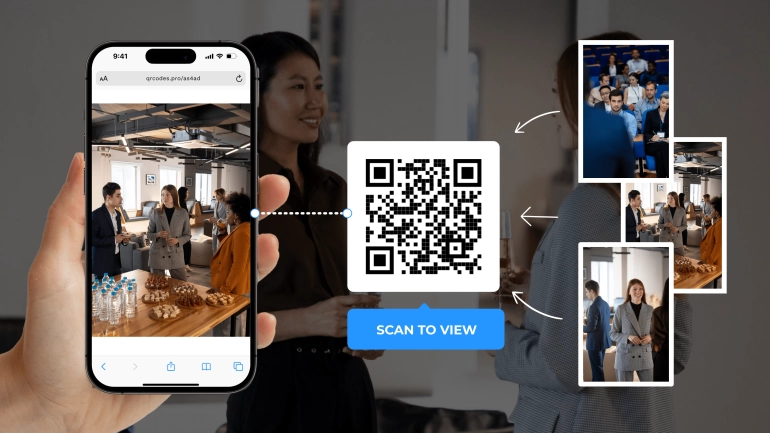
Interactive Learning Stations With QR Codes
Use QR codes to build organized interactive learning stations where students can scan, move, watch, read, answer, discuss, and complete classroom tasks with less confusion and better lesson ...
Read use caseHow to Make a QR Code Easier to Scan
Use strong contrast between the code and its background. A dark code on a plain light background is usually easier to scan than pale colors, textured paper, or a photograph behind the code.
Leave clear space around the outside of the code. Text, borders, logos, and decorative shapes placed too close to the squares can interfere with recognition.
Do not stretch the image unevenly. Changing only its width or height may distort the pattern. Resize proportionally and scan the result after every major design change.
Avoid placing a small code at the bottom of a large classroom screen. Students at the back may not be able to scan it. For projected codes, test from different positions in the room.
Printed materials can introduce other problems. Glossy lamination may create glare, folded paper may cross the pattern, and a low-quality printer may blur small squares. Print one sample before producing a full set.
Common Problems This Solves
- Students mistype long or complicated web addresses.
- A worksheet needs to connect to a video or audio explanation.
- A poster has insufficient room for detailed online information.
- Visitors need quick access to a student portfolio or event page.
- A learning station needs a direct route to one digital activity.
- A presentation needs to share supporting material without displaying a large URL.
- A library display needs to connect readers with a longer book list.
- A printed guide needs to link to material that can be updated online.
Common QR Code Mistakes
Generating the Code Before Checking the Link
A typing error in the original address becomes part of the code. Always open the destination first and copy its address directly.
Testing Only on the Creator's Device
The owner may already be signed in and authorized to open the file. Test with another device or account that represents the intended audience.
Making the Code Too Small
A code may scan correctly on screen but fail after being reduced and printed. Test the final physical size.
Placing the Code on a Busy Background
Patterns, photographs, weak contrast, and nearby design elements can make scanning unreliable. Place the code on a clean area with visible space around it.
Providing No Destination Label
People should know whether a code opens a form, video, document, map, or website before scanning. A short label builds trust and provides context.
Forgetting the Written Alternative
Not every learner can or should scan a code. Include a short address, resource title, classroom platform location, or another access method.
Assuming the Destination Will Last Forever
A QR code may remain printed after its destination is deleted or moved. Review codes used on permanent displays and long-term resources.
Privacy and Safety
A QR code does not remove private information from its destination. If the linked document contains student names, faces, grades, login details, teacher comments, or school records, those details remain present after the code is created.
Before sharing a code publicly, open the destination and review it from the perspective of an unknown visitor. Check every page, attachment, comment, filename, and visible account name. Confirm that publication is allowed.
Teachers should avoid using a public QR code for confidential forms or restricted documents. A code printed on a hallway poster can be scanned by anyone who sees it.
Students should also be cautious when scanning unfamiliar codes. A code can point to an unexpected or unsafe website. Check the displayed address before opening it, especially when the code has no label or appears in an untrusted location.
Quality and Trust Checklist
- Does the code contain the correct information?
- Does the destination open on more than one device?
- Can the intended audience access it?
- Is the linked content accurate and suitable?
- Is the code large enough for its viewing distance?
- Does it have strong contrast and clear surrounding space?
- Is there a short label describing the destination?
- Is another access method available?
- Has private information been removed?
- Was the final printed, projected, or exported version tested?
Related Tools for Preparing QR Code Resources
A teacher creating a worksheet can use the Word to PDF tool to prepare a stable version after inserting and testing the code. The exported PDF should be scanned again because conversion can alter image size or quality.
Students creating project graphics may use the Image Cropper to remove unnecessary areas from supporting images. The Image Compressor can reduce oversized images before they are uploaded to the destination page.
If several photographed pages need to be shared as one document, JPG to PDF or PNG to PDF can prepare the file before its link is added to a QR code. Always check page order and readability.
The Word Counter can help students prepare a concise description for the label beside a code. A label should explain the destination without turning into another full paragraph.
Frequently Asked Questions
Can students use the QR Code Generator for school projects?
Yes. Students can link posters, displays, portfolios, presentations, and reports to supporting digital material. They should test the destination and remove private information before sharing it.
Can teachers place QR codes on worksheets?
Yes. A worksheet code can open an explanation, example, audio recording, simulation, reference page, or extension activity. A written access alternative should also be provided.
Why does my QR code scan on screen but not on paper?
The printed code may be too small, blurred, distorted, placed on a busy background, or affected by weak contrast and glare. Test a printed sample at its actual size.
Does a QR code expire?
The image itself does not normally expire, but the linked page can be moved, deleted, restricted, or changed. Long-term classroom codes should be checked regularly.
Can a QR code make a private document public?
The code does not change document permissions. However, publishing a code can distribute the document's address widely. Review both access settings and document contents before sharing it.
What size should a classroom QR code be?
The correct size depends on scanning distance, print quality, and the complexity of the stored information. Make it large enough for the intended location and test the final version from realistic distances.
Should I include the normal web address beside the code?
Yes, when space allows. A readable address or clear resource location helps people who cannot scan the code and provides a backup if scanning fails.
Can I add a QR code to a PDF?
Yes. Insert the downloaded code image into the source document, export it to PDF, and scan the code from the final PDF or a printed sample.
Can a QR code contain plain text instead of a website?
QR codes can store several types of information, including plain text. The available options depend on the generator. Review what appears after scanning before distributing the code.
Is every QR code safe to scan?
No. An unfamiliar code may lead to an unexpected website. Check the destination address shown by the device before opening it, particularly when the code has no explanation.
Final Thoughts
A QR code is most useful when it removes a real access problem. It can save students from typing a long address, connect a printed resource with digital support, and make classroom displays more interactive. Its value comes from the planning around it, not from the square image alone.
Prepare the destination first, check permissions, generate the code, label it clearly, and test the final version. Provide another access method and review the linked material for student names, faces, login details, school documents, and other private information.
A carefully tested QR code can save lesson time and reduce frustration. An untested code can lead an entire class to the wrong page. Treat scanning, accessibility, privacy, and destination quality as part of the creation process.


