
How to check what a QR code actually contains before opening it, and how teachers use QR readers for classroom activities.
When A QR Code Shows Up And There Is No App Ready
A student finds a QR code on a classroom station card and their phone camera does not recognize it. A teacher receives a printed flyer with a code linking to event details but is unsure whether it is safe to scan. A school office needs to check what a code on a delivered package actually points to before anyone scans it on a work device. In each situation, the real need is the same: read what a QR code contains, quickly and without guesswork.
The QR Code Reader decodes a QR code from an uploaded image or a photo, showing exactly what text or link it contains before anyone has to visit it blind. That single step, seeing the destination before opening it, is the difference between a convenient shortcut and an unnecessary risk.
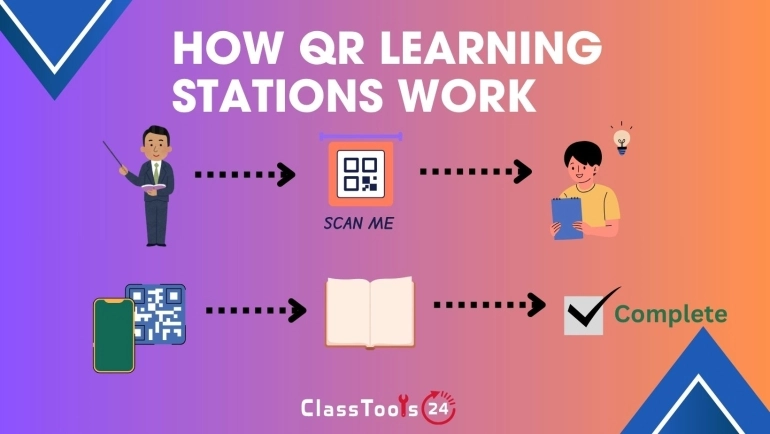
How QR Code Reading Actually Works
A QR code is a pattern of black and white squares that encodes text. A scanner does not "connect" to anything on its own; it reads the pattern and decodes it back into the original text, most commonly a web link. What happens next, whether a browser opens automatically or the text is simply displayed, depends on the scanner and the device settings.
This is a useful distinction for classroom digital literacy: scanning a code is not inherently risky by itself. The risk comes from automatically trusting and opening whatever the code decodes to, without checking it first. A reader that shows the decoded content before opening it gives students and staff a chance to think before clicking.
Use Case 1: Checking a Code Before Opening It on a School Device
Situation: A staff member receives a QR code on a printed notice or physical item from an unfamiliar source.
Problem: Scanning it with a phone camera that auto-opens links means visiting the destination before knowing what it is, which is not ideal on a device connected to school accounts or networks.
Solution: The staff member uploads a photo of the code to the QR Code Reader, which decodes the content and displays the link or text without automatically opening it.
Result: The destination can be reviewed first, and a decision can be made about whether it is safe or relevant to visit.
Use Case 2: Running a Classroom Scavenger Hunt or Review Activity
Situation: A teacher hides or places printed QR codes around the room, each linking to a clue, question, or short task, as a revision or team activity.
Problem: Not every student has a phone with a reliable built-in scanner, and results need to be checked consistently by the teacher across every station.
Solution: Students or the teacher use the QR Code Reader to decode each code by uploading a captured photo, ensuring every group can read the codes the same way regardless of device.
Result: The activity runs smoothly across different devices, and the teacher can also verify each code decodes to the correct content before the lesson starts.
Use Case 3: Verifying a Code on Printed Materials Before Distribution
Situation: A teacher or office prepares a flyer, worksheet, or badge containing a QR code created earlier or supplied by someone else.
Problem: If the code was mistyped, damaged in printing, or generated with the wrong link, distributing it means students or parents reach the wrong page, or nothing at all.
Solution: Before printing multiple copies, the code is decoded with the reader to confirm it matches the intended link exactly.
Result: Errors are caught before distribution rather than after parents or students report a broken or incorrect link.
Reading From an Image vs. Scanning Live
| Method | Best for | Consideration |
|---|---|---|
| Live camera scan | Quick personal use when the destination is already trusted | May open the link automatically depending on the device |
| Upload a photo to a reader | Checking an unfamiliar code before visiting it, or decoding a code from a screenshot or printed document | Shows the decoded content first, without opening it automatically |
Teaching Students to Scan Safely
QR codes are a useful, quick topic for digital literacy lessons because the underlying idea, do not trust a destination just because it was easy to reach, applies far beyond QR codes themselves. A few habits are worth reinforcing with students:
- Check who placed the code before scanning it, especially outside the classroom.
- Prefer a reader that shows the decoded link before opening it, rather than one that opens automatically.
- Be cautious of codes placed over or replacing an original code, such as a sticker on a poster, which can redirect to an unintended destination.
- Avoid entering personal information on a page reached through a QR code unless the source and site are trusted.
Common Problems This Solves
- A code needs to be checked before opening it on a school device.
- Not every student device scans QR codes the same way during an activity.
- A printed code needs to be verified before it is distributed to a class or to parents.
- A code was captured as a photo or screenshot rather than scanned live.
Frequently Asked Questions
Is it safe to scan any QR code?
Not automatically. A QR code can point to any link, so it is worth checking the decoded destination before visiting it, especially from an unfamiliar or public source.
Can a QR code reader work from a photo instead of a live camera?
Yes. Uploading an image of a code, including a screenshot or a photo taken earlier, works the same way as scanning it live, and shows the decoded content before anything opens.
Why would a teacher use a reader instead of a phone's built-in scanner?
A dedicated reader shows the decoded text or link clearly before opening it, which is useful for verifying codes in advance or when devices vary across a class.
What should students do if a scanned code looks suspicious?
Do not open the link. Report it to a teacher and treat it the same as any other unfamiliar or unexpected link received online.
Do I need to install anything to decode a QR code online?
No. The QR Code Reader works in the browser from an uploaded image, without installing an app.
Final Thought
Reading a QR code is only half the task; knowing what it decodes to before acting on it is the part that actually matters. Whether the goal is running a smooth classroom activity, verifying printed materials before they go out, or teaching students a healthy habit of checking before clicking, a reader that shows the decoded content up front makes QR codes a safer, more reliable classroom tool.
 This article is about
QR Code Reader: Scan by Camera, Image, or Paste
Open the tool
This article is about
QR Code Reader: Scan by Camera, Image, or Paste
Open the tool