How teachers, school offices, and students use QR codes to link printed materials to digital resources quickly and reliably.
When A Printed Page Needs To Point Somewhere Digital
A teacher prints a worksheet and wants students to check their answers online without typing a long web address. A school office prepares a newsletter and wants parents to reach a permission form in one scan instead of a search. A club poster needs to send visitors straight to a sign-up page. In each case, the problem is the same: a printed or physical surface cannot be clicked, but it can be scanned.
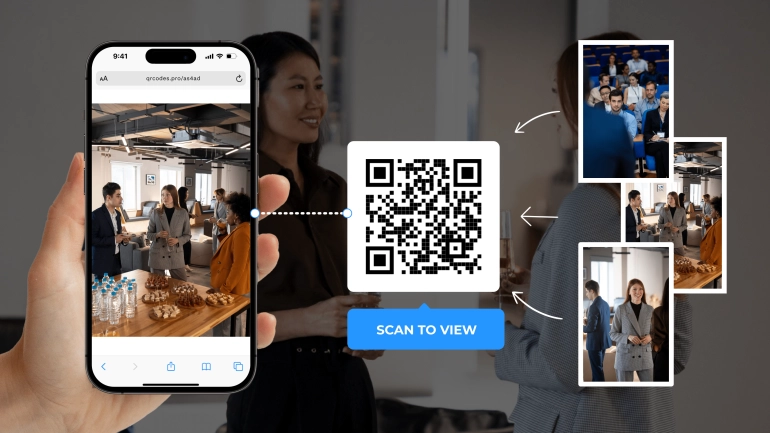
A QR code solves that gap. It is a small square pattern that stores a link, a message, or contact details, and a phone camera can read it in under a second. Generating one does not require design skill or technical setup. The QR Code Generator turns any text or link into a scannable code in a few clicks, with no account required.
The part that actually matters for teachers, office staff, and students is not the QR code itself but knowing when it genuinely helps and how to prepare one that scans reliably the first time.
What A QR Code Actually Stores
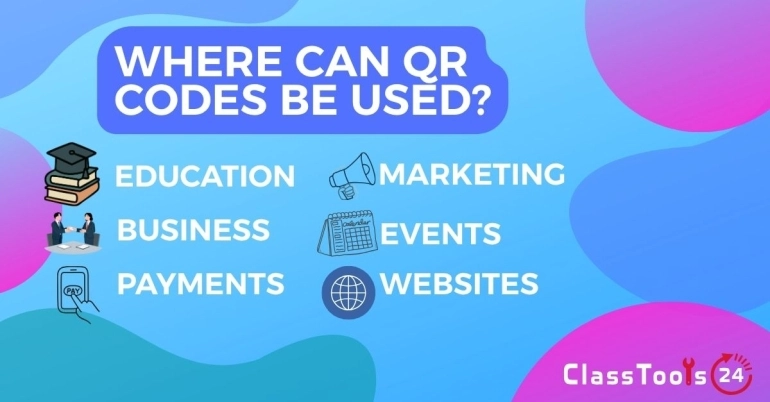
A QR code does not "contain" a website in the way a folder contains a file. It stores whatever text was entered when the code was created, most often a URL, but it can also be a short message, a Wi-Fi network, or contact details. When a phone camera reads the code, it decodes that text and, if it looks like a link, offers to open it.
This matters for one practical reason: once a QR code is printed, its content cannot be changed. If the destination link needs to be updated later, the printed code becomes outdated and needs to be reprinted with a new code, unless a redirect link was used at the source. Planning the destination link before printing saves a reprint later.
Use Case 1: Linking a Printed Worksheet to an Answer Key or Resource
Situation: A teacher hands out a paper worksheet and wants students to access a video explanation, an answer key, or a follow-up activity without typing a long address from the board.
Problem: Long URLs are easy to mistype, and reading one aloud wastes lesson time.
Solution: The teacher generates a QR code for the resource link using the QR Code Generator and prints it directly on the worksheet corner. Students scan it with a phone or tablet camera to reach the resource instantly.
Result: Students reach the right page in one scan, and lesson time is not spent on typing errors or repeated instructions.
Use Case 2: Sending Parents to a Form or Newsletter Quickly
Situation: A school office sends home a printed permission slip, event flyer, or newsletter and wants parents to complete an online form or read further details.
Problem: Parents may not have time to search for the school website or type a specific form link correctly from a printed page.
Solution: The office adds a QR code linking directly to the online form or newsletter page, sized large enough to scan easily and placed somewhere visible on the page.
Result: Parents reach the correct page immediately, which typically improves response and completion rates for time-sensitive forms.
Use Case 3: Classroom Stations and Scavenger-Style Activities
Situation: A teacher sets up several learning stations around the room, each with a different task, question, or short video.
Problem: Managing separate devices, links, or printed instructions at each station takes preparation time and can create confusion about which station leads where.
Solution: The teacher generates one QR code per station, each linking to that station's specific instructions, video, or question set, and prints them onto station cards.
Result: Students move between stations independently, scanning each code to access that station's content without needing the teacher to repeat instructions at every stop.
Use Case 4: Sharing a Digital Business Card or Contact Link
Situation: A teacher, tutor, or school department wants to share contact details at an event, parents' evening, or open day without handing out paper cards.
Problem: Paper cards get lost, and manually typing an email address or phone number into a new contact is easy to get wrong.
Solution: The contact details or a link to a digital profile are turned into a QR code, displayed on a name badge, table sign, or handout, so visitors scan once to save the information correctly.
Result: Contact information transfers accurately, and fewer physical cards need printing or replacing.
How To Create A QR Code That Scans Reliably
- Decide the exact destination first: a specific link, a short message, or contact details.
- Open the QR Code Generator and enter that text or link.
- Choose a size large enough for how it will be viewed. A code on a poster viewed from a distance needs to be larger than one printed on a worksheet held close.
- Keep good contrast between the code and its background. Very light colors or busy backgrounds behind the code can make it hard for a camera to read.
- Generate and download the code, then test it with an actual phone camera before printing multiple copies.
- Print at a size and quality where the fine pattern remains sharp, not blurred or pixelated.
Common Problems This Solves
- Long web addresses are hard to type correctly from a printed page.
- Multiple classroom stations need separate, clearly linked resources.
- Parents need a fast way to reach a form from a paper letter or flyer.
- Contact details need to transfer accurately without manual typing.
- Printed materials need a reliable bridge to an online resource.
Common Mistakes To Avoid
- Printing a QR code too small to scan reliably from a normal viewing distance.
- Using low contrast colors that make the pattern hard for a camera to read.
- Encoding a link that may change later without a plan for reprinting.
- Skipping a test scan before printing many copies.
- Linking to a page that is not mobile-friendly, since most QR scans happen on a phone.
Frequently Asked Questions
Do students need an app to scan a QR code?
Most modern phones can scan a QR code directly through the built-in camera app, without installing anything extra. Older devices may need a dedicated QR scanning app.
Can a QR code be changed after it is printed?
No. The code itself stores fixed text at the moment it is created. If the destination needs to change later, generate and print a new code, or point the original code at a redirect link you control.
What size should a QR code be for a worksheet?
Large enough to scan from a normal reading distance, roughly the size of a small stamp at minimum. Codes viewed from further away, such as on a wall poster, need to be noticeably larger.
Is it safe for students to scan classroom QR codes?
Only encode links you control and trust, and avoid scanning QR codes from unknown sources on school devices. Preview the destination before sharing it with a class whenever possible.
Can a QR code store more than a link?
Yes. It can store plain text, a short message, contact details, or Wi-Fi credentials, though a link to a page with fuller information is usually more practical for classroom use.
Do I need to sign up to generate a QR code?
No. The QR Code Generator works directly in the browser without an account.
Final Thought
A QR code is a small, practical bridge between something printed and something digital. It works best when the destination is planned in advance, the code is sized and contrasted for easy scanning, and it has been tested before going to print. Used with that care, it turns a static worksheet, flyer, or station card into a fast, reliable link to exactly the resource students or parents need.
 This article is about
QR Code Generator for Classroom Links
Open the tool
This article is about
QR Code Generator for Classroom Links
Open the tool