Create compact HTML for published websites while keeping readable source files for editing and classroom learning
A student finishes a multipage website for a school club. The HTML is carefully indented, comments identify each section, and blank lines separate the navigation, content, gallery, and footer. This structure is helpful while the student is learning and editing, but many of those formatting characters are not required when the browser loads the finished page.
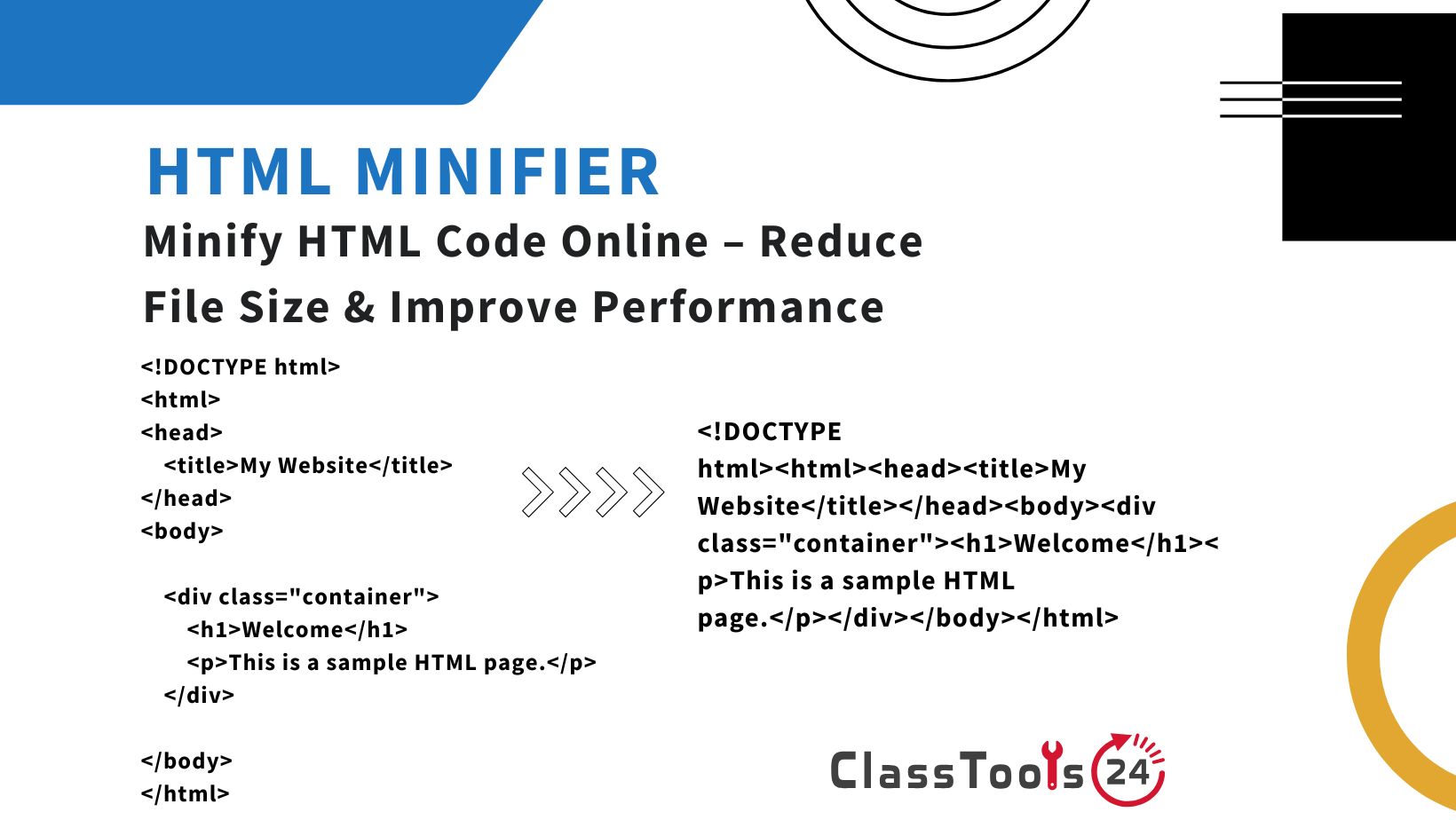
An HTML minifier creates a compact production copy by removing unnecessary characters. The page structure should remain the same, but the source becomes shorter and usually much harder for a person to read.
This is why minification belongs near the end of a project. Students should write, review, validate, and test readable HTML first. The compact version is prepared for publication only after the page works correctly.
HTML minification is not a repair tool. It will not add missing alternative text, correct inaccessible forms, repair broken links, optimize large photographs, or reorganize poorly structured content. It solves one specific problem: removing unnecessary source formatting from a completed page.
A Quick Before-and-After Example
Readable HTML is arranged for people:
<section class="course-card">
  <h2>Introduction to Web Design</h2>

  <p>
    Learn how HTML and CSS work together.
  </p>

  <a href="/lessons/web-design/">
    Open the course
  </a>
</section>
A compact copy may appear like this:
<section class="course-card"><h2>Introduction to Web Design</h2><p>Learn how HTML and CSS work together.</p><a href="/lessons/web-design/">Open the course</a></section>The second version removes indentation and line breaks that are unnecessary for this example. A browser can interpret both versions, but the first is much easier to explain, debug, and revise.
What HTML Minification Can Remove
The exact result depends on the minifier and the supplied markup. Common changes include:
- Removing indentation used to show nesting.
- Removing unnecessary line breaks.
- Reducing repeated whitespace between tags.
- Removing ordinary development comments.
- Shortening some attribute or markup patterns when safe.
- Producing a compact single-line or near-single-line document.
Whitespace is not always meaningless. Spaces inside text, preformatted blocks, inline elements, templates, scripts, and special frameworks may affect output. That is why testing the complete page after minification is essential.
What Minification Cannot Fix
| Website Problem | Will HTML Minification Fix It? | Better Action |
|---|---|---|
| Broken image path | No | Correct the filename, folder, extension, or path |
| Missing form label | No | Add a properly associated label in the source |
| Oversized photograph | No | Resize and compress the image |
| Invalid nested elements | No | Repair and validate the readable markup |
| Slow JavaScript | No | Review and optimize the script separately |
| Unclear page content | No | Rewrite and reorganize the content |
| Weak color contrast | No | Correct the CSS and test accessibility |
| Extra formatting characters | Yes | Create a minified production copy |
A Safer Minification Process
Use the following process instead of pasting unfinished code into a minifier and hoping the output repairs it:
- Complete the page content. Check headings, paragraphs, lists, links, images, tables, and forms.
- Format the source clearly. Use the HTML Beautifier if the markup is difficult to inspect.
- Correct structural errors. Review nesting, closing tags, attributes, labels, and document landmarks.
- Test the readable version. Open every representative page in the browser.
- Save a protected source copy. Do not overwrite the only readable file.
- Submit the HTML to the minifier. Include the complete intended document or fragment.
- Save the result separately. Use a name that identifies it as a production file.
- Replace the page only in a test environment. Avoid changing the live site before verification.
- Clear the relevant cache. Make sure the browser is loading the new version.
- Compare the pages. Confirm that content, layout, forms, scripts, and links still behave correctly.
A Classroom Lab: Measuring the Difference
HTML minification can become a useful coding lesson rather than a button-clicking exercise. Give students a readable page containing a heading, navigation, article, image, list, table, form, and footer.
Part 1: Inspect the Source
Students identify which characters help people understand the code. They mark indentation, comments, blank lines, and spaces between attributes. They should also identify spaces that are part of the visible text and must not be removed carelessly.
Part 2: Record the Original
Students save the readable file, record its file size, and capture a screenshot of the rendered page. The screenshot provides a visual reference for comparison.
Part 3: Minify the HTML
The class processes the page through the HTML Minifier and saves the compact result under a separate filename.
Part 4: Compare Results
Students calculate the difference in file size and open both pages. They compare headings, paragraphs, links, forms, spacing, images, and interactive features.
Part 5: Explain the Tradeoff
Each student writes a short explanation answering two questions: Why is readable HTML better during development, and why might a compact copy be used for publication?
The activity teaches that optimization decisions involve both machine delivery and human maintenance.
Real Project Situations
Student Portfolio Deployment
A student builds a portfolio with several project pages. During development, comments identify sections and the markup is consistently indented.
When the portfolio is ready, the student archives the source folder, creates minified production pages, and uploads them to a test location. Navigation, project links, contact information, and mobile layouts are checked before publication.
The source remains suitable for future updates, while the published copy contains less unnecessary formatting.
Teacher Resource Page
A teacher creates an HTML page containing lesson links, revision material, and classroom instructions. The page is updated every week.
Because the source changes frequently, the teacher continues editing the readable file. A minified copy is generated only when a tested update is ready to publish.
This prevents the teacher from trying to modify one compressed line whenever a resource changes.
School Event Website
A student team prepares a website for a school exhibition. The page includes a timetable, map, project descriptions, and registration link.
The team assigns one version as the approved source. After proofreading names, dates, locations, and links, they minify the HTML and deploy it with tested styles and scripts.
The published site remains connected to a maintainable source instead of becoming a collection of unrelated “final” files.
Beginner Coding Competition
A team enters a small web project in a coding event. Near the deadline, one member minifies the HTML before the others finish editing it. Another team member then tries to make a last-minute correction directly in the compact file.
The rushed edit breaks a closing tag. The team restores the readable source, makes the correction there, tests it, and creates a fresh production copy.
The experience demonstrates why minification should be repeatable and why the source file must remain authoritative.
Static Documentation Page
A beginner developer writes a static help page for a classroom application. The document changes infrequently and contains many explanatory comments for future maintainers.
The comments remain in the source repository. A compact page is prepared for deployment, and the developer verifies headings, code blocks, anchor links, and search behavior.
Future changes begin in the readable documentation rather than the deployed file.
Studying Production Source
A student uses browser developer tools and notices that a public website's HTML is difficult to read. The student copies a small non-private sample and processes it with the HTML Beautifier.
The formatted copy makes nesting easier to study. The student learns that production source may be transformed for delivery and may not resemble the files developers maintain.
Development HTML Versus Production HTML
| Activity | Readable Development HTML | Minified Production HTML |
|---|---|---|
| Learning document structure | Clear indentation reveals relationships | Nesting is harder to follow |
| Finding a missing closing tag | Sections can be inspected individually | Manual debugging is more difficult |
| Reviewing a code change | Differences are easier to identify | A small edit can affect one long line |
| Leaving maintenance notes | Comments can explain decisions | Ordinary comments may be removed |
| Publishing a completed page | Includes formatting for human readers | Removes many unnecessary characters |
| Making future updates | Recommended working version | Should be regenerated from the source |
HTML Minification and CSS
HTML and CSS are separate resources even when styles appear inside the same document. Minifying HTML does not automatically optimize an external stylesheet.
Use the CSS Minifier for a tested production copy of CSS. Keep the original stylesheet formatted and readable. If inherited CSS appears as one long line, process a working copy with the CSS Beautifier before investigating it.
After changing both HTML and CSS, test them together. A class name changed in one file but not the other can remove styling even though both files are individually valid.
HTML Minification and JavaScript
JavaScript can create, remove, or update HTML elements while a page is running. Minification should not remove attributes, templates, IDs, or class names that scripts depend on.
Test menus, dialog boxes, tabs, form validation, accordions, search controls, and dynamically loaded content after the HTML is compacted.
The JavaScript Minifier can create a smaller production script, but it should be used as a separate tested step. Changing HTML, CSS, and JavaScript simultaneously makes it harder to identify which transformation caused a problem.
Whitespace Needs Special Attention
Browsers normally collapse repeated spaces in ordinary paragraphs, but whitespace can still matter. Consider:
<pre>elements that intentionally preserve formatting.- Inline elements where removing a separating space joins words.
- Code examples displayed to students.
- Template syntax processed by another system.
- Text areas containing prepared content.
- SVG or XML-based markup with special requirements.
- Scripts and styles embedded inside the HTML document.
Use realistic sample pages during testing. A home page with simple blocks may survive minification while a documentation page containing code examples reveals a spacing problem.
Comments and Important Markers
Development comments can explain why a section exists:
<!-- Keep this message visible when registration closes. -->A minifier may remove ordinary comments. That is acceptable only when the comment is not required by a framework, conditional feature, template processor, legal requirement, or deployment system.
Keep important explanations in the readable source and understand whether any special comments must remain in production. Do not assume every comment is disposable.
Images Usually Matter More Than Whitespace
A single unoptimized photograph may be larger than the savings from minifying several HTML pages. Students should learn to examine the entire page rather than focusing on one optimization number.
Use the Image Resizer when an image has larger dimensions than its display requires. Use the Image Compressor to reduce unnecessary image file size while checking visual quality.
Image filenames, paths, alternative text, width, and height should be reviewed before minification. Compact HTML cannot repair a broken source path or describe an image that lacks meaningful alternative text.
Accessibility Checks Before Publication
A smaller page is not automatically an accessible page. Before minification, inspect the readable source for:
- A descriptive page title.
- Logical heading order.
- Meaningful link text.
- Alternative text for informative images.
- Labels associated with form controls.
- Buttons used for actions rather than clickable generic elements.
- Language information on the document.
- Keyboard-accessible navigation and controls.
- Clear error instructions.
- Tables with appropriate headings.
Run the same keyboard and screen-size checks on the minified version. Optimization should not change the user's ability to understand or operate the page.
Common Mistakes and Their Consequences
Overwriting the Source
The student loses indentation, comments, and readable structure. Future changes take longer and introduce more errors. Always save the compact output separately.
Minifying Before the Page Is Finished
Every small correction requires another conversion, and team members may edit different copies. Establish a tested source before creating production files.
Using Minification as Validation
A generated output does not prove that the markup is valid or accessible. Review and test the readable page first.
Failing to Clear Cache
The browser may show an older page, causing the developer to believe that the latest minified version was ignored. Verify which file is actually loaded.
Testing Only One Screen Size
Compact HTML may appear correct on a laptop while a menu, form, or dynamic section fails elsewhere. Test representative mobile and desktop layouts.
Removing Significant Whitespace
Words may join, code examples may lose indentation, or template content may change. Include pages with special whitespace behavior in the test set.
Expecting the Source to Become Secret
Visitors can still inspect delivered HTML. Minification makes source less convenient to read, but it is not encryption or access control.
Privacy and Security
HTML sent to a browser is available to that browser. Minifying it does not protect passwords, private keys, access tokens, hidden student records, internal comments, or confidential addresses.
Never place secrets in frontend markup. A hidden input, data attribute, comment, or element styled with display:none can still be inspected.
Before placing school content into an online tool, remove names, grades, login details, unpublished links, private form responses, and internal school information. Use fictional content for classroom demonstrations when the real page contains sensitive data.
A Practical Release Checklist
- The readable HTML source is saved and backed up.
- The page works correctly before minification.
- Headings, images, links, tables, and forms were reviewed.
- Accessibility checks were completed on the source.
- The complete HTML was submitted to the minifier.
- The compact output was saved as a separate file.
- CSS and JavaScript dependencies still load.
- Dynamic controls continue to work.
- Code blocks and preformatted text retain correct spacing.
- Mobile and desktop layouts were checked.
- The browser cache was cleared during verification.
- No private data or secrets appear in the delivered markup.
- The published version can be regenerated from the source.
Final Thoughts
HTML minification is a finishing step for a tested web project. It removes many characters that help developers read the source but are unnecessary when the browser receives the page.
The most important rule is to preserve the readable original. Write and maintain well-structured HTML, correct errors in that version, and generate a new compact copy whenever the project is ready for publication.
Measure the result, but keep the saving in perspective. Large images, scripts, fonts, server performance, caching, and network conditions may have a greater effect on the user's experience. Minification is valuable when it is one deliberate part of a careful release process.


