Match the Pairs Generator

Enter matching pairs to generate a printable PDF worksheet in Draw Lines, Cut & Match, or Write the Match format, with shuffled answers and an optional answer key.

المحتوى

أدخل عنصرًا في العمود الأيسر وما يقابله في العمود الأيمن في كل سطر.
0 أزواج صالحة

Format & Configuration

صيغة ورقة العمل
الصفحة والتخطيط
حجم الورق
الاتجاه
التنسيق حجم الخط
Ink-friendly (grayscale)
قواعد المحتوى
خلط ترتيب العمود الأيمن
Include answer key page
الإصدارات يحصل كل إصدار على ترتيب مخلوط مستقل خاص به.

Live Worksheet Preview

يُحدَّث تلقائيًا أثناء التعديل. يظهر عدد الصفحات الدقيق بعد إنشاء ملف PDF.

الإجراء

هل ساعدتك هذه الأداة؟

5/5 من 1 تقييم

Turn Left Item / Right Item pairs into a printable matching worksheet: Draw Lines, Cut & Match, or Write the Match

Match the Pairs Worksheet Generator: Printable Matching Activities in Minutes

The Match the Pairs Generator turns a simple list of Left Item and Right Item pairs, vocabulary and definitions, countries and capitals, questions and answers, into a print-ready matching worksheet in the format you actually need. Enter your pairs, choose Draw Lines, Cut & Match, or Write the Match, configure paper size and a few print options, and download a PDF that is ready to hand out or print for a class set.

Why A Dedicated Matching Worksheet Tool

Matching activities are one of the most reliable classroom exercises for vocabulary, definitions, dates and events, or any set of paired facts, because they force a student to actively compare items rather than just read them in order. Building one by hand in a word processor usually means fighting with tables, manually shuffling one column so answers aren't just in the same row, and redoing the layout every time an item is longer than expected. This tool handles the layout, the shuffling, and the answer key automatically, so the actual work is just entering the pairs.

Three Worksheet Formats

The right format depends on how you want students to complete the activity:

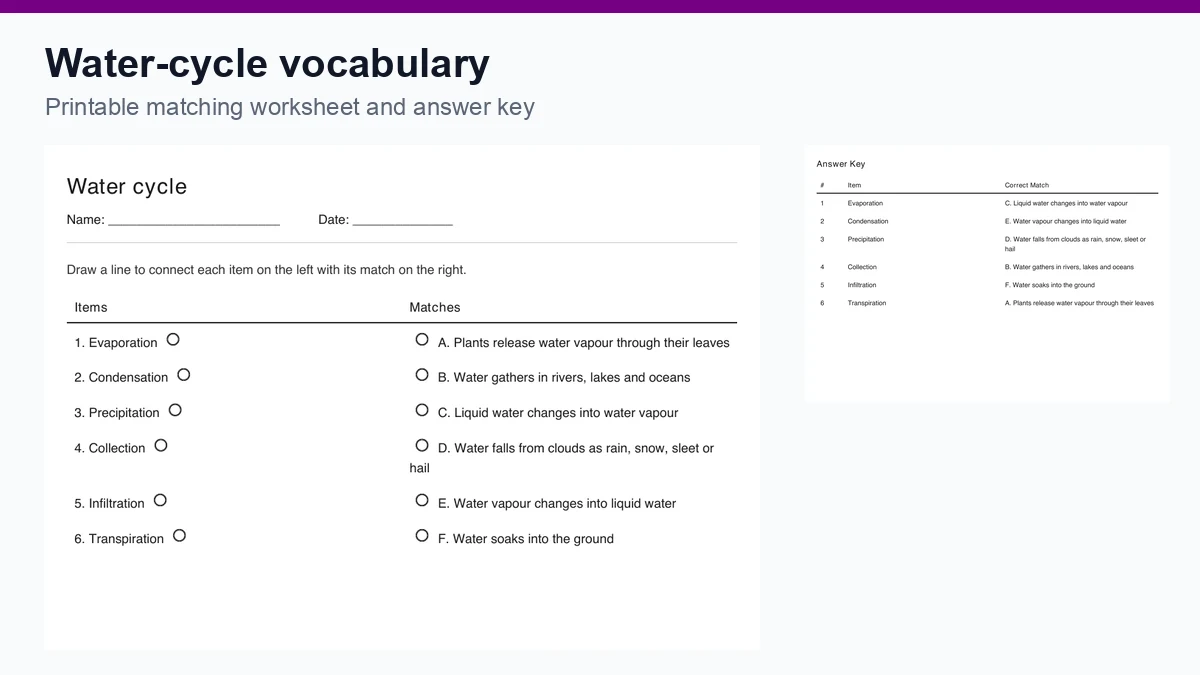
  • Draw Lines lists items on the left and their shuffled matches on the right, each with a small connection point, so students draw a line between each pair. This is the classic matching-worksheet layout and works well for most subjects and age groups.
  • Cut & Match prints every item, both left and right, as its own individual card with a dashed cutting guide. Students cut the cards apart and physically arrange the matching pairs, which suits younger students or a hands-on station activity better than a worksheet they write on.
  • Write the Match presents left items as numbered questions with a blank box next to each one, and right items as a separate lettered list. Students write the matching letter in the box rather than drawing a line, which works better for larger classes needing a quick, gradable written response.

Entering Your Pairs

Add pairs one row at a time, or paste a list directly from a spreadsheet or document: each line should have the left item and right item separated by a tab or a comma, and the tool will import them all at once. Rows can be reordered or removed at any point before generating the worksheet. A minimum of 2 valid pairs, both sides filled in, is required to generate a worksheet, up to a maximum of 200 pairs in one worksheet. Each individual item is limited to 300 characters — a pasted item longer than that is shortened automatically to fit, without a warning, so it's worth keeping entries to a term or a short phrase rather than pasting in a full paragraph as one item.

Shuffling And Answer Keys

By default, the right-hand column is shuffled so the correct matches are not simply lined up in the same order as the left column, which is what makes the activity a genuine matching exercise rather than a read-and-copy task. Shuffling can be turned off if you want the pairs to stay in entry order. An answer key, listing each item alongside its correct match, can be included as a separate page at the end of the PDF, kept apart from the student-facing pages so it is easy to hand out just the activity itself.

Print Options That Actually Matter For A Classroom

Paper size (A4 or Letter) and orientation (portrait or landscape) can be set to match your printer and the format you chose, landscape often suits Cut & Match better when cards need more width. Font size has three levels, useful for younger students who need larger text or for fitting a longer list of pairs onto fewer pages. An ink-friendly mode strips out the colored accents used elsewhere on the worksheet, keeping print jobs cheap for a full class set. Long items are never cut short or shrunk to fit, text wraps naturally and the layout grows to accommodate it, so a longer definition or sentence never gets clipped or overlaps its neighbors.

Multiple Versions For Exam Integrity

Generating Version A, B, and C in the same request produces multiple PDFs, each with its own independently shuffled order, so students seated near each other don't have matching answer positions. This is useful for a quiz-style matching activity or any situation where you want several variants of the same content without re-entering the pairs each time.

Choosing A Format For Your Subject

Vocabulary and definitions, historical events and dates, or chemical symbols and elements all work well with Draw Lines, since the point is simply connecting two related facts and the format keeps that visually clear. Cut & Match suits younger learners, phonics, sight words, shapes and their names, or any subject where physically manipulating the cards helps with retention, and it also works well as a rotating station activity where a small group shares one set of cards. Write the Match tends to work best when you want a quick, markable response, spelling and translations, or a review activity right before a test, since a written letter in a box is faster to grade across a full class set than checking hand-drawn lines.

Scaling From A Short Quiz To A Full Review Sheet

A short activity with 6 to 10 pairs prints comfortably on a single page in any of the three formats, useful for a warm-up or an exit ticket. Larger sets, 20, 30, or more pairs for a full-unit review, flow naturally across multiple pages rather than being squeezed onto one, with column headers repeating on each new page so the worksheet still reads clearly partway through. Individual rows and cards never split across a page break, so a student never finds half a question at the bottom of one page and the rest at the top of the next.

How To Use The Tool

  1. Enter a worksheet title and add your pairs, or paste a tab or comma-separated list.
  2. Choose a format: Draw Lines, Cut & Match, or Write the Match.
  3. Set paper size, orientation, font size, and whether to include an answer key.
  4. Check the live preview to confirm the layout looks right.
  5. Click Generate & Download PDF and print or share the file.

Tips For Better Matching Worksheets

Keep left and right items reasonably parallel in length and type, matching a one-word term to a one-word term reads more clearly than mixing single words with full sentences in the same list, though the tool will handle either without breaking the layout. For Cut & Match with younger students, consider a slightly larger font size and landscape orientation so the cards have more room. If you're printing a full class set, ink-friendly mode combined with A4 portrait and medium font size is usually the most economical combination.

Limitations To Keep In Mind

This tool does not use AI to generate pairs, you provide the content directly, which keeps the worksheet accurate to exactly what you entered with nothing invented. There is no built-in curriculum database or content library; it is a layout and generation tool for pairs you already have. It's also text-only — there's no way to attach an image to either side of a pair, so a picture-matching activity (a shape to its name, a flag to its country) needs a different kind of worksheet than this one. The live preview shows the worksheet's layout and content but does not simulate page breaks, the downloaded PDF is the authoritative version for exact pagination. If you need multiple-choice, fill-in-the-blank, or short-answer questions instead of a matching activity, the Worksheet Generator builds that kind of worksheet from a passage of text.

Privacy

The pairs you enter are used only to generate the PDF you request and are not stored, tracked as content, or used to train any model. Generated worksheet files are automatically deleted within 2 hours of creation, so download your PDF promptly after generating it.

Final Thought

A matching worksheet is a simple idea that takes real effort to lay out well by hand, shuffled answers, clean columns, cards that don't split across a cut line, an answer key that doesn't give the game away early. The Match the Pairs Generator handles that layout work so a list of pairs becomes a properly formatted, print-ready activity in the format that fits your classroom, in the time it takes to type the pairs in.