A practical guide to correcting image direction in assignments, worksheets, presentations, posters, and classroom resources.
When The Right Image Faces The Wrong Direction
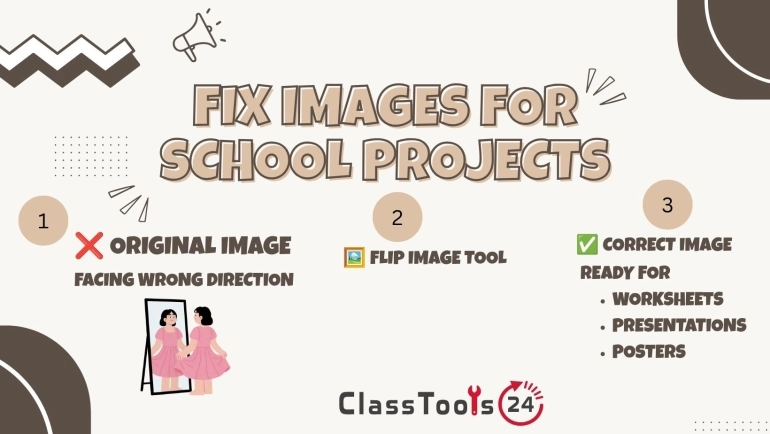
A student finishes a presentation and places a photograph beside the main explanation. The photograph is clear, correctly sized, and relevant to the topic, but the person in it faces away from the text. The slide feels unbalanced even though the student cannot immediately explain why. Moving the image does not solve the problem, and replacing it means searching for another suitable photograph.
Teachers face similar problems when preparing worksheets and lesson slides. An arrow may point away from the instruction it is supposed to support. A character illustration may look toward the edge of a page instead of toward the activity. A photographed object may sit naturally on one side of a layout but appear awkward when moved to the other side.
These are problems of visual direction. The image itself may be suitable, but its orientation does not support the way the reader moves through the page. The Flip Image tool can mirror an image horizontally or vertically, allowing the same visual to fit a different part of a worksheet, presentation, poster, or project.
Flipping should be used carefully. It can improve balance and make visual instructions clearer, but it can also reverse writing, symbols, uniforms, maps, and diagrams. A responsible workflow includes checking the complete image before flipping it and reviewing the result inside the final school document rather than judging the image by itself.
Tutorial: How To Flip An Image For School Work
Before opening the tool, decide what is actually wrong with the image. If it is sideways, it probably needs rotation rather than flipping. If unnecessary objects appear around the subject, cropping may be the better first step. Flipping is appropriate when the image needs to face the opposite horizontal or vertical direction.
- Choose the original image: Use the clearest available copy. Editing a low-quality screenshot several times can make text and small details difficult to read.
- Inspect the image for writing: Look for labels, signs, dates, logos, keyboard keys, jersey numbers, diagrams, and handwritten notes. A horizontal flip reverses these elements.
- Open the tool: Visit the Flip Image tool and upload the image you are permitted to use.
- Select the correct direction: A horizontal flip mirrors left and right. A vertical flip mirrors top and bottom. Most presentation and poster corrections use a horizontal flip.
- Preview the result: Check the subject, background, writing, arrows, and other directional details before downloading.
- Download the flipped copy: Keep the original file until the entire project has been checked and submitted.
- Place it in the project: Add the new image to the assignment, slide, worksheet, poster, or portfolio.
- Review the complete layout: Confirm that the image now guides attention toward the important text and does not introduce a factual mistake.
Do not overwrite the only copy of an important school photograph. Save the flipped result with a descriptive filename such as science-presentation-image-flipped.jpg. Clear filenames help students avoid inserting the wrong version when several edited copies are stored in the same folder.
If the picture is too large after editing, use the Image Resizer to adjust its dimensions. If the file is difficult to upload to a learning platform, the Image Compressor may reduce its size. Complete one change at a time and check the image after each step.
Use Case 1: Improving A Student Presentation
Situation: A student creates a history presentation with a portrait on the left and a short explanation on the right. The person in the portrait looks toward the left edge of the slide.
Problem: The viewer's attention follows the direction of the person's face and moves away from the explanation. Placing the portrait on the right creates another problem because it covers part of the slide design.
Solution: The student makes a horizontally flipped copy so the person faces toward the text. Before using it, the student checks that the portrait contains no readable writing, military decorations, or other historically important directional details that would become inaccurate when mirrored.
Result: The slide feels more connected because the photograph directs attention toward the explanation. The student keeps the original image in the project folder in case the teacher requests the unedited version or the flipped version creates a historical accuracy concern.
Use Case 2: Correcting Arrows In A Worksheet
Situation: A primary teacher prepares a worksheet in which students move from one activity box to the next. An arrow image points right, but one part of the worksheet needs an arrow pointing left.
Problem: Rotating the arrow can change its angle or place it upside down. Searching for another arrow introduces differences in color, line thickness, and style.
Solution: The teacher flips the existing arrow horizontally. Because the image contains no text, numbers, or labels, mirroring it does not change its meaning. The teacher then places the flipped arrow between the correct activity boxes.
Result: Both arrows use the same visual style, and students can follow the intended path more easily. The teacher prints one test copy to confirm that the arrows remain visible and do not become too small on paper.
Use Case 3: Arranging Images In A Science Report
Situation: A student writes a science report about plant growth. Two plant photographs need to appear beside observation notes, but both plants lean in the same direction.
Problem: When the photographs are placed on opposite sides of the page, one plant appears to lean away from the report content. The student is tempted to flip the picture without checking whether the plant's orientation is scientifically important.
Solution: The student first confirms that the image is decorative and is not being used as evidence of directional growth, light response, or another measured result. The decorative photograph is flipped, while experimental photographs remain unchanged.
Result: The report layout becomes more balanced without altering scientific evidence. The student also learns an important distinction: design images may sometimes be mirrored, but evidence images should not be changed in ways that could misrepresent observations.
Use Case 4: Creating A Classroom Poster
Situation: A teacher creates a reading-corner poster with a character illustration on the right and a short message on the left. The character faces away from the message.
Problem: The illustration draws attention toward the edge of the poster. Moving it to the other side conflicts with the classroom's existing poster layout, and downloading a new illustration may introduce copyright or licensing concerns.
Solution: After confirming that the illustration is permitted for classroom use and contains no writing, the teacher flips it horizontally. The character now faces the message. The teacher checks the hands, clothing, and objects in the image to make sure the mirrored version still looks natural.
Result: The illustration and message work as one visual unit. Students are more likely to look from the character toward the reading reminder rather than toward the blank edge of the page.
Use Case 5: Fixing A Student Portfolio Layout
Situation: An art or design student builds a digital portfolio with alternating image and text blocks. Some project photographs face the wrong direction for the alternating layout.
Problem: Using the same layout for every page becomes repetitive, but moving an image to the opposite side can make its subject face away from the project explanation. Recreating the original project photograph is not practical.
Solution: The student flips only photographs where mirroring does not change the meaning of the work. Photographs containing typography, signed artwork, identifiable landmarks, or directional designs remain unchanged. The student uses the Image Cropper when a better crop can solve the layout problem without mirroring.
Result: The portfolio has a consistent visual rhythm while preserving the accuracy of important project details. The student can also explain why some images were flipped and others were left in their original orientation.
Use Case 6: Preparing Visual Instructions
Situation: A teacher prepares visual instructions showing students where to place materials during a classroom activity. A hand illustration points in the wrong direction.
Problem: Young learners may follow the image before reading the accompanying sentence. If the hand points left while the materials belong on the right, the visual instruction becomes confusing.
Solution: The teacher flips the hand illustration and places it beside the instruction. The final resource is tested from a student's viewing position. If the instruction will be projected, the teacher also checks it on the classroom display.
Result: The visual and written instructions agree. Students spend less time asking where materials belong, and the teacher does not need to stop the activity to explain a misleading image.
Use Case 7: Designing A School Club Flyer
Situation: Students create a flyer for a school club event. A photograph of a student performer appears beside the event title, but the performer faces away from the date and location.
Problem: The image weakens the reading flow, but using another photograph would require new permission and approval. The flyer is also due before the end of the lesson.
Solution: The students review the photograph for text, badges, logos, and identifiable details that could look incorrect when mirrored. With the teacher's approval, they flip the image and place it so the performer faces the event information.
Result: The flyer becomes easier to scan, and the existing approved photograph can still be used. Before publishing, the students confirm that the person shown has permission to appear in the school communication.
How This Fits Into A Real Workflow
- Identify the layout problem: Decide whether the image needs flipping, rotation, cropping, resizing, or replacement.
- Check permission: Confirm that the image can be edited and used in the assignment or school resource.
- Keep the original: Store an unchanged copy in a clearly named project folder.
- Inspect directional details: Look for writing, arrows, maps, uniforms, diagrams, logos, and evidence that should not be mirrored.
- Flip the image: Use the Flip Image tool and select horizontal or vertical mirroring.
- Review the result: Check the whole image at full size, not only the thumbnail.
- Crop if necessary: Remove unnecessary background areas with the Image Cropper instead of repeatedly resizing the entire image.
- Resize for the layout: Use the Image Resizer when the document, slide, or LMS requires specific dimensions.
- Compress for uploading: Use the Image Compressor if the platform rejects the file because it is too large.
- Insert and test: Place the edited image in the final project and review it on the device, screen, or printed page students will use.
- Check privacy and accuracy: Remove or cover details that should not be shared and confirm that mirroring has not changed the image's meaning.
- Submit the correct version: Open the final exported file before uploading it to confirm that the intended image is included.
This workflow prevents a common classroom problem: making several edits quickly and losing track of which file is the final version. Teachers can encourage students to use filenames that describe each stage, such as original, flipped, resized, and final.
Common Problems This Solves
- A presentation photograph faces away from the main explanation.
- A worksheet arrow points in the wrong direction.
- A character illustration looks toward the edge of a poster.
- A hand or object conflicts with visual instructions.
- A portfolio image does not fit an alternating layout.
- A school flyer has weak visual flow between the photograph and event details.
- Two classroom images need to face each other.
- A decorative image needs a mirrored version without recreating the design.
- A teacher needs matching left-facing and right-facing icons.
- A student confuses image flipping with image rotation.
- An edited image contains reversed writing that was not noticed during preview.
- A flipped experimental photograph could misrepresent evidence.
Comparison: Flipping An Image And Leaving It Unchanged
| Classroom Task | Using A Flipped Image | Leaving The Image Unchanged |
|---|---|---|
| Presentation slide | The subject can face toward the explanation and guide attention inward. | The subject may direct attention toward the edge of the slide. |
| Worksheet arrows | A matching arrow can point toward the correct activity or answer area. | The arrow may conflict with the written instruction. |
| Classroom poster | A character can face the heading or important reminder. | The visual may appear disconnected from the message. |
| Student portfolio | Suitable decorative photographs can support alternating layouts. | Some pages may feel visually unbalanced. |
| Scientific evidence | Flipping may create a misleading representation and should usually be avoided. | The original direction and evidence remain accurate. |
| Image containing text | Writing becomes reversed and may be unreadable or incorrect. | Labels, signs, and dates remain accurate. |
| Visual instructions | Hands, arrows, and objects can match the required direction. | The visual cue may contradict the task. |
| School event flyer | An approved photograph can face toward the event details. | The photograph may pull attention away from the information. |
Quality, Accuracy, And Responsible Image Editing
Flipping usually changes orientation rather than dimensions, but the final file should still be inspected at full size. Check faces, edges, small text, patterns, and background details. A thumbnail can hide reversed writing or an object that looks unnatural after mirroring.
Accuracy matters more than visual balance. Do not flip maps, graphs, scientific evidence, historical documents, signed artwork, screenshots, or diagrams when direction carries meaning. A mirrored map can place locations incorrectly. A flipped graph can reverse the relationship shown on an axis. A mirrored screenshot may teach students to look for controls on the wrong side.
Readability should be checked in the final setting. An image that looks clear on a laptop may become too small on a printed worksheet or classroom display. Insert the image into the document, export the final file, and view it at the size students will actually see.
Repeated editing and exporting can affect image quality, especially when a compressed format is saved many times. Start with the best available original and avoid unnecessary cycles of downloading, resizing, and recompressing. Keep an unchanged master copy so the process can be repeated if the result becomes blurry.
Compatibility also matters. Confirm that the final image format is accepted by the presentation software, word processor, learning platform, or school website. If a different format is required, use the Image Converter after completing the visual edits, then open the converted file and inspect it again.
Privacy And Safe Classroom Use
Flipping an image does not remove private information. A photograph can still contain student names, faces, school badges, login details, addresses, timetable information, identification cards, medical notes, or classroom documents. Mirroring these details may make them harder to notice, but it does not make them safe to publish.
Before uploading a classroom photograph, inspect the background as carefully as the main subject. Whiteboards, desk labels, computer screens, certificates, and displayed student work may contain identifying information. Use an image approved for the intended purpose and follow the school's photography and safeguarding policies.
Students should not upload private family photographs simply because they need an image for an assignment. Teachers can provide approved classroom assets, public-domain resources, or fictional practice files. When a real person appears in a school flyer, website, or portfolio, confirm that the required permission has been obtained.
The tool changes image direction only. It does not blur faces, remove metadata, hide names, or check copyright permission. Those responsibilities remain with the person preparing the school project. Review the final exported document as well as the edited image because private information may appear elsewhere on the page.
Frequently Asked Questions
Can students flip images for assignments?
Yes. Students can flip suitable decorative images for reports, slides, posters, portfolios, and project boards. They should keep the original image and avoid mirroring content when direction is part of the evidence or meaning.
Can teachers use flipped images in worksheets?
Yes. Flipping is useful for arrows, hands, characters, and simple illustrations that need to point toward a question or activity. Teachers should check that the image contains no writing or directional information that becomes incorrect.
What is the difference between flipping and rotating an image?
Flipping creates a mirrored version across a horizontal or vertical axis. Rotation turns the entire image by an angle. Use the Rotate Image tool for a sideways photograph and the Flip Image tool when left and right, or top and bottom, need to exchange positions.
Will flipping reduce image quality?
Flipping itself should not intentionally make the image blurry, but quality can be affected by repeated editing, resizing, compression, or exporting. Use the clearest original and inspect the downloaded result before adding it to school work.
Why is the writing backward after I flip an image?
A horizontal flip mirrors every part of the image, including letters and numbers. Use the original image, crop out the written area when appropriate, or choose another visual. Do not submit reversed labels simply because the main subject faces the preferred direction.
Should scientific or historical images be flipped?
Usually not when direction is important. Mirroring can change evidence, map positions, graph meaning, document layout, clothing details, or historical context. Use an unchanged image unless the flipped version is clearly decorative and cannot mislead the reader.
Can I resize or compress an image after flipping it?
Yes. Resize it when the document or platform requires particular dimensions, and compress it if the file is too large to upload. Check the image after every step to make sure small details remain readable.
Does flipping remove student names or faces?
No. The same personal information remains in the image, only mirrored. Review student faces, names, login details, school documents, badges, and background information before uploading or sharing the file.
Which flip direction should I use for a presentation?
A horizontal flip is usually used when a person or object needs to face the opposite side of a slide. A vertical flip turns the image top-to-bottom and is less common in classroom presentations. Preview both only when the image's meaning allows it.
Can I flip a screenshot from an app or website?
You can, but it is rarely appropriate for instructional material because buttons, menus, icons, and text will appear reversed or on the wrong side. Keep screenshots in their original direction when teaching students how to use an interface.
Final Thought
Flipping an image is a small edit, but it can solve a genuine classroom design problem. A photograph can face the explanation, an arrow can match an instruction, and a character can direct attention toward the important part of a worksheet or poster.
The best result comes from knowing when not to flip. Protect the accuracy of evidence, keep writing readable, review privacy, and retain the original file. When students and teachers follow those checks, they can improve assignments and classroom resources without introducing misleading details or unnecessary frustration.
 This article is about
Flip Image
Open the tool
This article is about
Flip Image
Open the tool