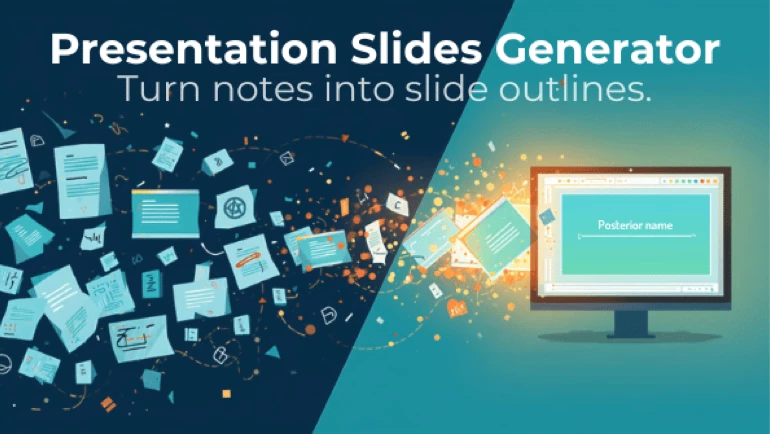
Notları, bölümleri, belgeleri ve raporları öğretim, çalışma, eğitim ve sunum için net slayt taslaklarına dönüştürün.
Dersler, Çalışma ve Raporlar için Sunum Slaytı Üretici
Sunum slaytı üretici, bilgi elinizde olduğu hâlde onu düzgün bir slayt yapısına dönüştürmeniz gerektiğinde işe yarar. Öğretmenler, öğrenciler, eğitmenler ve ekipler çoğu zaman notlardan, ders kitabı bölümlerinden, raporlardan, makalelerden ya da derlenmiş araştırma malzemesinden yola çıkar. Zor olan her zaman konuyu anlamak değildir. Zor olan, birinci slaytta neyin, ikinci slaytta neyin yer alacağına, her slayta kaç madde sığacağına ve sunumun nasıl takip edilebilir kalacağına karar vermektir.
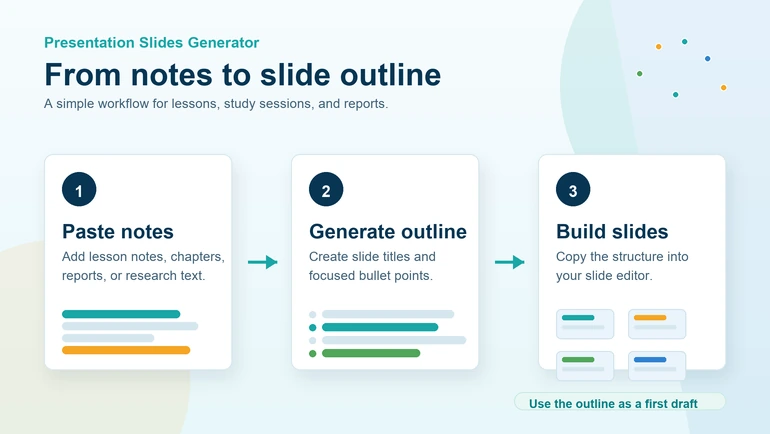
Metinden sunum slaytı üretici tam da bu ilk taslakta yardımcı olur. Metni yapıştırır veya desteklenen bir belgeyi yüklersiniz, bir sunum stili seçersiniz, slayt sayısını belirlersiniz ve slayt slayt bir taslak oluşturursunuz. Sonuçta elinizde PowerPoint, Google Slides, Keynote, Canva ya da başka bir sunum programına kopyalayabileceğiniz başlıklar ve maddeler olur.
Bu kullanım örneği, öğretmenlerin, öğrencilerin ve çalışanların aracı gerçek iş akışlarında nasıl kullanabileceğini, üretilen taslağı bitmiş bir sunum saymadan anlatır. En iyi sonuç, taslağı düşünülmüş bir iskelet olarak görüp üzerine örnekler, görseller, kaynak künyeleri, şemalar ve kendi açıklamalarınızı eklediğinizde çıkar.
Slayt Taslağı Neden Önemli
İyi bir sunum, küçük parçalara bölünmüş bir metinden ibaret değildir. Slaytların bir sırası olmalıdır. Her slaydın tek ve açık bir amacı olmalıdır. Başlık dinleyiciye slaydın neyle ilgili olduğunu söyler, maddeler de bu fikri koca bir paragrafa dönüşmeden destekler.
Slaytlar elde hazırlandığında kaynaktan çoğu zaman fazla metin aktarılır. Sunum kalabalıklaşır ve anlatması güçleşir. Taslak üreten bir araç, uzun kaynak metni daha kısa bölümlere ayırarak bu sorunu hafifletebilir. Özellikle zaman darken daha temiz bir başlangıç noktası elde edersiniz. Edutopia'nın slayt tasarımı önerileri öğretmenin kendi hazırladığı sunumlar için aynı şeyi söyler: kısa ve odaklı slaytlar öğrenmeyi yoğun slaytlardan daha iyi destekler, çünkü kalabalık bir slayt öğrenciden aynı anda hem okumasını hem dinlemesini ister.
Örneğin bir öğretmenin anlatması gereken koca bir ünite vardır ama yalnızca kırk dakikalık ders süresi. Bir öğrencinin üç sayfa notu vardır ama sunum için beş dakikası. Bir yöneticinin uzun bir raporu vardır ama yalnızca kısa bir özete ihtiyacı. Üçünde de amaç her şeyi sığdırmak değildir. Amaç, en işe yarar bilgiyi sunum düzenine oturtmaktır.
Bu Aracın İşe Yaradığı Sık Durumlar
- Ders hazırlığı: Öğretmenler bir üniteyi, makaleyi veya çalışma kâğıdını ders anlatım taslağına dönüştürebilir.
- Öğrenci sunumları: Öğrenciler araştırma notlarını sınıf önünde anlatılabilecek net bir düzene sokabilir.
- Konu tekrarı: Öğrenciler sınav öncesinde notlarından tekrar slaytları hazırlayabilir.
- Hizmet içi eğitimler: Eğitmenler iş talimatlarını veya eğitim malzemesini sunum maddelerine çevirebilir.
- Raporlar ve bilgilendirmeler: Ekipler uzun raporları yönetime uygun kısa slayt taslaklarına indirgeyebilir.
- Proje özetleri: Öğrenciler ya da çalışanlar proje sonuçlarını daha derli toplu biçimde aktarabilir.
Kullanım 1: Öğretmen için Ders Slaytları
Derse hazırlanan bir öğretmenin elinde genellikle ders kitabı içeriği, sınıf notları ya da bir okuma parçası bulunur. Yine de boş bir sunumla başlamak zaman alır; çünkü öğretmenin konuya nasıl gireceğine, her fikri nereye koyacağına ve dersi ne tür bir toparlamayla bitireceğine karar vermesi gerekir.
Sunum slaytı üreticiyle öğretmen ders malzemesini yapıştırıp Detaylı Ders gibi bir stil seçebilir. Araç bir başlık slaydı, birkaç içerik slaydı ve son bir özet slaydı oluşturabilir. Öğretmen sonra taslağı düzenler, sınıftan örnekler ekler, görseller koyar ve kazanımla örtüşmeyen maddeleri çıkarır.
Haftalık planlamada bu kolaylık sağlar, çünkü ilk taslağın yükünü azaltır. Ders yine öğretmenin elindedir, ama slayt yapısı artık sıfırdan başlamaz.
Öğretmen İçin İş Akışı
- Ders notlarını, ünite bölümünü veya makale metnini kopyalayın.
- Sunum slaytı üreticiyi açın.
- İçeriği yapıştırın veya belgeyi yükleyin.
- Anlatıma dönük bir taslak için Detaylı Ders seçeneğini işaretleyin.
- Ders süresine uyan bir slayt sayısı belirleyin.
- Taslağı oluşturun ve her slaydı gözden geçirin.
- Örnekleri, görselleri, soruları ve sınıf etkinliklerini ekleyin.
Kullanım 2: Öğrencinin Sınıf Sunumu
Öğrenciler bir sunum için bol malzeme toplar ama düzenleme aşamasında zorlanır. Araştırma notlarında işe yarar noktalar vardır, yine de bunlar her zaman anlatım sırasına göre dizilmiş olmaz. Ayrıca önemli bir ayrıntıyı atlamaktan çekindikleri için çoğu öğrenci fazla metin koyar.
Araç, bu araştırmayı daha odaklı bir yapıya çevirmeye yardım eder. Öğrenci notlarını yapıştırır, Hızlı Genel Bakış seçer ve kısa bir taslak üretir. Çıkan sonuç beş ya da on dakikalık bir sınıf sunumunun temeli olur. Ardından öğrenci görselleri, kaynakları ve her slayt için kısa bir açıklamayı ekleyebilir.
Kaynak metni önce anlaması gerekiyorsa, slaytları hazırlamadan önce öğrenciler için yapay zekâ özetleyiciyi kullanabilir. Böylece sunum, özgün metnin her cümlesine değil ana fikirlere bağlı kalır.
Öğrenci İçin İş Akışı
- Güvenilir kaynaklardan not toplayın.
- Tekrar eden ve konu dışı kalan bilgileri çıkarın.
- Ayıklanmış notları araca yapıştırın.
- Kısa bir sunum için Hızlı Genel Bakış seçin.
- Slayt taslağını oluşturun.
- Slayt başlıklarını ve maddeleri bir sunum programına kopyalayın.
- Görselleri, kaynakları ve konuşma notlarını ekleyin.
Kullanım 3: Tekrar Slaytları
Tekrar slaytları, öğrencilerin küçük sınav, yazılı ya da sınıf tartışması öncesinde hazırlanmasına yardımcı olabilir. Öğrenciler bütün üniteyi baştan okumak yerine ana noktaları sade bir slayt setine aktarabilir. Konu Tekrarı stili burada özellikle işe yarar, çünkü amaç bilgiyi aktarmaktan çok öğrenmek ve akılda tutmaktır.
Bir çalışma grubu ortak notlarını yapıştırıp tekrar taslağı üretebilir. Her slayt tek bir konuyu, tanımı, süreci ya da kavramı ele alabilir. Öğrenciler sonra bu slaytlarla birbirlerine konu anlatır, akıllarında kalanı yoklar ya da sınav öncesi eksiklerini fark eder.
Daha fazla alıştırma için aynı malzeme Soru Oluşturucu ile sorulara dönüştürülebilir. Böylece işe yarar bir sıra oluşur: malzemeyi özetlemek, tekrar slaytlarını üretmek, ardından kendini yoklamak için sorular hazırlamak.
Kullanım 4: Bir Rapordan Yönetici Özeti
Uzun raporları sunmak her zaman kolay değildir. Bir ekibin ana bulguları bir yöneticiye, müşteriye ya da çalışma arkadaşlarına aktarması gerekebilir. Raporun tamamını sesli okumak pratik değildir, uzun bölümleri slaytlara kopyalamak ise sunumu zayıflatır.
Yönetici Özeti stili, rapor içeriğini derli toplu slaytlara çevirmeye yardım eder. Araç ana noktaları belirleyip bunları bir sunum taslağına dizebilir. Ekip sonra grafikleri, sayıları, önerileri ve alınan kararları ekler.
Bu yaklaşım proje durum raporlarında, eğitim değerlendirmelerinde, araştırma bilgilendirmelerinde, birim notlarında ve kurum içi belgelerde işe yarar. Üretilen taslak zaman kazandırır, ama sunumu yapan kişinin son hâli paylaşmadan önce bilgileri doğrulaması ve bağlamı eklemesi gerekir.
Doğru Stili Seçmek
| Amaç | Önerilen stil | Neden uygun |
|---|---|---|
| Sınıfta kısa konuşma | Hızlı Genel Bakış | Slaytları sade tutar ve ana noktalara odaklar. |
| Tam ders ya da eğitim | Detaylı Ders | Anlatım ve yönlendirilmiş tartışma için daha fazla açıklama verir. |
| Sınav hazırlığı | Konu Tekrarı | İçeriği tekrar ve hatırlama için düzenler. |
| Rapor ya da iş bilgilendirmesi | Yönetici Özeti | Kurumsal iletişim için derli toplu bir yapı kurar. |
Daha İyi Slayt Taslakları için İpuçları
- Paragrafları veya başlıkları belirgin, temiz bir kaynak metin kullanın.
- Üretmeden önce kopyalanmış menü metinlerini, reklamları, kaynakçayı ve konu dışı notları temizleyin.
- Sunum sürenize uyan, gerçekçi bir slayt sayısı seçin.
- Kısa konuşmada az, ayrıntılı derste daha çok slayt kullanın.
- Sunmadan önce üretilen her maddeyi gözden geçirin.
- Görselleri, şemaları, örnekleri ve kaynakları taslak çıktıktan sonra ekleyin.
- Mümkün olduğunca her slaytta tek bir ana fikir tutun.
- Sunum sırasında her maddeyi kelimesi kelimesine okumaktan kaçının.
Taslağı Ürettikten Sonra
Çıkan sonucu taslak olarak görün. Taslağı sunum programınıza kopyalayın ve orada geliştirin. Fikri açıklamaya yardımcı olduğu yerlere görsel ekleyin. Genel geçer ifadeleri kendi örneklerinizle değiştirin. Konu veri içeriyorsa grafik koyun. Araştırma, makale ya da dış kaynak kullandığınızda künyesini verin.
Son slaytta bir bağlantı, okuma parçası, çalışma kâğıdı veya geri bildirim formu paylaşacaksanız QR kod oluşturucu ile bir QR kod üretebilirsiniz. Böylece dinleyiciler uzun bir adresi yazmak yerine kaynağı okutur.
Gizlilik ve Sorumlu Kullanım
Yapıştırdığınız veya yüklediğiniz malzemeye dikkat edin. Bu içeriği işlemeye yetkiniz yoksa özel öğrenci kayıtlarını, parolaları, kimlik bilgilerini, kuruma ait gizli ayrıntıları, notları, sağlık bilgilerini veya hassas belgeleri eklemeyin. Malzemede özel bilgi varsa, aracı kullanmadan önce bu bilgiyi çıkarın.
Yapay zekâyla üretilen taslaklar her zaman gözden geçirilmelidir. Araç içeriğinizi düzenlemenize yardım edebilir, ama sınıfınızın tüm bağlamını, değerlendirme ölçütlerinizi, kurum politikanızı ya da dinleyicinin beklentisini bilemez. Son karar öğretmende, öğrencide, eğitmende veya sunumu yapan kişide kalmalıdır.
Akılda Tutulması Gereken Sınırlar
Araç metne dayalı bir taslak üretir, tasarımı tamamlanmış bir sunum dosyası değil. Görselleri, grafikleri, geçişleri, animasyonları ya da kurumsal tasarımı kendiliğinden eklemez. Zayıf bir kaynak metni de düzeltemez. Özgün metin belirsiz, eksik ya da dağınıksa üretilen taslak daha fazla düzenleme isteyebilir.
Taranmış belgeler, içinde seçilebilir metin yoksa çalışmayabilir. Bu durumda önce bir metin tanıma aracı kullanın, sonra çıkan metni slayt üreticiye yapıştırın.
Sık Sorulan Sorular
Bu araç eksiksiz bir sunum hazırlıyor mu?
Başlıklar ve maddelerle slayt slayt bir taslak hazırlıyor. Bu taslağı bir sunum programına kopyalayıp tasarımı, görselleri ve son biçimlendirmeyi sizin eklemeniz gerekiyor.
Öğretmenler için yararlı mı?
Evet. Öğretmenler ders notlarını, ders kitabı bölümlerini, makaleleri ve çalışma kâğıtlarını ders slaytı taslaklarına çevirebilir.
Öğrenciler ödevlerinde kullanabilir mi?
Evet. Öğrenciler araştırma notlarını net bir sunum yapısına oturtabilir, ama yine de çıktıyı gözden geçirmeli ve kaynaklarını belirtmelidir.
Sınav tekrarı için hangi stili seçmeliyim?
Tekrar için genellikle Konu Tekrarı en iyi seçenektir, çünkü konuyu yalnızca özetlemek yerine öğrenmeye ve hatırlamaya odaklanır.
İş raporları için kullanabilir miyim?
Evet. Yönetici Özeti raporlar, durum bildirimleri, proje özetleri ve kurumsal bilgilendirmeler için elverişlidir.
Araç düzenleme işini ortadan kaldırıyor mu?
Hayır. Size sağlam bir ilk taslak veriyor. Yine de metni düzenlemeniz, bilgileri doğrulamanız, görsel eklemeniz ve anlatımı dinleyicinize göre ayarlamanız gerekir.
Sonuç
Sunum slaytı üretici, yazılı bir içeriğin net bir sunum taslağına dönüşmesi gereken her durumda işe yarar. Öğretmenler ders slaytlarını daha hızlı hazırlar, öğrenciler araştırmalarını düzene sokar, çalışma grupları tekrar slaytları kurar, ekipler toplantı için raporları kısaltır. Araç yapı kurmada zaman kazandırır, ama en iyi sunumlar yine dikkatli bir gözden geçirmeden, güçlü örneklerden, işe yarayan görsellerden ve dinleyicisini tanıyan bir anlatıcıdan doğar.
 Bu makale ile ilgili
AI ile Metinden Sunum Slaytları Üretici
Aracı açın
Bu makale ile ilgili
AI ile Metinden Sunum Slaytları Üretici
Aracı açın