Cronómetro de cuenta atrás en línea gratis para profesores
Cómo usar el temporizador de aula
El Temporizador de Aula es una cuenta regresiva en línea, sencilla y gratuita, pensada para docentes, alumnos, tutores y cualquier persona que necesite ver el tiempo con claridad durante una actividad de aprendizaje. Ayuda a que la clase avance, le da al grupo una noción visible del tiempo y sostiene las rutinas del aula sin descargas, sin cuenta, sin API externa y sin configuraciones complicadas. Abres el temporizador, eliges una duración predefinida o propia, y arrancas la cuenta regresiva recién cuando la clase está lista.
Para usarlo, ingresa la cantidad de horas, minutos y segundos que quieras. También puedes elegir uno de los valores rápidos de 1, 5, 10, 15, 20, 30, 45 o 60 minutos. Esos valores cubren actividades habituales del aula: calentamientos breves, tiempo de lectura, práctica de cuestionarios, trabajo en grupo, consignas de escritura, rotación por estaciones, tiempo de orden y sesiones más largas de trabajo autónomo. Una vez fijada la duración, presiona «Iniciar». El temporizador muestra una cuenta regresiva grande, que se lee bien desde el otro extremo del salón, y además indica el tiempo transcurrido y el restante mediante una barra de progreso.
El temporizador no arranca solo al cargarse la página. Eso importa en un aula real, porque los docentes suelen preparar la pantalla antes de que empiecen los alumnos. Puedes fijar una consigna inicial de cinco minutos, pasar a pantalla completa, confirmar que el grupo entendió la instrucción y recién entonces presionar «Iniciar». La cuenta regresiva empieza solo cuando tú lo decides. Si un alumno pregunta algo, si entra alguien al salón o si hay que frenar la actividad, usa «Pausa». Cuando quieras seguir, usa «Reanudar». Con «Restablecer», el temporizador vuelve a la duración elegida.
Por qué los docentes usan una cuenta regresiva en clase
Un temporizador a la vista vuelve más claras las expectativas del aula. En vez de repetir cuánto tiempo queda, el docente señala la pantalla y cada alumno administra su propio ritmo. Sirve para práctica individual, debates en grupo, escritura cronometrada, actividades de repaso, arranques de clase, reflexión del cierre y rutinas de transición. Muchos alumnos trabajan mejor cuando ven el tiempo restante, porque la tarea se siente estructurada y previsible.
Las cuentas regresivas también ayudan a que todo sea parejo. Si cada grupo tiene diez minutos para debatir, todos ven que el límite es el mismo. Si una exposición tiene un límite de tres minutos, el temporizador hace visible esa consigna. Si un cuestionario dura quince minutos, cada quien sabe cómo dosificarse. Eso reduce confusiones, mejora el ritmo de la clase y le permite al docente concentrarse en enseñar en vez de recordar la hora.
Situaciones de uso del temporizador de aula
Usa el Temporizador de Aula para arrancar la clase. Fija una cuenta regresiva de tres o cinco minutos mientras los alumnos responden una pregunta de calentamiento, repasan lo de ayer o preparan los materiales. El temporizador ayuda a que el grupo se acomode rápido, porque se ve que la tarea ya empezó. También le da al docente una rutina clara para comenzar.
Usa el temporizador para la lectura silenciosa. Elige 10, 15 o 20 minutos y muestra la cuenta regresiva en pantalla completa. Cada alumno lee por su cuenta mientras el temporizador le da una estructura tranquila a la actividad. Si prefieres un clima de lectura sereno, deja los avisos en silencio y usa solamente la cuenta visual.
Usa el temporizador para el trabajo en grupo. Cuando los equipos resuelven problemas, arman afiches, conversan sobre un texto o completan una estación, una cuenta regresiva compartida mantiene a todos en el mismo ritmo. El aviso de los últimos 60 segundos ayuda a cerrar las últimas anotaciones, elegir quién expone o prepararse para rotar.
Usa el temporizador para cuestionarios y práctica de recuperación. Una cuenta regresiva a la vista ayuda a repartir la atención entre las preguntas. Además entrena habilidades de examen, porque se practica trabajar dentro de un límite de tiempo. Si hace falta aclarar algo a todo el curso, el docente puede pausar el temporizador y reanudarlo cuando los alumnos siguen.
Usa el temporizador para los juegos de clase. Muchos juegos de repaso, desafíos de vocabulario, dibujos rápidos, rondas de memoria y competencias por equipos funcionan mejor con un límite claro. La cuenta regresiva suma energía y al mismo tiempo mantiene la actividad bajo control. El aviso sonoro al llegar a cero marca un final indiscutible.
Usa el temporizador para las transiciones. Fija uno o dos minutos para armar los grupos, juntar los materiales, ordenar los bancos, abrir los libros, entrar a los dispositivos o preparar la tarea siguiente. Un temporizador corto y visible hace que las transiciones resulten más fluidas y menos discutibles.
Funciones principales
- Duración personalizada: Ingresa horas, minutos y segundos para cualquier actividad que necesite un tiempo específico.
- Valores rápidos: Elige 1, 5, 10, 15, 20, 30, 45 o 60 minutos con un solo clic.
- Iniciar, Pausa, Reanudar y Restablecer: Controla la cuenta regresiva cuando la clase se interrumpe de verdad.
- Pantalla grande: Muestra una cuenta regresiva que se lee sin esfuerzo desde el fondo del salón.
- Barra de progreso: Mira de un vistazo el tiempo transcurrido y el que falta.
- Aviso sonoro: Escucha una señal clara cuando la cuenta regresiva llega a cero.
- Aviso del último minuto: Si quieres, suena una advertencia al entrar en los últimos 60 segundos.
- Opción de silencio: Apaga los sonidos para trabajo callado, pruebas, lectura o climas de aula tranquilos.
- Modo de pantalla completa: Convierte el temporizador en la pantalla principal del aula durante la actividad.
- Atajos de teclado: Usa la barra espaciadora para iniciar o pausar, R para restablecer y F para entrar o salir de pantalla completa.
- Medición exacta: El temporizador calcula el tiempo restante a partir de marcas de tiempo, así que sigue siendo preciso aunque la pestaña del navegador quede inactiva.
- Interfaz accesible: El temporizador usa controles semánticos, estados de foco visibles, etiquetas y avisos de estado en vivo.
Atajos de teclado
El Temporizador de Aula incluye atajos de teclado para manejarlo más rápido en clase. La barra espaciadora inicia o pausa la cuenta regresiva. La tecla R devuelve el temporizador a la duración elegida. La tecla F entra y sale del modo de pantalla completa. Estos atajos vienen bien cuando el temporizador está proyectado y el docente quiere controlarlo sin ponerse a buscar botones en la pantalla.
Cómo aprovechar el aviso de los últimos 60 segundos
El aviso opcional del último minuto sirve cuando los alumnos necesitan cerrar lo que están haciendo. Va muy bien en tareas grupales, rotación por estaciones, cuestionarios, exposiciones, escrituras breves y juegos de clase. La advertencia les anuncia que la actividad está por terminar sin que el docente tenga que interrumpir. Si estás con lectura silenciosa, pruebas individuales, actividades de atención plena o escritura en silencio, puedes activar el silencio o desactivar esa advertencia.
Por qué importa medir con marcas de tiempo
Algunos temporizadores pierden exactitud cuando la pestaña del navegador queda inactiva, porque dependen únicamente de un intervalo que se repite cada segundo. Los navegadores suelen frenar esos intervalos en segundo plano para ahorrar energía. Este Temporizador de Aula usa marcas de tiempo para calcular el tiempo restante real. Es decir que, si la pestaña queda inactiva un momento, al volver la cuenta regresiva verifica la hora de finalización verdadera. Así el temporizador se mantiene confiable para usarlo en clase.
Accesibilidad y diseño adaptable
El temporizador está pensado para pantallas de computadora, tableta y celular. En las pantallas grandes del aula, la cuenta regresiva pasa a ser el centro de atención. En pantallas chicas, los controles se acomodan uno debajo del otro para que la herramienta siga siendo cómoda. Los botones y los campos tienen estados de foco visibles para quienes navegan con el teclado. Los cambios importantes del temporizador se anuncian mediante una región aria-live, algo que acompaña a quienes usan tecnología de apoyo.
Consejos para las rutinas de aula
Para la rutina diaria de arranque, abre el temporizador antes de que entren los alumnos y elige el valor de cinco minutos. Escribe la consigna en el pizarrón o explícala en voz alta, y después presiona «Iniciar». Para la rotación por estaciones, usa 10 o 15 minutos y deja activado el aviso del último minuto. Para la escritura autónoma, prueba con 20 o 30 minutos y considera silenciar los avisos si el grupo necesita concentrarse. Para ordenar el salón, usa un minuto y muestra el temporizador en pantalla completa.
El temporizador también puede fortalecer la autonomía de los alumnos. Cuando ven la cuenta regresiva, es más probable que planifiquen su trabajo, repartan el tiempo entre los pasos y terminen antes del aviso. Esto resulta especialmente útil para quienes se apoyan en una estructura visual. Además, baja la cantidad de preguntas repetidas del tipo cuánto tiempo falta.
Preguntas frecuentes
¿El temporizador de aula arranca solo?
No. El temporizador espera a que presiones «Iniciar». Así el docente puede prepararlo antes de que empiece la actividad.
¿Puedo usar una duración propia?
Sí. Ingresa las horas, los minutos y los segundos que quieras y luego presiona «Iniciar». Los valores vacíos o inválidos se manejan de forma segura, así que el temporizador nunca corre con un tiempo negativo.
¿Puedo pausar el temporizador?
Sí. Usa «Pausa» para detener la cuenta regresiva un momento y después «Reanudar» para seguir desde el tiempo que quedaba.
¿El temporizador funciona en pantalla completa?
Sí. Usa el botón «Pantalla completa» o presiona F en el teclado. La pantalla completa conviene cuando el temporizador se proyecta al frente del aula.
¿Puedo apagar el sonido?
Sí. Usa el control de silencio para callar el aviso final y el sonido de advertencia.
¿Sigue siendo exacto si la pestaña queda inactiva?
Sí. El temporizador calcula el tiempo restante con marcas de tiempo, en lugar de limitarse a restar un segundo en cada intervalo.
Herramientas de aula relacionadas
A quienes usan este temporizador quizá también les sirva Dice para juegos de repaso y sorteos parejos, Wheel Of Names para elegir alumnos o equipos, y Random Group Generator para armar grupos en pocos segundos. Juntas, estas herramientas apoyan rutinas de clase más fluidas, más participación activa y una organización del aula más clara.
Casos relacionados con el uso
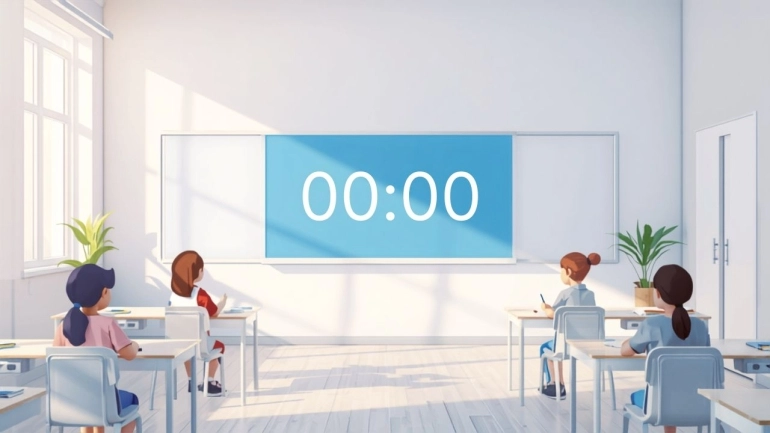
Temporizador de aula para rutinas de concentración del alumnado
Un caso de uso práctico para el aula que muestra cómo pueden los profesores usar un temporizador de aula para bloques de concentración, transiciones, lectura, escritura, tareas en grupo y el...
Caso de uso leído


