A practical guide for correcting sideways and upside-down images in assignments, classroom slides, school forms, posters, and beginner projects.
When A Clear School Image Appears Sideways
A student photographs a completed assignment and checks it on a phone. The writing looks upright and readable. After the file is uploaded to the school platform, however, the preview turns the page sideways. Uploading it again produces the same result, and the deadline is approaching.
Teachers meet the same problem when preparing lesson slides, scanning classroom forms, or collecting photographs for a school poster. An image may appear correct in one gallery but rotate unexpectedly in a browser, presentation program, learning management system, or document editor. This often happens because the original device records the viewing direction as metadata instead of permanently turning the image.
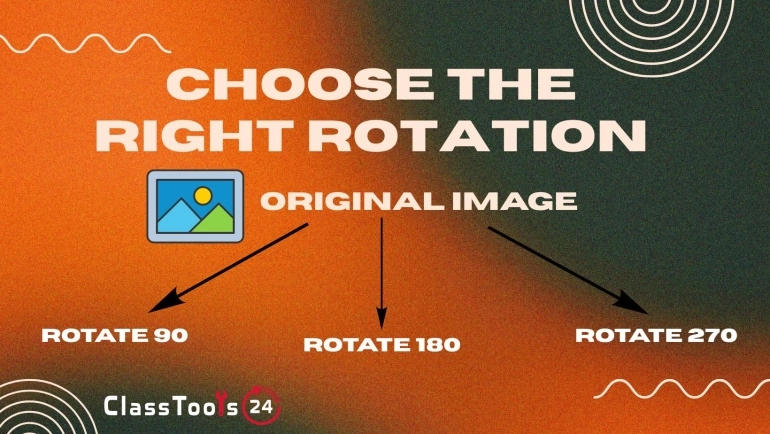
The Rotate Image tool can turn the actual picture clockwise or counterclockwise. A 90-degree rotation usually corrects a sideways image, while a 180-degree rotation corrects an upside-down page. The downloaded copy can then be added to the assignment, slide, form, poster, portfolio, or website.
Rotation solves orientation, but it does not automatically make a file ready for school use. The final image must still be checked for readability, missing edges, personal information, suitable dimensions, and file size. A page can be upright and still be difficult to mark if the handwriting is blurry or the student name has been cropped.
Tutorial: How To Rotate A School Image Correctly
Begin by identifying where the top of the image is pointing. Use a heading, face, page number, line of writing, or another familiar detail. Choosing the direction before pressing a button prevents unnecessary rotations and makes the process easier to repeat.
- Open the original file: View the complete image rather than relying on a small thumbnail.
- Identify the intended top: Check headings, faces, writing, diagrams, or page numbers.
- Keep an unchanged copy: Store the original file in a separate folder before editing.
- Open the rotation tool: Upload the image to the Rotate Image tool.
- Choose the direction: If the top points left, rotate clockwise. If the top points right, rotate counterclockwise.
- Correct an upside-down image: Use a 180-degree turn or apply two 90-degree rotations.
- Inspect the preview: Check all writing, diagrams, faces, page edges, signatures, and labels.
- Download the corrected copy: Give it a useful filename such as history-assignment-page-2-upright.jpg.
- Open the downloaded image: Confirm that another program displays it in the expected direction.
- Add it to the school project: Insert or upload the corrected file instead of the sideways original.
- Check the final preview: Review the exported document, slide deck, poster, or LMS attachment.
Do not use the resize handles in a document editor to correct orientation. Dragging a side or corner changes the image dimensions and can distort handwriting, faces, forms, and diagrams. Rotation changes direction; resizing changes width and height.
A screenshot is also a poor substitute for rotating the source. Screenshots may include phone controls, notification icons, black borders, or unnecessary background areas. They can also reduce the resolution of small writing. Correcting the original normally produces a cleaner school submission.
Use Case 1: Correcting A Photographed Assignment
Situation: A student completes a handwritten mathematics assignment and photographs each page. One page opens sideways after it is transferred to a school laptop.
Problem: The teacher would need to turn the device or edit the file before reading the calculations. Retaking the photograph may introduce blur or remove part of the graph near the page edge.
Solution: The student keeps the original and rotates the sideways page by 90 degrees. The corrected copy is opened at full size so the student can check the question number, calculations, graph labels, and final answer.
Result: Every page follows the same reading direction. The teacher can mark the work without interrupting the process to repair an avoidable image problem.
Use Case 2: Repairing An Image In A Lesson Slide
Situation: A teacher inserts a portrait photograph into a classroom slide. The file appears upright in the computer folder but turns sideways inside the presentation.
Problem: Rotating the image only inside that slide does not necessarily correct the source file. The orientation problem may return when the photograph is reused or added to another program.
Solution: The teacher rotates the source image, downloads the corrected version, and replaces the old copy in the slide. The presentation is closed and reopened on the classroom computer.
Result: The photograph displays consistently during the lesson and can be reused in other resources without another correction.
Use Case 3: Uploading A Signed School Form
Situation: A parent or student photographs a signed form and uploads it to a school portal. The portal preview displays the page sideways.
Problem: School staff cannot read the form comfortably without downloading and editing it. Important information near the edges may also be difficult to inspect.
Solution: The image is rotated into portrait orientation. The user checks that the student name, date, answers, and signature remain fully visible. Unnecessary desk space can be removed carefully with the Image Cropper.
Result: The form opens in the normal reading direction and can be reviewed without additional work. The original is retained until the school confirms receipt.
Use Case 4: Preparing Photographs For A School Poster
Situation: Students design a poster for a school exhibition. A photograph of student artwork was taken vertically but appears sideways in the design program.
Problem: Stretching the photograph into a portrait frame distorts the artwork. Rotating only the display box can also leave unusual spacing because the source file still has landscape dimensions.
Solution: The students rotate the source file before adding it to the poster. They crop unnecessary wall space and resize the corrected image while preserving its proportions.
Result: The artwork appears upright and undistorted. The image fits the poster layout without forcing the students to redesign the entire page.
Use Case 5: Submitting Work Through Google Classroom Or An LMS
Situation: A student uploads a photographed worksheet to Google Classroom or another LMS. The phone gallery shows it upright, but the attachment preview shows it sideways.
Problem: Repeating the upload does not help because the platform continues to ignore the orientation metadata. The student may assume that the teacher will repair the file after submission.
Solution: The student rotates the source and downloads a corrected copy. The new file is uploaded, and the attachment preview is checked before Submit is selected.
Result: The teacher receives a readable file in the expected direction. The student also learns that checking the final platform preview is part of completing an online submission.
Use Case 6: Creating A Student Portfolio
Situation: An art student photographs several paintings, models, and sketchbook pages. Some files appear sideways when added to a digital portfolio.
Problem: The portfolio system shrinks the sideways images to fit its frames. Important details become too small, and the pages look inconsistent.
Solution: The student rotates every source image to match the intended viewing direction. Distracting background areas are cropped, and the files are resized to consistent dimensions with the Image Resizer.
Result: Each project appears upright and at a useful size. The corrected files can also be reused in applications, presentations, and assessment evidence.
Use Case 7: Fixing Scanned Classroom Material
Situation: A teacher scans several approved worksheet pages. One page was accidentally placed upside down on the scanner.
Problem: The mistake is noticed after the scanner is no longer available. Leaving the page unchanged would force students to rotate their devices or printed materials.
Solution: The teacher rotates the affected page by 180 degrees and checks the heading, page number, diagrams, and answer spaces. The corrected image is returned to its proper position in the resource pack.
Result: Every page follows the same reading direction, and the lesson material can be used without rescanning the original.
Use Case 8: Building A Beginner School Website
Situation: A beginner developer creates an event gallery for a school club website. Photographs collected from different phones display in inconsistent directions.
Problem: The developer uses CSS rotation on individual files. The pictures appear upright, but their original dimensions still affect the layout, causing gaps and overlapping captions on smaller screens.
Solution: The developer prepares correctly rotated image files before adding them to the gallery. The files are resized and processed with the Image Compressor so visitors do not download unnecessarily large photographs.
Result: The gallery behaves consistently across devices. The developer no longer needs special rotation rules for individual images.
Use Case 9: Preparing A Classroom Newsletter
Situation: A teacher receives photographs for a classroom newsletter. One event image appears sideways when opened on the school computer.
Problem: Inserting it as received creates an awkward layout. Stretching the image to fill a portrait frame distorts faces and classroom objects.
Solution: The teacher rotates the source image, checks publication permission, and removes only unnecessary background space. The corrected file is placed into the newsletter without changing its proportions.
Result: The photograph fits the page naturally and remains suitable for future classroom records.
Use Case 10: Creating QR-Linked Project Displays
Situation: Students prepare a project display with a QR code linking to an online gallery. Several uploaded project photographs appear sideways on mobile screens.
Problem: Visitors scan the code but must turn their phones to view the work. The display feels unfinished even though the printed board is well prepared.
Solution: Students rotate the gallery images before uploading them again. They then test the gallery on a phone and create the final link with the QR Code Generator.
Result: Visitors can scan the code and view every project image in its intended direction. Testing both the images and the QR destination prevents problems during the exhibition.
How This Fits Into A Real Workflow
- Collect the project images: Store all photographs, scans, and screenshots in one clearly named folder.
- Open every file: Review full images instead of trusting thumbnails.
- Keep the originals: Place unchanged files in a separate backup folder.
- Correct orientation first: Rotate sideways and upside-down images before other edits.
- Check every edge: Confirm that names, signatures, page numbers, and answers remain visible.
- Crop unnecessary areas: Remove desk surfaces, scanner borders, or empty wall space when appropriate.
- Resize for the destination: Prepare dimensions suitable for the document, slide, poster, website, or LMS.
- Compress large files: Reduce file size when upload limits or website performance are concerns.
- Convert if required: Use the Image Converter when the destination does not support the original format.
- Use clear filenames: Include the subject, page number, and editing stage.
- Insert or upload the corrected copy: Avoid leaving the sideways original in the final project.
- Review the final output: Open the exported file or platform preview before submitting or publishing.
- Remove sensitive temporary files: Delete unnecessary copies of forms and student records when the task is complete.
Rotation should happen near the beginning of the workflow. Once the image is upright, its true width and height become clear. Cropping, resizing, poster placement, and slide design are easier when the source file already has the intended direction.
Common Problems This Solves
- A photographed assignment opens sideways.
- A lesson-slide image displays differently on another computer.
- A school form appears sideways in an upload portal.
- An LMS ignores a phone photograph's orientation metadata.
- A school poster contains an incorrectly oriented photograph.
- A portfolio system shrinks sideways artwork.
- A scanned classroom page appears upside down.
- A beginner website needs special CSS rules for individual images.
- A newsletter photograph becomes distorted when stretched.
- A QR-linked gallery contains sideways project images.
- A student repeatedly uploads the same incorrect source file.
- A screenshot reduces the quality of readable school work.
Comparison: Correctly Rotated And Sideways Images
| School Task | Using A Correctly Rotated Image | Leaving The Image Sideways |
|---|---|---|
| Assignment submission | The teacher can read and mark the work immediately. | The teacher may need to download and repair the file. |
| Classroom slide | The photograph supports the lesson without distraction. | The image makes the slide look unfinished. |
| School form | Names, dates, answers, and signatures follow the normal reading direction. | Staff may struggle to review the form in the portal. |
| School poster | The image fits its intended portrait or landscape area. | Stretching may distort artwork, text, or faces. |
| Student portfolio | Projects appear upright and at a useful size. | The platform may shrink or crop the images unexpectedly. |
| Beginner website | Correct source dimensions support predictable layouts. | CSS rotation may produce gaps and responsive problems. |
| Scanned resource | All pages use a consistent reading direction. | Students must rotate their screens or printed pages. |
| QR-linked gallery | Visitors can view the project comfortably after scanning. | The online display feels incomplete and difficult to use. |
Quality, Readability, And Accuracy Checks
Rotation changes direction but cannot correct poor focus, weak lighting, or low resolution. Open the downloaded result at full size and check handwriting, diagrams, signatures, labels, and faces. If important details are unclear, use a better original or retake the photograph when possible.
Preserve the image proportions when resizing. Stretching a rotated file can make handwriting wider, turn circles into ovals, and distort student artwork. If the picture does not fit the available area, crop unnecessary space or change the layout instead.
Check all four edges of forms and worksheets. A tight crop may remove a question number, signature, teacher comment, or part of an answer. Keeping a small margin is better than cutting off required information.
Compatibility must be tested in the final destination. Open the image in the LMS, browser, presentation software, or document editor where it will be used. The fact that it appears upright in one program does not guarantee that every system will handle it identically.
Keep the original when the image records evidence. Science observations, completed assignments, signed forms, and artwork may need to be reviewed in their unchanged form. Clear filenames help prevent the original and corrected copies from being confused.
Privacy And Safe School Use
Rotating an image does not remove private information. Student names, faces, signatures, login details, email addresses, contact numbers, identification codes, school documents, and medical information remain visible after rotation.
School forms need careful handling. They may contain addresses, emergency details, parent signatures, or other sensitive information. Upload these files only to an authorised system and remove unnecessary temporary copies after the school confirms receipt.
Inspect classroom photographs beyond the main subject. Whiteboards, computer screens, certificates, desk labels, and displayed student work may reveal information that should not appear in a public poster, newsletter, portfolio, or website.
Students should use approved or fictional images for practice projects. Personal photographs should not be uploaded merely to test rotation. Teachers can provide sample files that contain no real student information.
The tool changes image direction only. It does not blur faces, remove metadata, check copyright permission, hide names, or determine whether a file is safe to publish. Those decisions remain the responsibility of the student, teacher, or school staff member preparing the resource.
Frequently Asked Questions
Can students rotate images for school assignments?
Yes. Students can correct sideways and upside-down images before adding them to assignments, presentations, portfolios, and LMS submissions. The original should be kept until marking is complete.
Can teachers rotate images for classroom slides?
Yes. Correcting the source file is usually more reliable than rotating it only inside one slide. Reopen the presentation on the classroom computer before the lesson.
Can I rotate a photographed school form?
Yes. Check that names, dates, answers, signatures, and page edges remain visible. Upload private forms only through an authorised school system.
Why is my phone photo upright but sideways in the LMS?
The phone may read orientation metadata that the LMS ignores. Rotating and downloading a corrected copy can store the intended direction in the image itself.
What is the difference between rotating and flipping?
Rotation turns the complete image by an angle. Flipping creates a mirrored version. Use rotation for a sideways page and the Flip Image tool when left and right need to exchange positions.
Which direction should I rotate the image?
If the top points left, rotate clockwise. If it points right, rotate counterclockwise. An upside-down image needs a 180-degree turn.
Will rotating an image reduce its quality?
Rotation should not intentionally make the image blurry. Quality can decline through screenshots, repeated exports, resizing, or heavy compression, so begin with the clearest original.
Can I crop and resize an image after rotating it?
Yes. Rotate first, crop unnecessary background, and resize while preserving the original proportions. Do not remove required answers, signatures, labels, or evidence.
Can I compress a rotated image for an LMS upload?
Yes. Compression can help when a platform has a file-size limit. Inspect the compressed copy to ensure that handwriting and small details remain readable.
Does rotation remove student names or login details?
No. Private information remains visible. Review the full image and its background before uploading, sharing, or publishing it.
Should a beginner developer use CSS to fix sideways images?
It is usually better to correct the source files. CSS rotation may make an image look upright while the layout continues to use its original width and height.
Why should I keep the original image?
The original allows you to correct a mistaken rotation, recover content removed during cropping, and provide unchanged evidence when a teacher or administrator requests it.
Final Thought
A sideways image can make an otherwise complete assignment, slide, form, poster, or portfolio difficult to use. Correcting the source file helps the image display more consistently and reduces unnecessary work for teachers, students, and school staff.
Keep the original, rotate before making other edits, inspect every edge, protect private information, and check the final platform preview. These practical habits save time, prevent last-minute frustration, and help school images appear in the direction they were intended to be viewed.