A practical guide to pixels, formats, metadata, compression, and how image files are saved and opened.
When A Photo Looks Simple But The File Is Not
A student takes a photo of a science project and sees only the picture on the phone screen. A teacher downloads a diagram and places it into a worksheet. A beginner developer adds an image to a website folder and expects it to appear on the page. In each case, the image looks like one simple object, but the computer stores it as structured data.
Understanding how images are stored on disk helps students and beginners solve common file problems. Why is one photo several megabytes? Why does a screenshot stay sharp while a photo becomes blurry after compression? Why does a website show a broken image icon when the file exists on the computer? These questions become easier when you understand pixels, formats, metadata, folders, and compression.
An image file is not only the picture you see. It contains pixel information, file format rules, sometimes metadata, and often compression. The device reads all of that information and reconstructs the image on the screen. This process happens so quickly that most users never think about it until something goes wrong.
For classroom work, this knowledge is practical. Students submit images, teachers prepare resources, and beginner developers build projects with image files. Knowing what is inside an image file helps users prepare, store, upload, and troubleshoot images more confidently.
What Is A Digital Image?
A digital image is a visual file made from tiny units called pixels. A pixel is one small point of color. When thousands or millions of pixels are arranged in rows and columns, they create the picture we see.
For example, an image that is 1000 pixels wide and 800 pixels tall contains 800,000 pixels. Each pixel stores color information. In a common RGB image, the color is created from red, green, and blue values. Different combinations of those values create different colors.
This is why image dimensions matter. A larger image usually contains more pixels. More pixels can mean more detail, but they can also mean a larger file. A phone photo may contain millions of pixels, even if it only appears as a small preview in a gallery.
Students often meet this problem when uploading photos. The image may look small on the screen, but the file behind it may be large because it contains many pixels and extra information.
How Images Are Stored On Disk
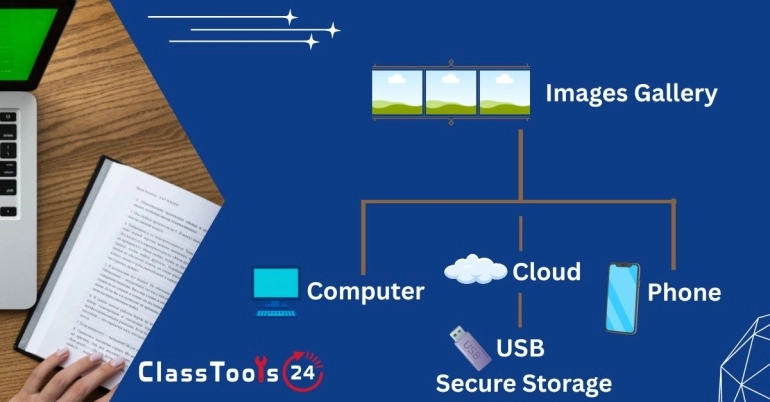
When an image is saved, the computer writes the image data to storage. That storage may be a hard drive, solid-state drive, memory card, USB drive, phone storage, or cloud system. The image becomes a file with a name and extension, such as project-photo.jpg or diagram.png.
The file extension gives a clue about the format. JPG, PNG, GIF, WEBP, SVG, and BMP all store image information differently. The format tells software how to read the file, how the pixel data is organized, whether compression is used, and what features the image can support.
When you open the image, the software reads the file structure, decodes the stored data, and displays the pixels on the screen. When a website loads an image, the browser does something similar. It requests the image file, reads it, decodes it, and places it in the page layout.
If the file path is wrong, the format is unsupported, or the file is missing, the image may not appear. That is why beginner websites often show broken image icons. The page may be correct in design, but the browser cannot find or read the image file.
Pixels, Resolution, And File Size
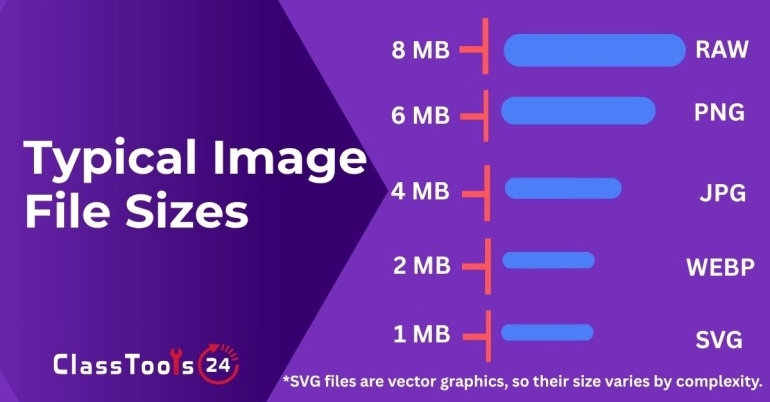
Pixels describe the image dimensions. Resolution is often used to describe how many pixels an image has or how densely those pixels appear in print. File size describes how much storage the image uses, usually measured in KB or MB.
These ideas are connected, but they are not the same. A large image dimension often creates a larger file, but format and compression also matter. A JPG photo and a PNG screenshot with the same dimensions may have very different file sizes because the formats store data differently.
For school projects, this matters because students may choose images only by appearance. A picture that looks fine in a document may still make the file heavy. A worksheet image may need resizing. A website image may need compression. A screenshot with text may need a format that keeps sharp edges.
If an image is too large for a task, the Image Resizer can reduce dimensions. If the dimensions are fine but the file is too heavy, the Image Compressor can reduce file size.
Common Image Formats
Different image formats are used for different jobs. Choosing the right format helps images stay clear, load faster, and work properly in documents or websites. The Library of Congress's Sustainability of Digital Formats project evaluates exactly this kind of trade-off for long-term use, comparing formats on criteria like disclosure, adoption, and how well they hold up over time.
| Format | Best Use | Common Example |
|---|---|---|
| JPG | Photos and general sharing | Assignment photos, event pictures, project evidence |
| PNG | Screenshots, diagrams, sharp text, transparency | Worksheet diagrams, app screenshots, labeled images |
| WEBP | Web images with smaller file sizes | Classroom pages, blogs, online portfolios |
| GIF | Simple animations or limited-color graphics | Small animated examples or simple visual loops |
| SVG | Scalable icons, logos, and simple graphics | Club logos, badges, website icons |
If the wrong format causes a problem, the Image Converter can help change the file into a format that fits the task better.
What Metadata Means
Metadata is extra information stored with a file. In images, metadata may include width, height, camera model, date, time, color profile, orientation, location, author, captions, or software information. Some metadata helps the device display the image correctly. Other metadata describes where or how the image was created.
Metadata can be useful. It can help organize photos, preserve camera details, or explain image properties. But it can also create privacy concerns. A photo may contain location information, the time it was taken, or device details. Students and teachers should be careful before sharing images publicly.
Metadata can also explain strange behavior. Sometimes a phone photo appears upright in the gallery but sideways on a website because the device stored orientation as metadata. In that case, using a Rotate Image tool can create a corrected copy that displays properly in more places.
How Compression Affects Storage
Compression reduces file size by storing image data more efficiently. Some formats use lossless compression, which keeps the image data intact. Other formats use lossy compression, which removes some information to create a smaller file.
JPG commonly uses lossy compression, which is useful for photos. PNG usually uses lossless compression, which is useful for screenshots and diagrams. WEBP can support strong compression and is often useful for websites.
Compression is one reason two images with similar dimensions can have very different file sizes. A detailed photo, a flat-color icon, and a text-heavy screenshot may all behave differently. The best format depends on the image content and final use.
For students, this explains why a photo may be too large to upload even when it looks normal. For teachers, it explains why some worksheet images make the file heavy. For web projects, it explains why image preparation affects loading speed.
Use Case 1: Student Assignment Photos
Situation: A student photographs handwritten work and uploads it to a school platform.
Problem: The photo file is large because it contains many pixels and possibly extra metadata. The upload may fail or take too long.
Solution: The student checks the image, crops unnecessary background, resizes if the dimensions are too large, and compresses the file before uploading.
Result: The file becomes easier to submit while the handwriting remains readable.
Use Case 2: Teacher Worksheets
Situation: A teacher prepares a worksheet with screenshots, diagrams, and photos.
Problem: The document becomes heavy because several image files are inserted without preparation.
Solution: The teacher uses suitable formats: PNG for sharp screenshots and diagrams, JPG for photos, and compression when the final file is too large.
Result: The worksheet is easier to share, print, and upload to a classroom platform.
Use Case 3: Beginner Website Projects
Situation: A beginner developer adds images to a web page.
Problem: One image does not appear because the file path is wrong, while another slows the page because it is too large.
Solution: The developer checks folder names, file extensions, image paths, and file sizes. Images are converted, resized, or compressed before publishing.
Result: The website loads more reliably and the images display correctly.
Common Image Storage Problems
- Images are too large because they contain more pixels than needed.
- A file extension does not match the expected format.
- A website image is broken because the path is wrong.
- A photo appears sideways because of orientation metadata.
- A screenshot becomes blurry after being saved in the wrong format.
- Cloud storage fills quickly with oversized photos.
- A form rejects an image because the file type is unsupported.
- Private metadata remains inside a shared image.
Comparison: Understanding Images Vs Guessing
| Task | When You Understand Image Storage | When You Guess |
|---|---|---|
| Uploading homework photos | You can reduce size while keeping the work readable. | You may keep retrying the same large file. |
| Choosing a format | You select JPG, PNG, WEBP, or SVG based on the task. | You may use a format that causes quality or upload issues. |
| Building websites | You check paths, extensions, and file sizes. | Images may break or slow the page. |
| Sharing photos | You think about metadata and privacy. | You may share more information than intended. |
| Preparing worksheets | You choose clear images that do not make files too heavy. | The document may become hard to send or open. |
Privacy And Safety
Images can contain more information than users notice. A classroom photo may show student faces, names on desks, notice boards, or school details in the background. Metadata may also include time, device, or location information depending on the file and device settings.
Before sharing images publicly, check both the visible content and the file context. Crop unnecessary background, avoid using real student information in public examples, and choose neutral sample images when possible. Converting, compressing, or resizing an image does not automatically remove private information.
Final Thought
Images look simple on the screen, but they are stored as structured files made from pixels, formats, metadata, and compression. Understanding this helps students, teachers, and beginner developers solve practical problems instead of guessing.
Once you understand how images are stored, everyday tasks become easier: uploading assignments, preparing worksheets, choosing formats, fixing broken website images, and reducing storage use. That knowledge turns image handling from a frustrating technical issue into a manageable part of digital work.
 This article is about
Image Converter
Open the tool
This article is about
Image Converter
Open the tool