
Turn HTML content into a printable PDF for assignments, lesson materials, reports, forms, and web projects
A student completes a web-development assignment containing headings, tables, images, and carefully styled sections. The webpage works correctly in the browser, but the teacher requests one document that can be downloaded, reviewed, and printed. Sending only the HTML file causes another problem: images and styles may be stored in separate folders, and the page may not look the same on another computer.
Converting the finished HTML to PDF creates a fixed document for submission or sharing. The student keeps the original HTML, CSS, images, and scripts for editing, while the PDF provides a convenient snapshot of the completed work.
Teachers can use the same process for printable lesson notes, classroom instructions, revision sheets, reports, reading material, and simple forms originally prepared as HTML. Beginner developers can use it to examine how screen layouts behave when converted into pages.
HTML and PDF serve different purposes. HTML is flexible, interactive, and designed for screens of different sizes. PDF is page-based and generally better for printing, archiving, and preserving a finished arrangement. A successful conversion therefore requires more than pressing a button; the resulting pages must be inspected carefully.
What HTML-to-PDF Conversion Does
HTML describes the structure of webpage content. CSS controls presentation, including fonts, colors, spacing, borders, and layout. Browsers combine these resources to display a page.
An HTML-to-PDF converter renders the supplied content and places the result onto fixed PDF pages. The output may preserve text, colors, basic layouts, images, tables, and supported styles. Interactive features do not always transfer in the same way.
A button that changes content with JavaScript, an animation, a video player, or a dropdown menu cannot behave like a normal interactive webpage on printed paper. A PDF should therefore be treated as a printable representation rather than a complete replacement for the original website.
When PDF Is the Better Final Format
- A teacher requires one file for assignment submission.
- A webpage needs to be printed with a controlled page layout.
- Lesson notes must be shared with students for offline reading.
- A completed report needs a stable archived copy.
- A web project requires a visual record for a portfolio.
- A classroom form must be printed and completed by hand.
- A receipt, schedule, certificate, or summary needs consistent pages.
- A student needs a non-interactive copy of research material.
HTML remains preferable when the audience needs responsive layouts, live forms, embedded media, current information, navigation, or interactive behavior.
How to Convert HTML to PDF
- Prepare the HTML. Confirm that the document has a valid structure and includes the intended content.
- Test it in a browser. Correct missing images, broken styles, invalid markup, and unreadable sections before conversion.
- Review print behavior. Consider page size, margins, page breaks, table width, and content that should not appear in print.
- Save the source files. Keep the editable HTML and CSS separately from the future PDF.
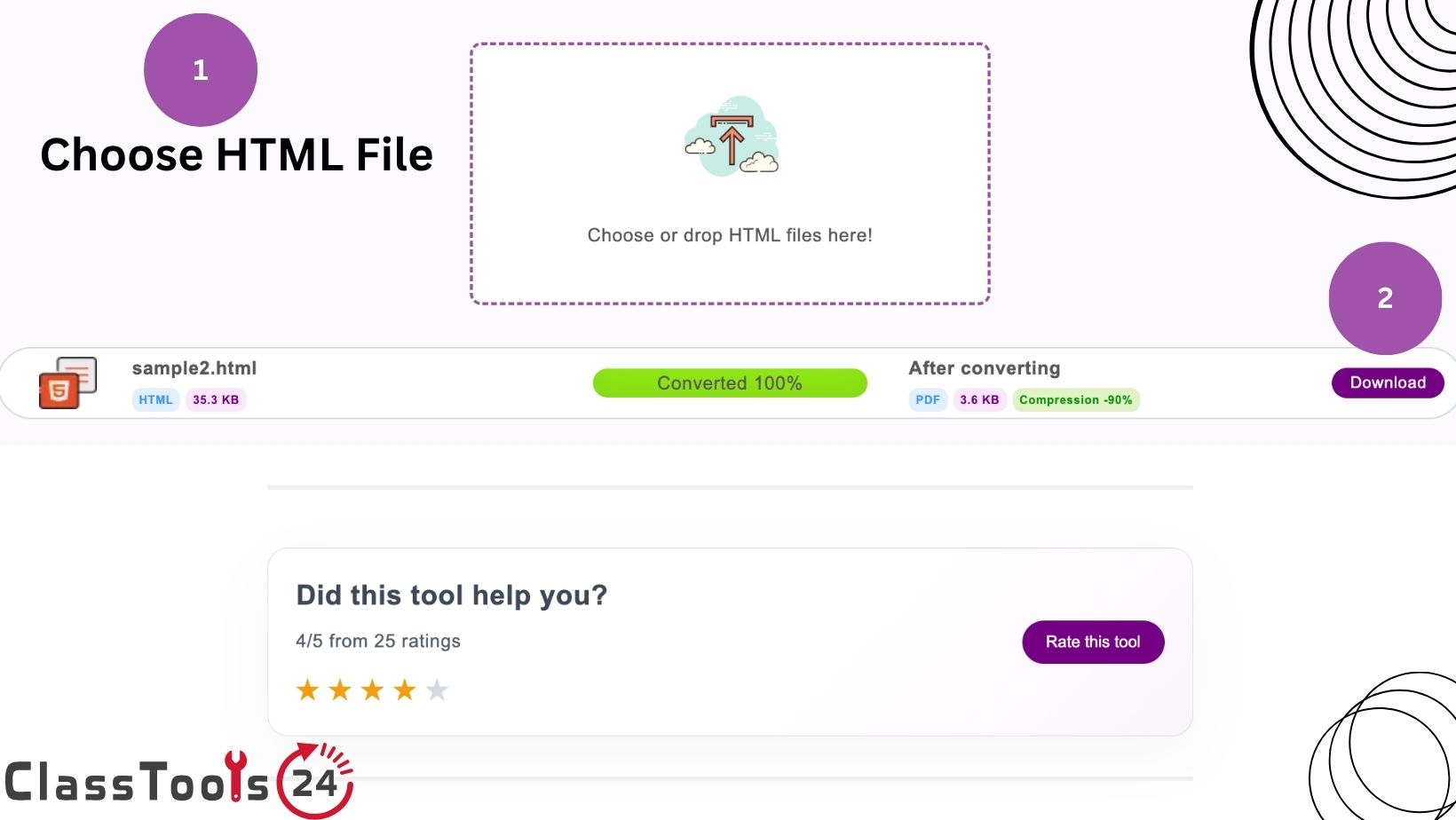
- Provide the HTML to the converter. Paste or submit the content using the available input method.
- Start the conversion. Allow the document to be rendered into PDF pages.
- Download the PDF. Give it a descriptive filename such as
science-lab-report-submitted.pdf. - Open the downloaded file. Never assume the conversion is correct without reviewing it.
- Inspect every page. Check text, images, links, tables, margins, page numbers, and page breaks.
- Submit or share the verified copy. Keep the original HTML in case revisions are required.
How This Fits Into a Real Workflow
- Plan the document or webpage.
- Write semantic HTML using headings, paragraphs, lists, tables, and appropriate labels.
- Add readable CSS for screen display.
- Create print-specific rules when needed.
- Check the HTML in more than one viewport size.
- Review spelling, facts, citations, and image permissions.
- Convert the completed HTML into PDF.
- Open the PDF and inspect every page.
- Return to the source HTML or CSS to fix problems.
- Convert again and save the approved version.
The source should remain the authoritative version. Avoid trying to repair major layout problems by editing only the PDF. Correct the HTML or CSS and generate a fresh document.
Preparing HTML for Better PDF Output
Clean structure makes a document easier to convert and maintain. Use one main heading, arrange subsections logically, and avoid using empty paragraphs or repeated line breaks to create large spaces.
A simple document might begin like this:
<article>
  <h1>Water Quality Investigation</h1>
  <p>This report compares samples from three locations.</p>

  <h2>Method</h2>
  <p>Each sample was tested using the same procedure.</p>

  <h2>Results</h2>
  <table>
    ...
  </table>
</article>
Use the HTML Beautifier when copied or minified markup is difficult to inspect. Formatting makes code easier to read, but it does not automatically correct invalid nesting, missing labels, or inaccurate content.
If the CSS is compressed or badly formatted, the CSS Beautifier can produce a more readable working copy before print rules are reviewed.
Using Print CSS
Screen and print layouts have different requirements. A wide navigation menu may be useful on a website but unnecessary in a classroom handout. Dark backgrounds can consume ink, while fixed sidebars may reduce the available page width.
CSS can provide print-specific rules:
@media print {
  nav,
  .video-player,
  .screen-only-button {
    display: none;
  }

  body {
    color: #000;
    background: #fff;
    font-size: 12pt;
  }

  h2 {
    break-after: avoid;
  }

  table,
  figure {
    break-inside: avoid;
  }
}
These rules are examples rather than guarantees. Print support can vary, and long content may still need adjustment. Use print preview and inspect the generated PDF.
Real Educational Use Cases
1. Submitting a Web-Development Assignment
A student builds a responsive article page as an HTML and CSS assignment. The teacher wants the source files for assessment and a PDF showing the finished design.
The student validates the page, prepares a readable print layout, and converts it to PDF. Both the source project and the verified PDF are submitted.
The teacher can inspect the code while also reviewing a stable visual copy. The PDF does not replace the source because responsive behavior and interactions still need to be tested in a browser.
2. Creating Printable Lesson Notes
A teacher maintains lesson notes as HTML because headings, links, images, and reusable styles are easy to organize. Some students prefer printed copies or need offline access.
The teacher applies print styles, removes navigation elements, converts the notes to PDF, and checks page breaks. A descriptive filename includes the subject and topic.
Students receive a consistent handout while the teacher continues editing the HTML source for future classes.
3. Preparing a Student Research Report
A student writes a research report as a webpage containing quotations, citations, images, and a comparison table. When printed directly, the table extends beyond the page and one heading appears alone at the bottom.
The student changes the print layout, reduces the table width, and adjusts page-break behavior. The document is converted again and checked page by page.
The final PDF is easier to read and preserves the report as it appeared at submission time.
4. Producing Printable Classroom Forms
A teacher creates an HTML form for a classroom observation activity. The online version contains text fields and selection controls, but a paper version is also required.
The print layout replaces interactive controls with suitable writing space and removes the submit button. The teacher converts the prepared version to PDF and prints one test copy.
The test reveals whether lines are long enough, instructions remain with their questions, and page breaks occur in sensible places.
5. Archiving a Student Portfolio Page
A student portfolio changes throughout the school year. At the end of each term, the student wants a record of the current work.
The student converts selected portfolio pages into dated PDFs. Each document records the project descriptions and images from that stage.
The online portfolio remains the main interactive version, while the PDFs provide snapshots for reflection and assessment.
6. Sharing a School Event Schedule
A school publishes an event schedule as HTML so updates can be made quickly. Families also need a printable version.
Once the schedule is approved, staff convert it to PDF and check dates, times, locations, page headings, and contact details. The online page and PDF are labelled with their update date.
This reduces confusion when an older downloaded schedule remains on someone's device after the website changes.
7. Creating a Coding Tutorial Handout
A beginner developer writes an HTML tutorial containing code examples and explanatory notes. When converted, long code lines extend beyond the page boundary.
The developer updates the print CSS so code blocks wrap or scroll appropriately in the screen version while remaining readable in print. The PDF is then regenerated.
Students can annotate the printed tutorial, while the HTML version retains copyable code and working links.
8. Producing Offline Revision Material
A teacher creates a revision webpage containing definitions, examples, diagrams, and practice questions. Some learners have unreliable internet access at home.
The teacher converts the resource to PDF and checks that essential explanations do not depend on video or hidden interactive content. Links are written descriptively so students understand what each source contains.
The PDF offers an offline alternative without removing access to the richer web version.
HTML and PDF Comparison
| Requirement | HTML | |
|---|---|---|
| Responsive screen layout | Can adapt to different viewport sizes | Uses fixed pages |
| Printing | Depends on browser and print CSS | Designed around stable page dimensions |
| Editing | Source code can be updated directly | Not ideal as the primary editable source |
| Interactive forms | Can validate and submit data | Interactive behavior may be limited or absent |
| Animation and video | Can support interactive media | Usually represented as static content |
| Offline sharing | May require several related files | Usually shared as one document |
| Archiving a finished layout | Can change with browser and source updates | Provides a fixed snapshot |
| Accessibility | Can be highly accessible with correct structure | Requires proper document structure and checking |
Common Problems This Solves
- A webpage must be submitted as one downloadable document.
- Lesson notes need a printable or offline version.
- A student portfolio requires a dated visual record.
- A school report must preserve a finished arrangement.
- An HTML form needs a paper alternative.
- A browser-based timetable must be shared as fixed pages.
- A coding tutorial needs a printable handout.
- A web project contains separate files that are inconvenient for casual viewing.
Common Conversion Mistakes
Converting Before Testing the HTML
A converter cannot reliably repair invalid markup, missing content, or broken image paths. Open and test the HTML in a browser first.
Using Screen Layout as the Print Layout
Wide menus, sidebars, fixed headers, and multi-column grids may not fit on a printed page. Create print-specific styles where necessary.
Forgetting External Images and Fonts
Remote assets may be blocked, unavailable, or slow to load during conversion. Confirm that each required resource is accessible and permitted.
Assuming Interactive Features Will Work
JavaScript controls, animations, dropdowns, video, and dynamic data may not behave like they do in a browser. Include important information as visible content.
Ignoring Page Breaks
A heading can become separated from its paragraph, or a table row can be divided awkwardly. Inspect every transition between pages.
Using Images That Are Too Large
Oversized photographs can increase PDF size and slow downloading. Prepare copies using the Image Resizer and Image Compressor.
Deleting the HTML Source
The PDF is a finished output, not the best place for future content changes. Keep the original HTML, CSS, images, and scripts.
Submitting Without Opening the PDF
A successful download does not prove that the pages are correct. Open the file and inspect text, images, spacing, links, and page order.
Handling Images Correctly
Images are a frequent cause of incomplete PDF output. Use valid paths and confirm that each image appears in the browser before conversion.
If an assignment photograph is sideways, correct it with the Rotate Image tool before placing it in the HTML. If unnecessary background areas remain, use the Image Cropper.
Alternative text remains important in the HTML source. It explains an image's purpose when the picture cannot be seen and supports more accessible webpage use. The PDF should also be reviewed with accessibility requirements in mind.
Tables and Long Content
Tables that fit comfortably on a wide monitor may extend beyond a PDF page. Keep columns focused, use concise headings, and avoid placing long paragraphs in narrow cells.
When a table spans several pages, repeating the header row can make the document easier to follow if the conversion method supports it. Check whether rows split in confusing places.
Long web articles also need clear headings and sensible spacing. Avoid forcing every section onto a new page unless the document structure requires it, since excessive page breaks can create large blank areas.
Links in the PDF
Some converted PDFs preserve clickable links, while others display only the linked text. Write descriptive anchor text so the reader understands the destination even when clicking is unavailable.
For example, “Open the experiment instructions” is more informative than “click here.” When the printed reader must type the address, consider including a short readable URL or using the QR Code Generator to provide an additional route.
Test important links from the finished PDF. A link may point to a private document, expired page, local development address, or file that only exists on the creator's computer.
Privacy and Responsible Conversion
Converting HTML to PDF does not remove private information. Student names, faces, grades, email addresses, login details, school records, hidden comments, and confidential documents may remain in the output.
Review visible page content, headers, footers, filenames, links, image backgrounds, and generated metadata before sharing the PDF. Do not assume that information is safe merely because it is no longer displayed as a webpage.
Teachers and school staff should follow institutional rules before submitting confidential HTML content to an online conversion service. Use fictional or non-sensitive data for classroom demonstrations whenever possible.
Quality and Accessibility Checklist
- The PDF opens without an error.
- The title and filename identify the document clearly.
- Headings appear in a logical order.
- Body text is large enough to read.
- Text is not clipped at page edges.
- Images are upright, clear, and correctly positioned.
- Tables fit within the page width.
- Important headings remain with their following content.
- Colors provide sufficient contrast.
- Links point to the correct destination.
- Interactive information has a visible alternative.
- No unexpected blank pages appear.
- Private information has been removed.
- The final PDF was checked on another device when possible.
Frequently Asked Questions
Can students convert HTML assignments to PDF?
Yes. A PDF can provide a stable visual copy for submission. Students should also keep or submit the original source files when the teacher needs to assess the HTML and CSS.
Will JavaScript work inside the converted PDF?
Do not assume that webpage JavaScript, animations, menus, or dynamic content will work in PDF. Important information should appear in a printable form.
Why are images missing from my PDF?
The image path may be incorrect, the resource may be unavailable, or access may be blocked during conversion. Confirm that every image appears in the browser first.
Can CSS be preserved during conversion?
Supported CSS is normally used when rendering the document, but screen and print output can differ. Test the result and add print-specific rules where needed.
How can I prevent a heading from appearing alone at the bottom of a page?
Use suitable print CSS, such as break-control properties, and inspect the result. Support can vary, so manual review remains necessary.
Is PDF better than HTML?
Neither format is always better. HTML is suitable for responsive and interactive content, while PDF is useful for fixed pages, printing, offline sharing, and archiving.
Can I edit the PDF after conversion?
Some PDF software allows edits, but the better workflow is to update the original HTML or CSS and create a new PDF.
Will the PDF look exactly like the webpage?
Not always. Page dimensions, print styles, fonts, assets, and unsupported interactive features can change the result. Review every page after conversion.
Can teachers use HTML-to-PDF for worksheets?
Yes. Teachers can prepare structured HTML content, create a print layout, convert it, and inspect one printed sample before classroom distribution.
Does conversion remove private information?
No. The PDF may still contain names, faces, grades, links, and school documents. Review the complete output before sharing it.
Final Thoughts
HTML-to-PDF conversion is useful when flexible webpage content needs a fixed, printable, or easily submitted version. It can support assignments, lesson materials, reports, forms, portfolios, schedules, and offline revision resources.
The best results begin with clean HTML, tested styles, accessible structure, working images, and thoughtful print rules. Convert only after the source works correctly, then inspect every page of the downloaded PDF.
Keep the original HTML and CSS for editing. Treat the PDF as a verified output rather than the only copy of the work. This approach makes future corrections easier and reduces the risk of sharing a document with clipped content, missing images, broken links, or private information.


