Real examples of using an image converter for school submissions, worksheets, portfolios, classroom websites, and beginner development projects.
Image Converter Use Cases That Happen In Real Life
A student finishes a project on time, takes a photo, and tries to upload it to a classroom platform. The upload fails because the image format is not accepted. A teacher is building a worksheet with screenshots, but one image looks blurry after being inserted. A beginner developer publishes a class website and discovers that one image does not display correctly after upload.
These problems are not rare. They happen whenever students, teachers, and beginner developers move images between phones, laptops, classroom platforms, document editors, websites, and online forms. The image may be useful, but the format may not fit the job.
The Image Converter helps solve that problem by changing an image into a format that works better for the task. It supports practical school and web workflows, including assignment submissions, Google Classroom uploads, LMS tasks, worksheets, slide decks, newsletters, student portfolios, and beginner web projects.
Use Case 1: Student Assignment Uploads
A student takes a photo of handwritten homework, a science project, artwork, or a notebook page. The image opens perfectly on the phone, but the school portal rejects it during upload. This can happen when the file type is unsupported or when the platform expects a more common format such as JPG or PNG.
Instead of retaking the photo or sending the teacher a message at the last minute, the student can convert the image into a supported format. After conversion, the student should open the file and check that the writing, labels, diagram, or project evidence is still readable.
If the converted file is still too large, the Image Compressor can reduce file size before upload. If the image includes too much background, the Image Cropper can help focus the file before submission.
Use Case 2: Teacher Worksheets And Classroom Resources
Teachers often create worksheets from screenshots, diagrams, scanned notes, photos, and downloaded education resources. These images may come from different devices and websites, so they do not always behave the same way inside a document editor or slide tool.
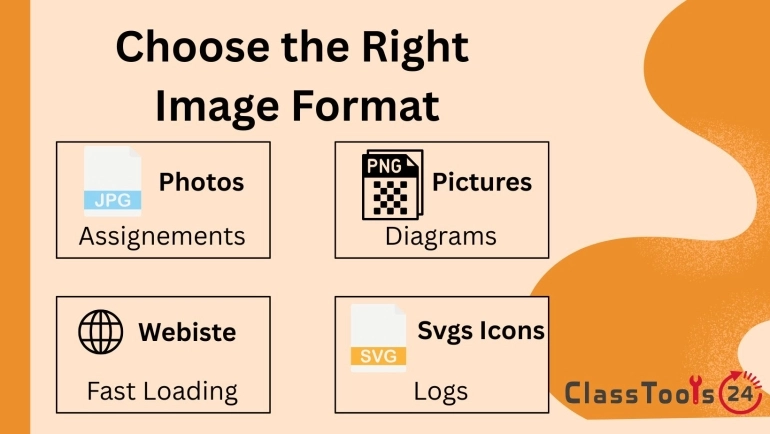
An image converter helps teachers prepare images before placing them into lesson materials. Screenshots and diagrams often work well as PNG because text and lines stay sharp. Photos usually work well as JPG because the format is widely supported and practical for sharing. Images for classroom websites may work better in a web-friendly format when supported.
This preparation saves time. A teacher can build a worksheet, handout, presentation, or classroom newsletter without repeatedly fighting image compatibility issues. If several images need to become one document, the JPG to PDF Converter or PNG to PDF Converter can complete the workflow.
Use Case 3: Student Portfolios
A student portfolio may include photos, screenshots, scanned pages, certificates, art projects, code previews, and presentation images. Because these files often come from different apps and devices, the formats may not be consistent. Some images may load slowly. Others may not preview correctly. A few may not show at all.
Image conversion helps students prepare portfolio files so they display more reliably. Photos can be converted into JPG. Screenshots and diagrams can be saved as PNG. Web portfolio images can be prepared in formats that the publishing platform supports.
This makes the portfolio easier for teachers, classmates, and reviewers to open. It also teaches students a useful digital learning habit: good work should be presented in a format that others can actually view.
Use Case 4: Beginner Developer Projects
Beginner developers often learn image handling the hard way. A project may look fine on the local computer, but after upload, one image breaks or loads slowly. Sometimes the issue is a file path. Other times, the image format is not suitable for the platform or browser workflow.
An image converter helps beginner developers prepare assets more carefully. Photos may be converted to JPG or WEBP. Screenshots may stay clearer as PNG. Simple graphics or icons may be better as SVG when appropriate. This is part of learning real web development: images are not only decoration, they affect compatibility, performance, and user experience.
For class websites, club pages, portfolios, and beginner web assignments, prepared image files make the project feel more complete and professional.
Common Image Formats And Best Uses
| Format | Best Use | School Or Web Example |
|---|---|---|
| JPG | Photos and general sharing | Homework photos, event images, project evidence |
| PNG | Screenshots, diagrams, sharp text, transparency | Worksheet screenshots, labeled diagrams, app examples |
| WEBP | Fast-loading website images | Class blogs, school resource pages, portfolio websites |
| SVG | Simple graphics, icons, logos, scalable visuals | Club logos, badges, simple web graphics |
| GIF | Simple animations or short visual loops | Basic classroom demonstrations or animated examples |
Common Problems This Solves
- iPhone images do not upload to a school platform.
- A Google Classroom or LMS submission rejects the file type.
- A screenshot becomes unclear inside a worksheet.
- A student portfolio shows a broken image preview.
- A school form accepts only certain image formats.
- A classroom presentation contains images from mixed sources.
- A beginner website loads slowly because images were not prepared properly.
- A newsletter image displays differently across devices.
Comparison: Prepared Images Vs Unsupported Files
| Task | With Image Converter | Without Image Converter |
|---|---|---|
| Assignment upload | Students convert images into accepted formats before submitting. | Uploads may fail because the platform rejects the file type. |
| Worksheet creation | Teachers prepare images before adding them to documents. | Images may look blurry, broken, or inconsistent. |
| Portfolio publishing | Images display more reliably across devices. | Some images may not preview or load correctly. |
| Web project | Beginner developers choose better formats for speed and compatibility. | Pages may feel unfinished because image files are poorly prepared. |
| Class communication | Newsletters and resources become easier to send and view. | Mixed formats can create sharing and display problems. |
A Simple Workflow For Better Results
- Decide where the image will be used: assignment, worksheet, slide, website, form, or portfolio.
- Choose the format that fits the task.
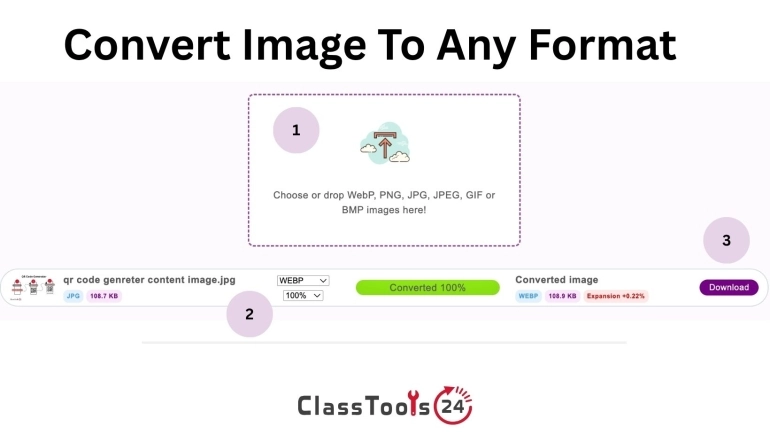
- Convert the image with the Image Converter.
- Open the converted file and check clarity.
- Resize, crop, or compress if the final image still needs adjustment.
This workflow prevents many avoidable classroom technology problems. Students submit cleaner files. Teachers prepare resources faster. Beginner developers learn better asset habits. The image is no longer just saved; it is prepared for the place where it will be used.
Quality, Privacy, And Responsible Use
After conversion, users should always inspect the image. A converted file should keep the important details clear. Handwritten notes, chart labels, diagrams, screenshots, and project evidence should still be readable. If the converted file loses meaning, try another format or start with a better original image.
Users should also check privacy before converting or sharing school images. A classroom photo may include student faces. A screenshot may show names or login details. A scanned page may include personal information. Conversion changes the format, but it does not remove private content.
For images that contain text, the Image to Text Converter may help extract editable text. For understanding file size after conversion, see what image compression means and why image compression matters.
Frequently Asked Questions
Can students use an Image Converter for assignments?
Yes. Students can convert photos, screenshots, scanned work, and project images into formats accepted by school platforms, forms, or LMS uploads.
Can teachers convert screenshots for worksheets?
Yes. Teachers can convert screenshots and diagrams into formats that work better in worksheets, slides, handouts, and classroom resources.
Which format is best for student portfolios?
JPG is useful for photos, PNG is useful for screenshots and diagrams, and WEBP can be useful for web portfolios when the platform supports it.
Can beginner developers use this for websites?
Yes. Beginner developers can convert images into formats that support better browser compatibility, page speed, and visual consistency.
Will converting an image reduce quality?
It can, depending on the format and original file. Always open the converted image and check important details before submitting or publishing.
Should I compress the image after converting?
If the converted image is still too large for upload, email, or a website, use an image compressor before sharing it.
Final Thought
Image conversion helps students, teachers, and beginner developers avoid small file problems that can slow down real work. A student can submit an assignment without fighting an unsupported format. A teacher can build cleaner classroom resources. A beginner developer can publish a more reliable project. When images are compatible, clear, and ready for the platform, digital learning becomes smoother and less frustrating.