Practical ways to convert images for assignments, worksheets, Google Classroom uploads, portfolios, websites, and beginner web projects.
Image Converter Use Cases In Real School Work
A student finishes an assignment, but the school platform refuses the image upload. A teacher has screenshots ready for a worksheet, but the document handles one file format badly. A beginner developer builds a class project website, but some images do not display consistently in the browser. The image itself is not the problem. The format is.
These are common school and beginner web problems. They happen during homework submission, lesson preparation, portfolio building, newsletter design, and simple website projects. The Image Converter helps by changing images into a format that fits the task, so users can keep working without recreating the file from scratch.
This use case focuses on practical situations for students, teachers, and beginner developers. It is not about advanced graphic design. It is about making images compatible, clear, and ready for real classroom and online workflows.
Use Case 1: Student Assignment Uploads
A student takes a photo of handwritten work, a science model, artwork, or a project page. The image opens correctly on the phone, but when the student uploads it to Google Classroom, an LMS, or a school form, the platform rejects the file type. This is especially common when images come from phones, screenshots, or apps that save files in less familiar formats.
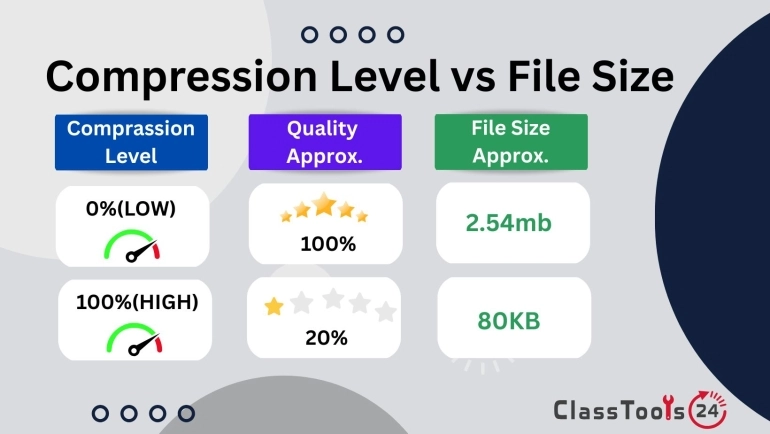
The student can convert the image into a more widely accepted format such as JPG or PNG. After conversion, the file should be opened once to check that the writing, labels, and project details are still visible. If the converted image is too large, the Image Compressor can reduce file size before submission.
This workflow saves time. Instead of retaking the photo or asking the teacher for another submission method, the student can fix the format and submit the work properly.
Use Case 2: Teacher Worksheets And Handouts
Teachers often build worksheets from mixed sources. A worksheet may include screenshots, diagrams, photos, scanned notes, and visuals from approved educational resources. These images may come in different formats, and some may not behave well inside a document editor or worksheet template.
By converting images before placing them into the worksheet, the teacher can make the file more consistent. Screenshots and diagrams may work better as PNG because the text and lines stay sharp. Photos often work well as JPG. If the worksheet later becomes a PDF, consistent image formats can also make the final document easier to manage.
Teachers can combine this with the Image Resizer when an image is too large for the worksheet layout, or the Image Cropper when unnecessary background needs to be removed.
Use Case 3: Student Portfolios
Student portfolios often include many kinds of images: project photos, screenshots, certificates, scanned pages, artwork, and website previews. When these files come from different apps and devices, the portfolio can become inconsistent. Some images may load slowly. Others may not preview correctly. A few may not display at all.
Image conversion helps students standardize their portfolio files. Photos can be converted into JPG, screenshots and diagrams into PNG, and website images into a format that the publishing platform supports. This makes the portfolio easier to view and gives the final work a more polished feel.
A portfolio is not just storage. It is a presentation of learning. When images open correctly and look clear, teachers and classmates can focus on the work instead of the file problem.
Use Case 4: Classroom Newsletters And Announcements
A teacher or school office may prepare a newsletter with event photos, classroom screenshots, club notices, and visual reminders. If the images are inconsistent or unsupported, the newsletter can become difficult to edit or send. Large or incompatible files may also create problems when the newsletter is emailed or uploaded to a class page.
Converting images into practical formats before publishing helps keep the newsletter clean. Photos can become JPG files. Screenshots can become PNG files. Images prepared for online pages can be converted into formats that load well on the web. If the final file is still too heavy, compression can reduce size before sharing.
This is a small preparation step, but it improves how families, students, and staff receive the information.
Use Case 5: Beginner Developer Web Projects
Students and beginner developers often build simple websites for school projects, portfolios, clubs, or practice assignments. Image issues are one of the first problems they meet. A file may work locally but not show correctly after upload. A format may be unsupported by the platform. A large image may make the page slow.
An image converter helps beginners prepare files for the web. A photo can be converted into JPG or WEBP. A logo, icon, or simple graphic may be better as SVG when appropriate. A screenshot or interface example may work better as PNG. Choosing the right format helps the project look more reliable across devices.
This also teaches a useful web development habit: image files are part of performance and compatibility. A good project is not only about code and layout. It also depends on prepared assets.
Common Image Formats And Best Uses
| Format | Best Use | Example In Education |
|---|---|---|
| JPG | Photos and general sharing | Assignment photos, event images, project evidence |
| PNG | Screenshots, diagrams, text-heavy images, transparency | Worksheet images, app screenshots, labeled diagrams |
| WEBP | Web pages and faster-loading online images | Student websites, class blogs, school resource pages |
| SVG | Simple graphics, logos, icons, scalable visuals | Club logos, badges, simple web graphics |
| GIF | Simple animation or short visual loops | Basic animated examples or demonstration visuals |
Comparison: Solving Format Problems The Practical Way
| Situation | Using Image Converter | Without Conversion |
|---|---|---|
| Assignment upload | Student changes the file into an accepted format and submits faster. | Upload may fail because the platform rejects the file type. |
| Teacher worksheet | Images are prepared before being placed into the document. | Unsupported or awkward files can slow lesson preparation. |
| Portfolio page | Images display more consistently across devices and platforms. | Some images may appear broken or load poorly. |
| Newsletter | Photos and screenshots are easier to edit, send, and publish. | Mixed file types can create formatting and sharing problems. |
| Beginner web project | Students learn better asset preparation and compatibility habits. | Pages may feel unfinished because images do not display correctly. |
How To Use The Image Converter In A Workflow
- Decide where the image will be used: assignment, worksheet, slide, website, form, or portfolio.
- Choose the format that fits that purpose.
- Convert the image with the Image Converter.
- Open the converted file and check readability.
- Compress, resize, or crop the image if the final file still needs adjustment.
This workflow is simple, but it prevents many classroom file problems. It also helps students and teachers think more clearly about digital materials. The right file format makes the next step easier, whether that step is submitting, grading, publishing, or presenting.
Quality And Readability Checks
After conversion, always inspect the image. A converted file should not hide the information that matters. If the image contains handwritten work, labels, charts, diagrams, or screenshots, those details must remain readable. If the image is part of a portfolio, it should still represent the work fairly.
If the converted image looks blurry, try a different format or start from a clearer original. If the file is too large, use the Image Compressor. If the dimensions are wrong, use the Image Resizer. If the image contains extra background or private details, crop it before sharing.
This careful check is especially important in graded work. A teacher should not have to guess what a student submitted because a file was converted poorly.
Privacy And Responsible Sharing
Image conversion changes the file format, but it does not remove private information. School images may include student names, faces, grades, login details, classroom boards, or personal documents. Before converting and sharing, users should check what the image contains.
Students should avoid uploading personal information unless the assignment requires it and school policy allows it. Teachers should guide students to share only the content needed for the task. Cropping private details before conversion is often the safest workflow.
For related classroom media preparation, see Image to Text Converter for extracting text from images, and read what image compression means if the final converted image is too large to upload.
Frequently Asked Questions
Can students use an image converter for homework?
Yes. Students can convert images when a school platform, form, or assignment page does not accept the original file format.
Can teachers convert screenshots for worksheets?
Yes. Teachers can convert screenshots into formats that work better in worksheets, slides, handouts, and classroom resources.
Which format is best for student portfolios?
JPG is useful for photos, PNG is useful for screenshots and diagrams, and WEBP can be useful for web-based portfolios when the platform supports it.
Can beginner developers use this for websites?
Yes. Beginner developers can convert images into web-friendly formats so class projects and portfolio pages display more reliably.
Does converting an image reduce quality?
It can, depending on the format and source image. Always open the converted file and check important details before submitting or publishing.
Should I compress the image after converting?
If the converted image is still too large for upload, email, or a web page, compress it before sharing.
Final Thought
Image conversion is useful because it removes a quiet but common barrier in digital school work: the file exists, but it is not in the right format. Students can submit work with fewer upload problems. Teachers can prepare resources with less friction. Beginner developers can build cleaner web projects. When images are compatible, clear, and ready for the platform, the learning workflow feels smoother for everyone.