A practical guide for teachers and students who want cleaner files, easier submissions, and less confusion during digital schoolwork.
A teacher opens a folder before class and finds five versions of the same worksheet. One file is called final.pdf, another is called final-new.pdf, and a third is called final-actually-use-this-one.pdf. A student tries to upload homework but cannot remember whether the photo is in the Downloads folder, the phone gallery, or inside a chat message from yesterday. These small digital problems do not look serious at first, but they quietly take time away from teaching, learning, checking work, and helping students who need support.
Classroom digital work becomes messy for ordinary reasons. Students use phones, laptops, tablets, school portals, email, cloud drives, and messaging apps. Teachers prepare files in one format, receive student work in another format, and often need to share the same material across different platforms. A worksheet may begin as a document, become a PDF, get photographed by a student, and then return as an image file. When names, folders, formats, and instructions are unclear, even a simple assignment can become harder than it needs to be.
The goal is not to make every classroom run like a technology department. Most teachers and students do not need a complicated system. They need habits that are easy to remember, file names that make sense, formats that open correctly, and a few checks before something is uploaded or shared. Digital organization should reduce stress, not create another task list that nobody can maintain after the first week.
This guide explains practical ways to keep classroom digital work simple, clear, and organized. It is written for real school situations: assignment uploads, lesson materials, student photos, project files, PDFs, classroom images, study notes, and shared resources. The ideas are simple enough for students to follow and flexible enough for teachers to adapt to different grade levels, subjects, and school platforms.
Start With Clear File Names
A clear file name saves more time than most people expect. When a teacher receives thirty files named image.jpg, document.pdf, or homework final, checking work becomes slower. The teacher has to open each file to see who submitted it and what it belongs to. Students also lose time because they cannot easily find their own work later.
A better file name includes three useful details: student name, task name, and date or class period. For example, a file named Amina-science-poster-March12.pdf is much easier to understand than poster-final.pdf. For group projects, include the group name or topic. For repeated assignments, include the week number or unit name.
Teachers can help by giving students a naming pattern before the task begins. This does not need to be formal. A simple instruction such as “Save your file as Name-Assignment-Topic” can prevent a lot of confusion. Younger students may need the pattern written on the board. Older students can include it in the assignment instructions.
Use Folders That Match Classroom Work
Folders work best when they match how people actually search for files. A teacher may think by class, unit, or week. A student may think by subject, assignment, or due date. The folder structure should follow that natural habit.
For teachers, a useful structure might look like this:
- Class name
- Unit or topic
- Lesson materials
- Student handouts
- Submission examples
- Images and media
For students, a simpler structure is often better:
- Subject folder
- Assignments folder
- Projects folder
- Submitted work folder
- Images and screenshots folder
The important part is consistency. A folder system that is used every day is better than a perfect system that students forget after two lessons. If a student only remembers one habit, it should be this: put school files in the school folder immediately instead of leaving them in Downloads.
Keep One Final Version
Version confusion is one of the most common digital classroom problems. Students create several copies while editing. Teachers revise a worksheet, rename it, download it again, and share the wrong copy by mistake. Sometimes the outdated version is the one students complete.
A simple rule helps: keep drafts clearly separate from final files. Draft files can include the word draft. Final files should include the word final only when they are truly ready to submit or share. Once the final file is uploaded, move older drafts into a draft folder or delete unnecessary copies.
For students, this habit is especially useful before submitting assignments. They should open the final file once, check that it is the correct version, and then upload it. This short check prevents the common mistake of submitting an empty template, an old draft, or a screenshot instead of the completed work.
Choose File Formats That Fit the Task
Not every file format is right for every classroom task. A document format is useful while editing, but a PDF is often better when the layout must stay fixed. An image file is useful for photos, posters, and screenshots, but it may be difficult to read if the image is too small, too large, sideways, or blurry.
Teachers can reduce confusion by naming the expected format in the instructions. Instead of saying “upload your work,” say “upload one PDF” or “upload one clear JPG image.” Students then know what the platform expects, and they can check the file before submission.
When students need to prepare files, related ClassTools24 resources can help. A student who needs to turn a photo into a document can use JPG to PDF or PNG to PDF. A teacher preparing classroom images can use Image Resizer when an image is too large for a slide or worksheet. If a file is too heavy to upload, Image Compressor can make it easier to share while keeping the image readable.
Make Student Submissions Easy to Check
A clean submission is not only about the file. It is also about what the teacher sees when opening it. A teacher should not have to rotate every photo, zoom into every blurry page, or guess which student submitted which file. Students can learn a simple pre-submit routine that improves the quality of their work.
Before uploading, students should check five things:
- The file opens correctly.
- The name of the file makes sense.
- The work is readable from top to bottom.
- The image or document is not sideways.
- The correct file is attached to the correct assignment.
This routine is short, but it prevents many avoidable problems. It also teaches students responsibility for digital work. They learn that uploading a file is not the final step; checking the file is part of completing the assignment.
Handle Images Carefully
Images create many classroom workflow problems because they come from different sources. A student may take a photo of a notebook page. A teacher may download an image for a lesson slide. A group may create a poster in another app and export it as an image. These images can be too large, too small, rotated incorrectly, or saved in a format the school platform does not accept.
For classroom use, clarity matters more than decoration. If an image contains writing, labels, diagrams, faces, or project evidence, those details must remain readable. Students should avoid heavy filters, extreme cropping, and screenshots that cut off important information. Teachers should remind students that a clear image is part of the assignment quality.
When an image is sideways, a rotate tool can fix it before submission. When an image is too wide or too tall, resizing can help it fit the page. When the file size is too large, compression can help with uploads. These small corrections are often faster than resubmitting work after the teacher asks for a clearer file.
Use PDFs When Layout Matters
PDFs are useful because they keep layout stable. A worksheet, certificate, report, reading passage, or project page usually looks the same when opened on different devices. This is helpful in classrooms where students and teachers may use different browsers, phones, tablets, or computers.
PDFs are especially useful for final submissions. If a student completes a document and sends it as an editable file, spacing may change when the teacher opens it. A PDF reduces that risk. It is also easier for teachers to print, annotate, store, or share with parents when needed.
That said, PDFs should still be checked. Students should open the PDF before uploading it. They should make sure no page is missing, the text is readable, and the file is not the wrong assignment. A PDF is helpful only when it contains the right content.
Keep Instructions Short and Specific
Digital work becomes clearer when instructions are short, specific, and visible. Students should not have to guess the format, file name, deadline, or upload location. A strong instruction might say:
Upload one PDF named Name-Science-Poster. Make sure the file opens and all text is readable before submitting.
This instruction tells students what to submit, how to name it, and what to check. It is much easier to follow than a long paragraph with several hidden requirements. Teachers can reuse the same instruction pattern for many tasks, changing only the assignment name and file type.
Build A Small Weekly Cleanup Habit
Digital organization works better when cleanup happens regularly. Waiting until the end of the term usually means too many files, too many downloads, and too many forgotten drafts. A five-minute weekly cleanup can keep things manageable.
Students can use Friday or the end of a project day to move files into folders, delete duplicates, rename unclear files, and save final submissions. Teachers can do a similar cleanup for lesson materials, downloaded student examples, and shared resources.
This habit is not about being perfect. It is about reducing future confusion. A student who can find last week's work quickly is better prepared for revision, reflection, and exam study. A teacher who can find the correct worksheet quickly has more time for instruction.
Protect Student Privacy
Classroom digital work often includes private information. Student names, faces, grades, login details, school documents, and personal writing may appear inside files. Organizing files does not remove private information. Converting, resizing, or compressing a file also does not remove personal details that are visible inside the content.
Before sharing files outside the classroom, teachers and students should check what is visible. A screenshot may show a student name. A photo may include faces in the background. A PDF may include comments, names, or school information. If privacy matters, remove or cover sensitive information before sharing.
This is especially important for public websites, newsletters, social posts, and shared project galleries. A good digital workflow includes privacy checks, not only formatting checks.
How ClassTools24 Fits Into This Workflow
ClassTools24 is useful when a classroom task needs a quick file or content adjustment. The site is not a replacement for good instructions, careful checking, or teacher feedback. Its role is practical: help students and teachers fix common file problems without needing complicated software.
A student may resize an image before uploading a project. A teacher may compress images before adding them to a worksheet. A beginner may convert text or files while learning how digital formats work. These tasks are small, but they often decide whether a classroom workflow feels smooth or frustrating.
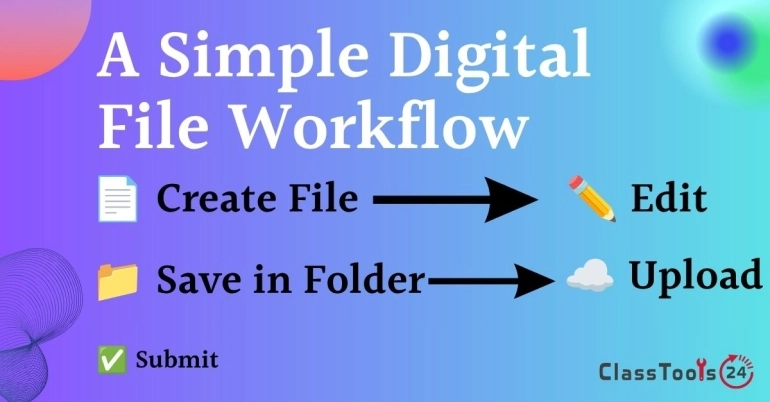
The best approach is simple: create the work, check the work, adjust the file if needed, and submit or share the final version. Tools should support the learning task, not distract from it.
Final Thought
Simple classroom digital work does not happen by accident. It comes from clear file names, useful folders, sensible formats, short instructions, and small checking habits. When students know what to submit and teachers receive files that open correctly, the whole classroom saves time.
The most useful system is one that people can actually follow during a busy school day. Keep it clear. Keep it repeatable. Teach students the habits once, then use them again and again. Over time, digital work becomes less stressful, submissions become easier to check, and classroom time can stay focused on learning instead of file problems.