Practical ways teachers and students use simple digital tools for projects, lessons, and daily classroom tasks.
When Small Classroom Tasks Start Taking Too Much Time
A teacher prepares a worksheet, but one image is too large for the page. A student finishes a project, but the file format is not accepted by the school platform. A group needs a fair way to choose presentation order. A class newsletter needs a QR code so families can open a form quickly. None of these problems are the main lesson, but each one can slow the lesson down.
This is where online classroom tools become useful. They are not a replacement for teaching, planning, feedback, or student thinking. Their value is more practical. They remove small blocks that interrupt learning. When a teacher can resize an image, create a QR code, count words, convert a file, or generate a certificate quickly, more time stays available for instruction and student support.
Students also benefit from simple tools because many school tasks now involve digital files. They submit photos, create slides, build posters, write essays, make portfolios, and share links. A student may understand the assignment but still struggle with the file preparation. Online tools help them complete the technical step without needing advanced software.
The best use of online tools is thoughtful and ordinary. A teacher chooses a tool because it solves a real classroom problem. A student uses a tool because it helps finish a task cleanly. The goal is not to add more technology. The goal is to make the work easier to complete, check, submit, and share.
Why Online Tools Matter In Real Classrooms
Classroom time is limited. A lesson may be only forty minutes, and a teacher has to explain the task, answer questions, manage materials, check understanding, and keep students moving. Small technical problems can eat that time quickly. A broken image, unreadable file, missing dice, long link, or oversized upload may seem minor, but these moments add up across a school week.
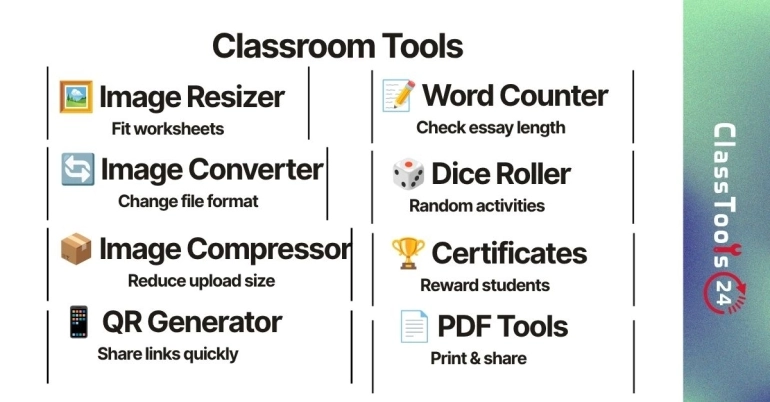
Online tools help because they make common digital tasks faster. A Image Resizer can make a picture fit a worksheet. An Image Compressor can reduce a photo before upload. A QR Code Generator can turn a long classroom link into something students scan from the board. A Word Counter can help students check essay length before submission.
These tools also support independence. Instead of waiting for the teacher to fix every file issue, students can learn a simple preparation routine. They can check the format, resize the image, compress the file, and test the upload. That does not only save time. It builds practical digital confidence.
Use Case 1: Preparing Visuals For Worksheets
Situation: A teacher is preparing a science worksheet with diagrams, photos, and labels. The content is ready, but the images come from different sources. One diagram is very wide, one photo is too large, and one screenshot becomes blurry after being pasted into the document.
Problem: The worksheet starts to look uneven. Students may struggle to read the labels, and the teacher spends too much time dragging image corners inside the document editor. This can distort the image or make the file heavier than needed.
Solution: The teacher prepares the images before adding them to the worksheet. The Image Resizer adjusts dimensions, the Image Cropper removes unnecessary background, and the Image Converter changes the format when needed.
Result: The worksheet looks cleaner, the images support the lesson, and students can focus on the activity instead of trying to understand poorly placed visuals.
Use Case 2: Helping Students Submit Assignments
Situation: A student photographs handwritten homework and tries to upload it to a classroom platform. The image is clear on the phone, but the upload fails or takes too long.
Problem: The student may think the assignment is wrong, the platform is broken, or the teacher will not receive the work. Often the real issue is file size or format.
Solution: The student checks the image before uploading. If the file is too large, the Image Compressor makes it lighter. If the format is not accepted, the Image Converter changes it to a common format such as JPG or PNG. If the image includes too much desk or background, cropping can make the work easier to read.
Result: The assignment uploads more smoothly, the teacher receives a readable file, and the student learns a practical habit for future submissions.
Use Case 3: Making Links Easier To Share
Situation: A teacher wants students to open a quiz, form, reading page, or project instruction sheet. The link is long and difficult to type correctly from the board.
Problem: Students mistype the link, ask the teacher to repeat it, or lose time searching through messages. In a busy classroom, even a few minutes of link confusion can interrupt the lesson.
Solution: The teacher uses the QR Code Generator to create a QR code for the resource. The code can be placed on a slide, printed on a worksheet, or displayed at a learning station.
Result: Students open the correct resource faster. The teacher spends less time managing access and more time supporting the learning task.
Use Case 4: Supporting Writing And Review
Situation: A student is writing an essay, reflection, summary, or project explanation. The teacher gives a target length, but the student is not sure whether the writing is too short or too long.
Problem: Students may guess the length, count manually, or spend time formatting instead of improving the writing. Teachers may also need quick checks when preparing prompts, examples, or short reading passages.
Solution: A Word Counter helps students check length before submission. It can also help teachers prepare classroom materials that fit a lesson time limit.
Result: Students become more aware of writing expectations. Teachers get cleaner submissions, and students can spend more attention on clarity, evidence, and structure.
Use Case 5: Creating Fair Classroom Choices
Situation: A teacher needs to choose groups, assign turns, pick a presenter, or make a quick classroom decision without making students feel selected unfairly.
Problem: Manual choices can feel personal, especially in group activities. Students may argue about order, teams, or who goes first.
Solution: Simple random tools such as a Dice Roller, Wheel of Names, or Random Name Generator can make the process visible and fair.
Result: Decisions move faster. Students can see that the result came from chance, and the teacher avoids spending extra energy on small classroom disputes.
Use Case 6: Preparing Certificates And Classroom Documents
Situation: A teacher wants to recognize student effort after a reading challenge, classroom event, project week, or club activity.
Problem: Making certificates manually can take time, especially when many names are involved. The teacher may also need documents in a shareable format.
Solution: A School Certificate Generator helps create recognition materials quickly. File tools such as JPG to PDF, PNG to PDF, and PDF converters can help prepare documents for sharing or printing.
Result: Students receive a polished certificate, and the teacher spends less time on repetitive formatting.
How This Fits Into A Real Classroom Workflow
- Plan the lesson or assignment first.
- Identify the small technical tasks that may slow students down.
- Prepare images, files, links, or documents before class when possible.
- Show students the tool only when it supports the task.
- Ask students to check their final file before submitting or sharing.
- Keep the focus on learning, not on the tool itself.
This workflow keeps technology in the right place. The tool supports the lesson, but the lesson remains the main event. A QR code is useful because it opens the resource. A compressor is useful because it helps a file upload. A word counter is useful because it helps writing meet the requirement.
Common Problems These Tools Solve
- Images are too large for worksheets or slides.
- Assignment uploads fail because the file is too heavy.
- Students cannot open a long classroom link.
- Slides look messy because images have different sizes.
- Students need to check word count before submission.
- Teachers need quick certificates or classroom documents.
- Groups need a fair way to choose turns or presentation order.
- School files need to be converted into a more usable format.
Comparison: With And Without Online Tools
| Classroom Task | Using Online Tools | Without Online Tools |
|---|---|---|
| Sharing a long link | A QR code lets students open the page quickly. | Students may mistype the link or wait for help. |
| Preparing worksheet images | Images can be resized, cropped, and converted first. | The worksheet may look uneven or hard to read. |
| Submitting photo assignments | Files can be compressed and checked before upload. | Uploads may fail or take too long. |
| Checking essay length | Students can check word count before submitting. | Students may guess or count manually. |
| Choosing groups or turns | Random tools make choices visible and fair. | Students may argue about order or selection. |
Quality And Trust In Classroom Tool Use
Teachers and students should still check results after using any online tool. A converted image should be opened once. A compressed file should still be readable. A QR code should be scanned before class begins. A certificate should be checked for correct names. A random result should be used fairly and explained clearly.
Good classroom technology is not about using the most tools. It is about choosing the right tool for the right moment. If a tool saves time without reducing quality, it belongs in the workflow. If it distracts from the task, it should wait.
Privacy Reminder For Students And Teachers
Classroom files can contain private information. Student names, faces, grades, login details, school documents, addresses, and personal photos should be handled carefully. Changing a file format, compressing an image, or creating a QR code does not remove private information from the content itself.
Before uploading or sharing any file, check what is visible. Crop unnecessary background, remove private details when appropriate, and avoid using real student information in public examples. A tool can help prepare a file, but the user is still responsible for checking what the file contains.
Final Thought
Online classroom tools are most helpful when they solve ordinary problems quietly. They help teachers prepare clearer materials, help students submit work successfully, and help classrooms move through digital tasks with less frustration. Used well, they do not make lessons feel more complicated. They make the practical parts of learning easier to manage.
The strongest classroom technology is the kind that gives time back. A few minutes saved on file preparation, link sharing, image editing, or document formatting can become more time for explanation, feedback, discussion, and practice. That is where these tools earn their place.