A practical guide to fixing unsupported image formats, preparing classroom files, and choosing the right format for assignments, websites, and digital projects.
A Practical Image Converter Guide For School And Web Work
A student uploads a project image, but the classroom platform rejects the file. A teacher adds a screenshot to a worksheet, but the image looks wrong in the document. A beginner developer publishes a portfolio page, but one image does not display correctly after upload. In each case, the image may be perfectly useful. The format is the part causing trouble.
This guide explains how students, teachers, and beginner developers can use the Image Converter to solve practical file-format problems. It focuses on real workflows: assignment submissions, worksheets, classroom slides, Google Classroom uploads, LMS tasks, student portfolios, school websites, and beginner web projects.
Image conversion is not just a technical file change. In school work, it can be the difference between a finished assignment and a failed upload, a clean worksheet and a broken image, or a smooth portfolio and a page that looks unfinished.
When Students Need Image Conversion
Students often work across phones, tablets, school laptops, and online platforms. A photo taken on one device may not be accepted on another platform. An iPhone image may need to become JPG. A screenshot may need to become PNG. A project image may need a format that works better in a presentation or portfolio.
A common example is a student submitting science project evidence. The student photographs a model, lab result, or handwritten observation. The file opens on the phone, but the school portal rejects it. Instead of taking the photo again, the student can convert it into a supported format, open the converted file to check readability, and then submit it.
This workflow also helps with art submissions, notebook scans, history presentations, club posters, and digital portfolios. The student keeps the work, changes the format, and avoids wasting time on a file compatibility issue.
When Teachers Need Image Conversion
Teachers prepare learning materials from many different sources. A lesson might include screenshots, diagrams, scanned examples, classroom photos, maps, charts, or student work samples. These images may not all behave the same way inside a worksheet, slide deck, newsletter, or classroom website.
Converting images before placing them into teaching materials can make the process smoother. Screenshots and diagrams often work well as PNG because sharp text and lines stay clearer. Photos often work well as JPG because they are widely supported and easier to share. Images for websites may need a format that loads faster and displays reliably.
For example, a teacher preparing a digital worksheet may collect three screenshots, two photos, and one scanned diagram. Converting them into practical formats before adding them to the worksheet keeps the file more consistent. If the worksheet later becomes a PDF, the teacher can use the JPG to PDF Converter or PNG to PDF Converter to complete the document workflow.
When Beginner Developers Need Image Conversion
Beginner developers often learn that websites are not only built with code. Images matter too. A project page may look fine locally, but after uploading it, one image may fail to display. Sometimes the issue is the path, but sometimes the format is not ideal for the platform or browser workflow.
Image conversion helps beginners prepare assets more carefully. Photos can become JPG or WEBP. Screenshots can become PNG. Simple graphics may be better as SVG when appropriate. Choosing the right format can improve compatibility, page speed, and visual consistency.
This is a useful habit for students building school websites, club pages, portfolio projects, or beginner web assignments. Prepared images make projects feel more complete and more reliable across devices.
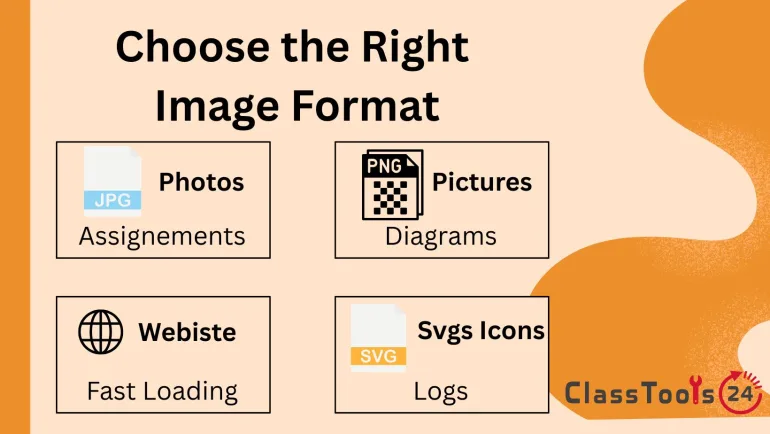
Common Image Formats And Best Uses
| Format | Best Use | School Or Web Example |
|---|---|---|
| JPG | Photos and general sharing | Assignment photos, event pictures, project evidence |
| PNG | Screenshots, diagrams, text-heavy images, transparency | Worksheet screenshots, labeled diagrams, UI examples |
| WEBP | Fast-loading website images | Class pages, blogs, student portfolio websites |
| SVG | Simple graphics, logos, icons, scalable visuals | Club logos, badges, interface icons, simple diagrams |
| GIF | Simple animations or short loops | Basic demonstration visuals or animated examples |
Common Image Compatibility Problems
- An iPhone image does not upload because the platform does not accept the original format.
- A screenshot is accepted but becomes blurry after being placed in a document.
- A school form accepts only specific image formats.
- A presentation file becomes inconsistent because images come from different sources.
- A student portfolio shows broken image previews.
- A website image loads slowly because the format is not web-friendly.
- A PDF workflow becomes messy because images were not prepared first.
- A teacher newsletter uses images that display differently across devices.
How To Choose The Right Format
Start by asking where the image will be used. If it is a photo for an assignment, JPG is usually a practical choice. If it is a screenshot with small text or interface labels, PNG is often better. If it will be used on a website, WEBP may help with loading speed when supported. If it is a simple icon or logo, SVG can be useful because it scales cleanly.
Then think about the audience. A teacher reviewing assignments needs clear evidence. A student presenting slides needs visuals that display properly. A parent opening a newsletter needs images that load without delay. A website visitor needs a page that feels responsive. The right format depends on the task and the viewer.
After converting, always open the file once. Check text, labels, diagrams, faces, and project details. If the image is too large after conversion, use the Image Compressor. If it is too wide or tall for the layout, use the Image Resizer. If private or unnecessary content is visible, use the Image Cropper.
Comparison: Better Workflow With Image Conversion
| Task | With Image Conversion | Without Image Conversion |
|---|---|---|
| Assignment upload | Students convert into a supported format before submitting. | Uploads may fail because the platform rejects the file type. |
| Worksheet creation | Teachers prepare images before adding them to documents. | Images may display poorly or require repeated editing. |
| Student portfolio | Images display more consistently across platforms. | Some files may not preview correctly. |
| Website project | Developers choose formats that support speed and compatibility. | Pages may load slowly or show broken assets. |
| Classroom communication | Newsletters and resources are easier to open and share. | Mixed formats may create sending or display issues. |
Workflow Example: From Phone Photo To School Submission
A student photographs a handwritten math solution on a phone. The image is clear, but the school platform rejects the upload. The student converts the image to JPG, opens the converted file, checks that the writing is still readable, and then uploads it. If the file is still too large, compression makes it lighter before submission.
This is a small workflow, but it prevents a common classroom delay. The teacher receives a readable file, and the student does not lose time trying to troubleshoot the platform.
Workflow Example: From Screenshot To Worksheet
A teacher captures a screenshot of an online simulation for a science worksheet. The screenshot includes labels and small interface text, so clarity matters. The teacher converts the image to PNG, crops extra browser space if needed, and places it into the worksheet. The final image stays readable for students.
This is better than inserting a random file and adjusting it repeatedly. Preparing the image first keeps the worksheet cleaner and saves time during lesson preparation.
Workflow Example: From Project Image To Website
A beginner developer builds a student project page with photos and screenshots. Some files are large, and some are not ideal for the web. The student converts photos into web-friendly formats, keeps screenshots sharp, compresses large files, and checks the page on mobile.
The result is not only a better-looking page. It is a better learning experience. The student begins to understand how digital assets affect performance, compatibility, and user experience.
Quality, Trust, And Responsible Sharing
Image conversion should protect the purpose of the image. If a converted file becomes blurry or loses important detail, it is not ready. This matters for graded assignments, teacher resources, portfolios, and web projects. A file that opens successfully still needs to communicate clearly.
Users should also check privacy before converting or sharing school images. A classroom photo may include student faces. A screenshot may include names or login details. A scanned page may include personal information. Conversion changes the format, but it does not remove private content.
For images that contain text, students and teachers can also use the Image to Text Converter when they need editable text. For understanding file size and optimization, see what image compression means and why image compression matters.
Frequently Asked Questions
Can students use an Image Converter for school submissions?
Yes. Students can convert photos, screenshots, scanned work, and project images into formats accepted by school platforms, forms, or LMS uploads.
Can teachers convert images for worksheets?
Yes. Teachers can convert screenshots, diagrams, and classroom images into formats that work better in worksheets, slides, handouts, and digital resources.
Which image format is best for websites?
WEBP is often useful for websites when supported. JPG works well for photos, PNG is better for screenshots and sharp graphics, and SVG is useful for simple scalable graphics.
Will converting an image reduce quality?
It can, depending on the format and source file. Always open the converted image and check important details before submitting, printing, or publishing.
Can beginner developers use this for portfolio projects?
Yes. Beginner developers can convert images into more suitable formats for portfolios, class websites, club pages, and web design practice projects.
Should I resize or compress after converting?
If the image dimensions are too large, resize it. If the file size is too heavy, compress it. Conversion fixes format compatibility, while resizing and compression fix size problems.
Final Thought
Image conversion helps school and web work feel less fragile. Students can submit files with fewer upload problems. Teachers can build cleaner resources. Beginner developers can publish more reliable pages. When the format fits the task, images stop being a technical obstacle and become what they were meant to be: useful visual support for learning, communication, and digital projects.
 This article is about
Image Converter
Open the tool
This article is about
Image Converter
Open the tool