
Convert PowerPoint slides to PDF for easy classroom sharing, mobile reading, printing, and assignment submission.
Introduction
A student may spend hours preparing a presentation for a science project, group assignment, or class report, only to face a problem at the final step: the PowerPoint file does not open properly for everyone. One classmate may be using a phone without PowerPoint installed, another may see broken fonts, and the teacher may receive a file that looks different from the original version. This can be stressful, especially when the presentation is ready but the file format creates problems before submission or review.
Teachers face the same issue in everyday classroom work. A teacher may prepare lecture slides for a lesson and share them with students through email, a learning platform, or a class group. Some students can open the file, while others struggle because their device does not support PPT or PPTX files. On mobile phones, PowerPoint files can be difficult to read, slow to load, or hard to navigate. When students only need to review the information, a PDF is often much easier.
The PowerPoint to PDF Converter on ClassTools24 helps solve this common problem by turning presentation files into readable PDF documents. PDF files are easier to open on phones, tablets, laptops, and school computers. They keep the slide layout fixed, so text, images, tables, and headings stay in the same position. For students and teachers, this means less confusion, fewer file complaints, and a smoother way to share learning material.
What This Tool Does
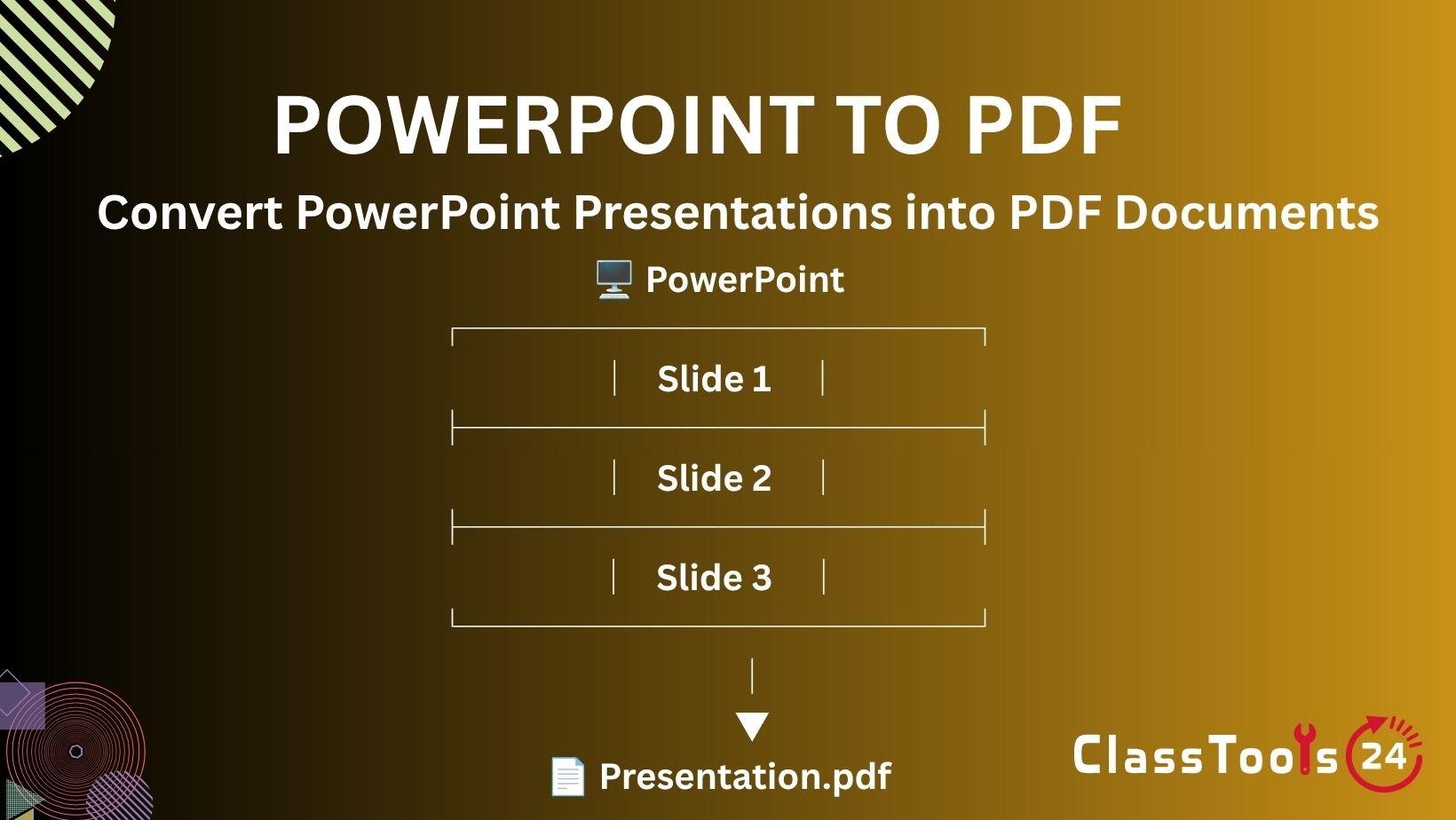
The PowerPoint to PDF Converter lets you upload a PPT or PPTX file and convert it into a PDF document directly in your browser. Instead of asking students or classmates to install PowerPoint software, you can share a PDF file that opens easily on most devices. This is useful for school presentations, college reports, teaching slides, workshop material, project summaries, and revision notes.
The tool keeps the original structure of your slides as much as possible. Your headings, images, colors, diagrams, and slide order remain organized in the final PDF. This matters because presentations are often designed carefully. A student may place images beside text for a project explanation, or a teacher may create visual slides for a lesson. If the layout changes, the meaning can become unclear. Converting to PDF helps preserve that work in a stable format.
The process is simple. Choose your PowerPoint file, convert it, and download the PDF. There is no signup, no complicated setup, and no need to install extra software. You can also use related tools when preparing school work, such as Word To PDF for written reports, Image Compressor for reducing image size before adding pictures to slides, QR Code Generator for linking resources, and Random Group Generator for classroom activities. Together, these tools support a smoother student and teacher workflow.
Use Cases
1. Opening PPT files on mobile phones
Situation: A student receives a PowerPoint presentation from a teacher and wants to read it on a mobile phone while traveling home. Problem: The phone does not have PowerPoint installed, or the file opens slowly and looks uncomfortable on the small screen. Some slides may not load properly, which makes revision difficult. Solution: The student converts the PPT file into PDF using the PowerPoint to PDF Converter. Result: The slides become easier to open, scroll, read, and share. The student can review the lesson anywhere without needing special software.
2. Submitting class presentations
Situation: A student completes a presentation for a classroom assignment and needs to upload it to a school portal. Problem: The teacher may use a different device, and the PowerPoint file may not display exactly as designed. Fonts, spacing, or images can move, which may affect the final impression. Solution: The student converts the presentation into PDF before submission. Result: The teacher receives a clean file that opens easily and keeps the design consistent, making the assignment easier to review and grade.
3. Sharing group project slides
Situation: A group of students works together on a history, science, or business studies presentation. Problem: When the PowerPoint file is shared in a chat group, some members cannot open it, while others accidentally edit the file or save different versions. This creates confusion close to the deadline. Solution: The final version is converted into PDF and shared with everyone. Result: Each group member sees the same final presentation, can review it quickly, and avoids version mix-ups before presenting in class.
4. Printing teacher lesson slides
Situation: A teacher prepares PowerPoint slides for a lesson and wants to print them as handouts for students. Problem: Printing directly from PowerPoint may create layout issues, missing margins, or unexpected spacing depending on the printer settings. Solution: The teacher converts the slides into PDF first. Result: The printed handouts look more stable and organized. Students receive readable notes that match the lesson slides, making it easier to follow the topic during class and revise later.
5. Sending presentations by email
Situation: A student or teacher needs to send presentation slides to another person through email. Problem: Some recipients may not have the right software to open PPT files, and large presentation files can be inconvenient to handle. Solution: Convert the PowerPoint file to PDF before sending it. Result: The recipient can open the file quickly on almost any device. The PDF format also feels more polished for formal sharing, such as sending reports, seminar slides, or project summaries.
6. Preparing study material for exams
Situation: A teacher shares multiple PowerPoint files during a semester, and students want to organize them for exam revision. Problem: Managing many PPT files can be messy, especially on mobile devices. Students may forget which file belongs to which topic or struggle to open files later. Solution: Students convert the slides into PDF format and save them in folders by subject or chapter. Result: The study material becomes easier to store, search, open, and revise before exams.
7. Creating resources for classroom activities
Situation: A teacher designs activity instructions in PowerPoint, including images, steps, and discussion prompts. Problem: Students may need a version that can be viewed quickly during group work without editing the original slides. Solution: The teacher converts the activity slides to PDF and shares the file with the class. Result: Students can follow the instructions on any device, while the original PowerPoint remains safe. The teacher can also use Random Group Generator to create teams and QR Code Generator to share the PDF link quickly.
Real-World Example
Imagine a teacher preparing a lesson on environmental pollution for a middle school class. The teacher creates a PowerPoint presentation with key points, images, statistics, and a short activity at the end. The slides look clear on the teacher’s laptop, but the teacher knows that students will later review the lesson on different devices. Some students use phones, some use tablets, and a few may use shared family computers. Sending only the PowerPoint file could create problems because not every student has the correct software.
Before sharing the lesson, the teacher uses the PowerPoint to PDF Converter on ClassTools24. The PPTX file is converted into a PDF, keeping the slide order and visual structure easy to follow. The teacher then uploads the PDF to the class group and also prints a few copies for students who prefer paper notes. Now every student can open the same material without worrying about PowerPoint access.
A student who missed the class opens the PDF on a mobile phone and reads through the lesson during the evening. Another student prints the PDF and highlights important points for revision. During the next class, the teacher uses the same PDF as a reference while students discuss the activity questions. This simple conversion improves the whole workflow. The teacher saves time, students avoid file problems, and the lesson material becomes easier to reuse, share, and study.
How This Tool Compares to Other Tools
Many online converters can change PowerPoint files into PDF, but some are confusing, slow, or filled with unnecessary steps. ClassTools24 is built for practical school and classroom needs. It focuses on quick access, simple use, and clear results so students and teachers can finish their work without wasting time on signups or complex settings.
| Feature | ClassTools24 | Typical Tools |
|---|---|---|
| Free to Use | Free for everyday student and teacher tasks | May limit free conversions or require payment |
| No Signup | No account required before converting files | Often asks users to register or log in |
| Speed | Fast conversion for quick classroom work | May include queues, ads, or delays |
| Ease of Use | Simple upload, convert, and download flow | Can include extra settings or confusing steps |
| Privacy | Designed for safe and practical file handling | Policies may be unclear or hard to find |
| Education Focus | Useful for assignments, lessons, study notes, and handouts | Often made for general business use only |
FAQs
Can I convert both PPT and PPTX files?
Yes, you can convert common PowerPoint presentation files, including PPT and PPTX, into PDF format.
Do I need PowerPoint installed?
No. The converter works online, and the final PDF can be opened without PowerPoint software.
Is this PowerPoint to PDF tool free?
Yes, it is free to use and does not require signup for basic conversion.
Will my slide design stay the same?
The tool is designed to keep your slide layout, text, images, and order stable in the converted PDF.
Can students use it for assignment submission?
Yes. Students can convert presentation files to PDF before uploading or emailing assignments.
Why is PDF better for sharing slides?
PDF files are easier to open on phones, tablets, laptops, and school computers, making them better for quick reading and sharing.


